Tags can be applied to images, posts, accounts and clusters.
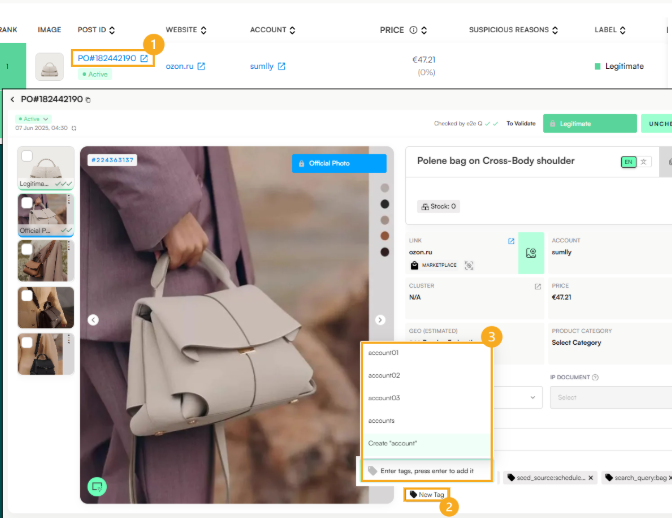
Click on the Post ID to open the post in a new tab.
Select “New Tag”.
Select the tag(s) (if the tag you are looking for does not exist, you can immediately create it).
Note: To remove any applied tags, click the “X” icon next to each active tag.
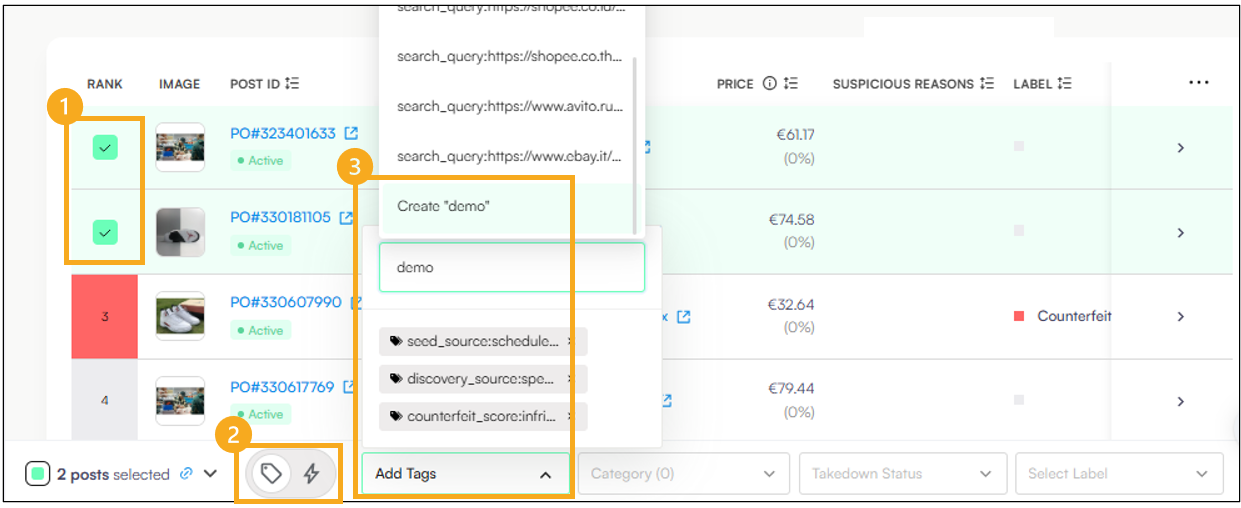
Multi-select the listings you want to tag.
Navigate to the footer and toggle the Tag Icon: ON.
Open the Add Tag dropdown menu and select the tag(s) (if the tag you are looking for does not exist, you can immediately create it).
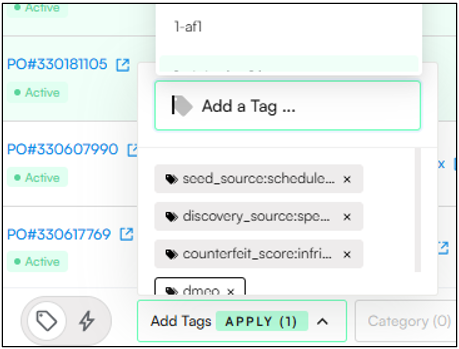
Click Apply.
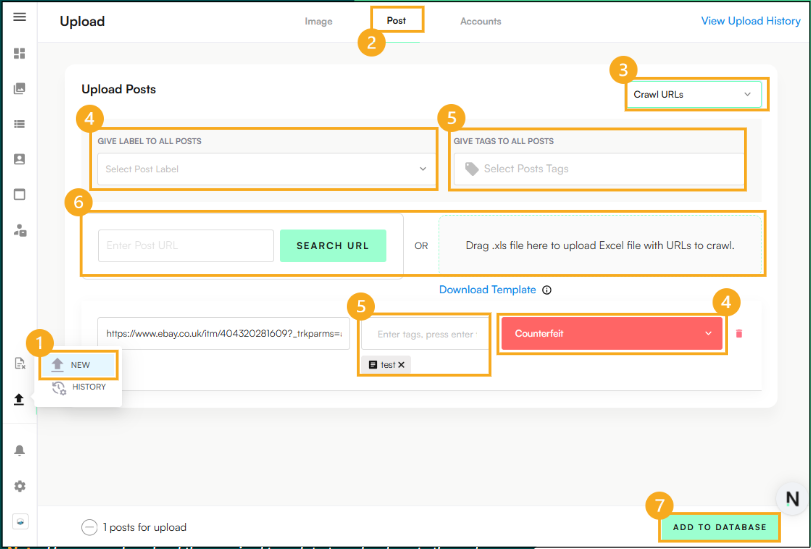
Click the Upward Arrow on the navigation panel and select “New”.
Select the “Post” tab.
Select Crawl URLs to have the system scrape the URLs OR select “Manual Upload” to add all the details about a post.
Select the Label you want to apply to all the posts OR select specific labels for each post individually (i.e. counterfeit or copyright abuse).
Select all the Tags you want to apply to all posts OR select specific tags for each post individually.
Users will have to select one of the following:
• Enter the post URL on the left.
OR
• Drag and drop an Excel file with all posts.
Click “Add to Database” once all posts have been uploaded, tagged and labelled.