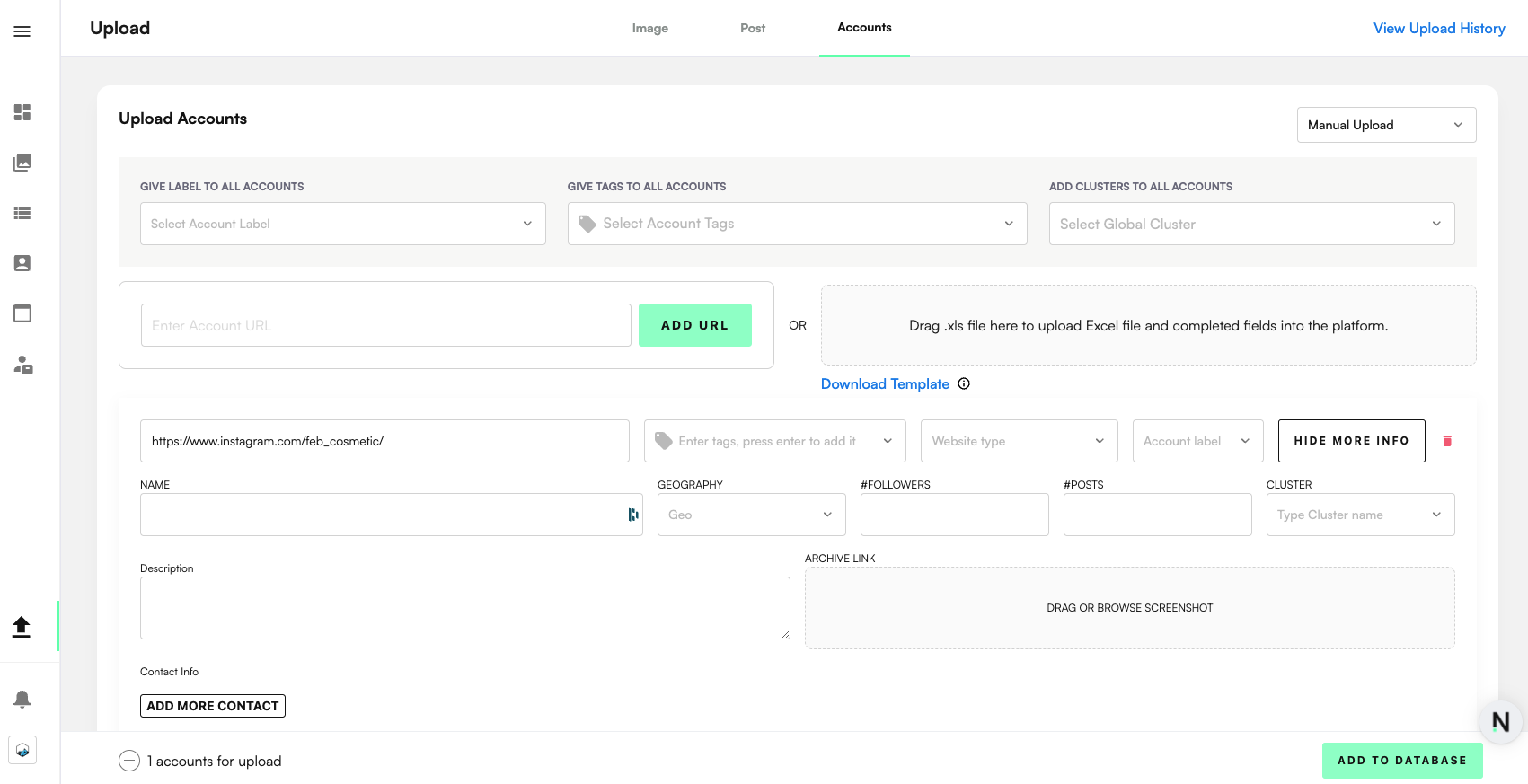
Uploading accounts can be done to whitelist official or legitimate distribution partners or to enrich Zeal 2.0 database with infringing data.
You can add tags or labels to the Accounts in bulk as you upload them.
Three ways to upload accounts are detailed below
Upload Accounts via Automated Crawling - available for all supported platforms
URLs can be provided via UI or via CSV
Upload Accounts Manually - to upload accounts that are not scraped automatically by Zeal 2.0.
Uploading of accounts can be performed by simply providing the URLs to the Account Profiles for platforms that have automated scraping setup. This can be done via the UI or via excel CSV.

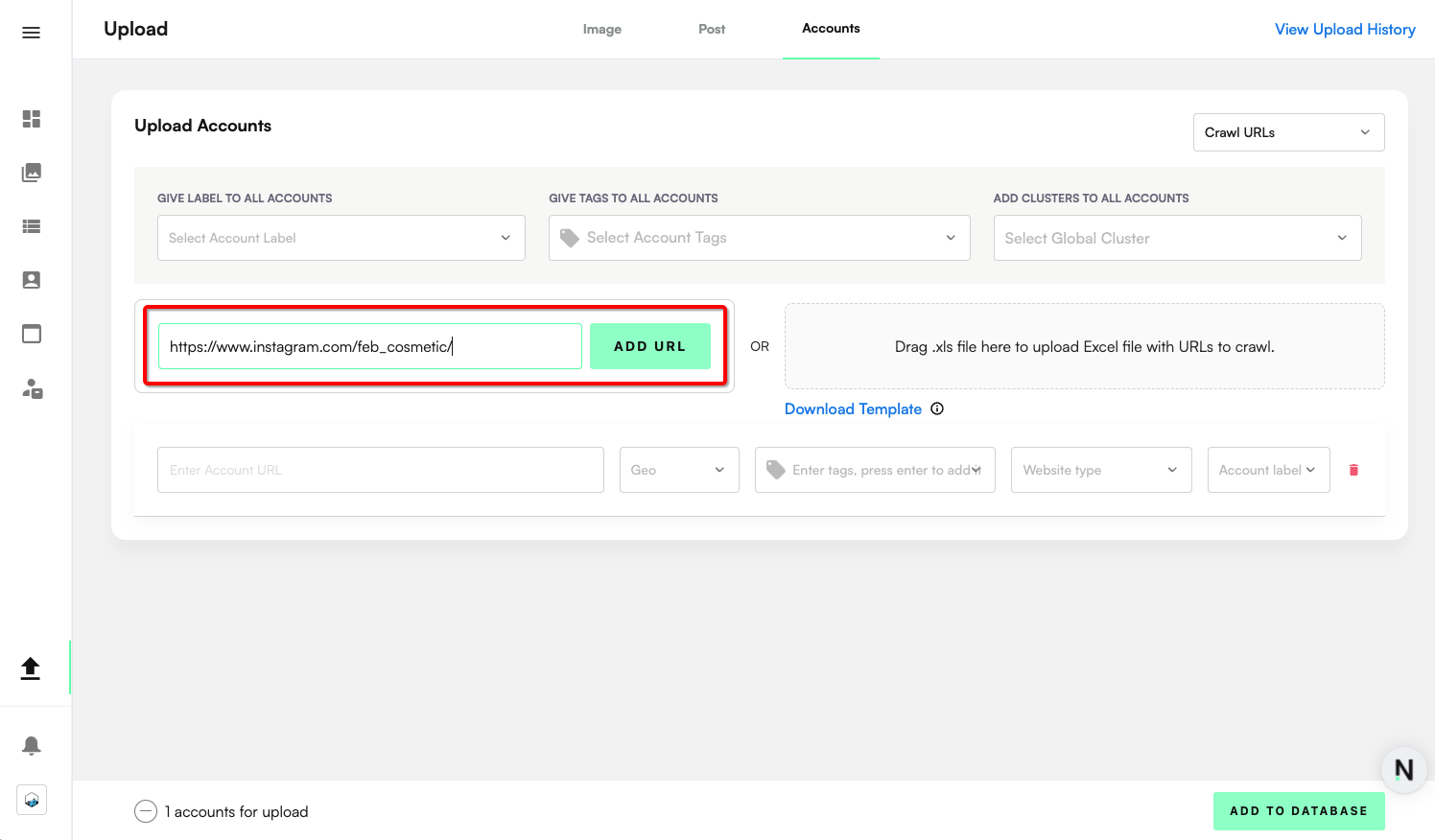
Add the URL for the Account to add into Zeal 2.0. click 'Add URL'. This will add a row into the list below.
Repeat the method to add more accounts.
The geography and website type will populate automatically when the Account is scraped into the platform so these fields are only optional and can be edited here manually if you wish.
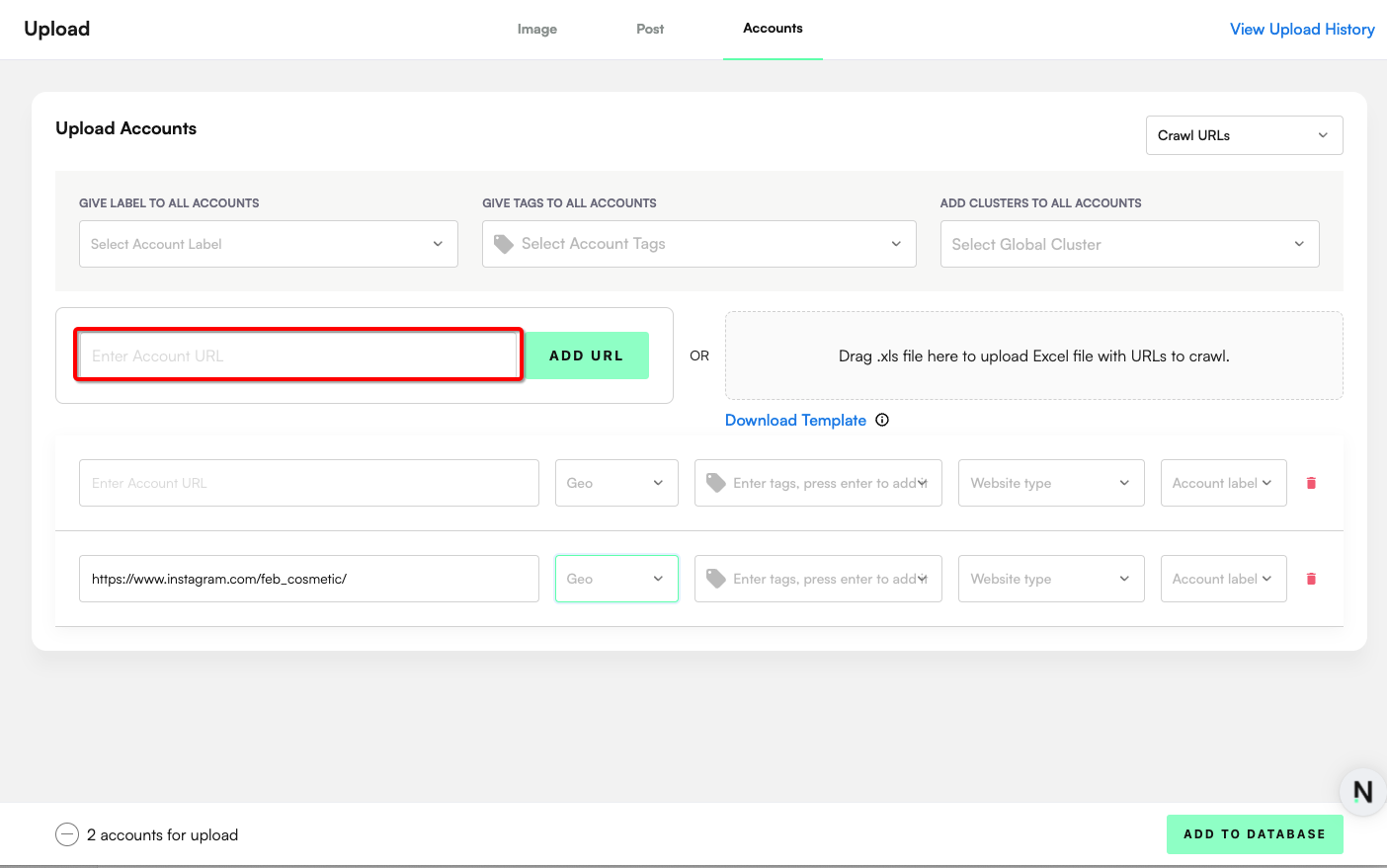
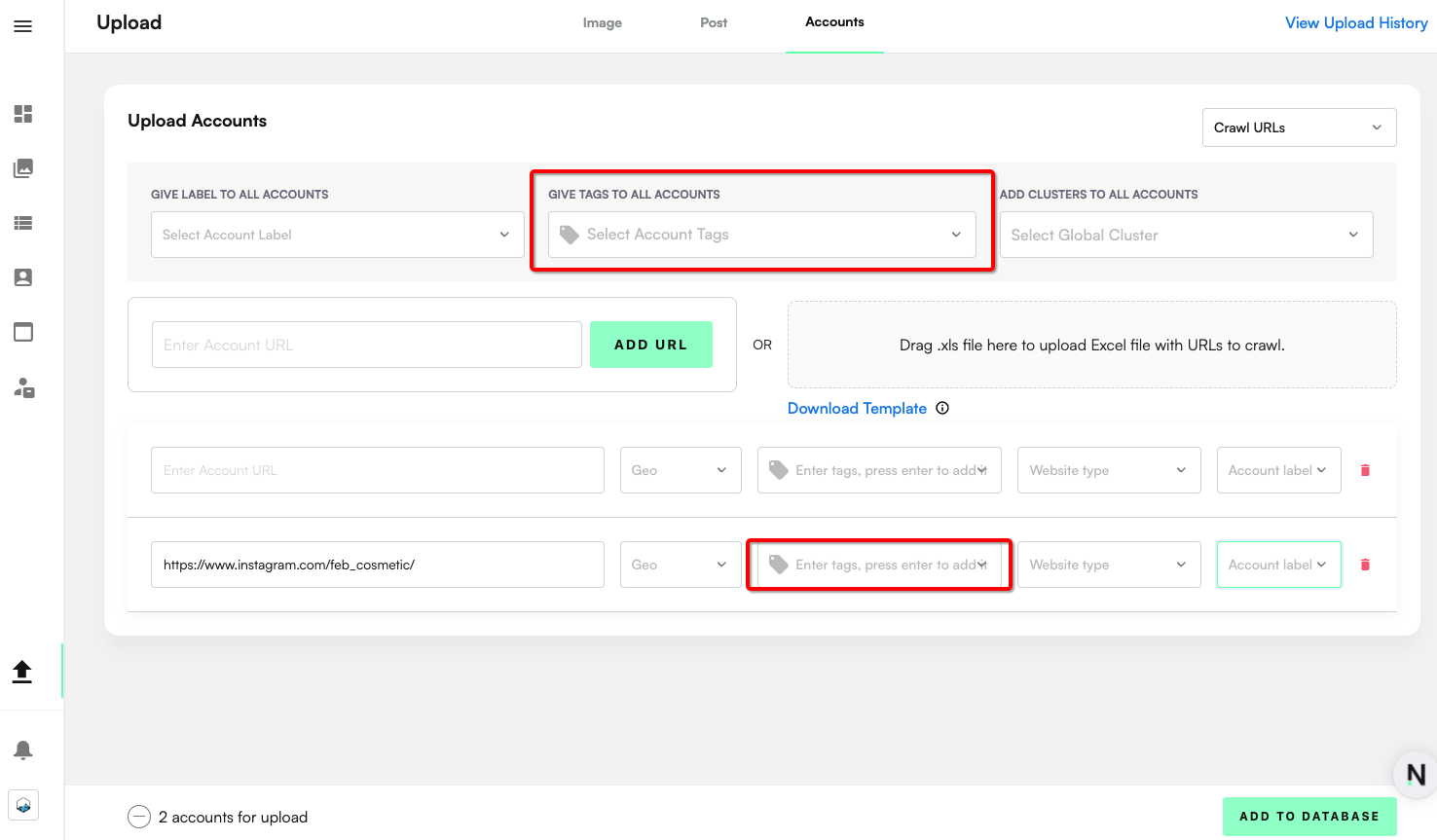
Add Tags if you want to be able to easily search and filter for this group of posts, or add any additional information such as where the account was sourced, or what project it is associated with.
Tags can be set on the individual Account or via the 'Give tags to all accounts' to tags to all accounts in the upload.
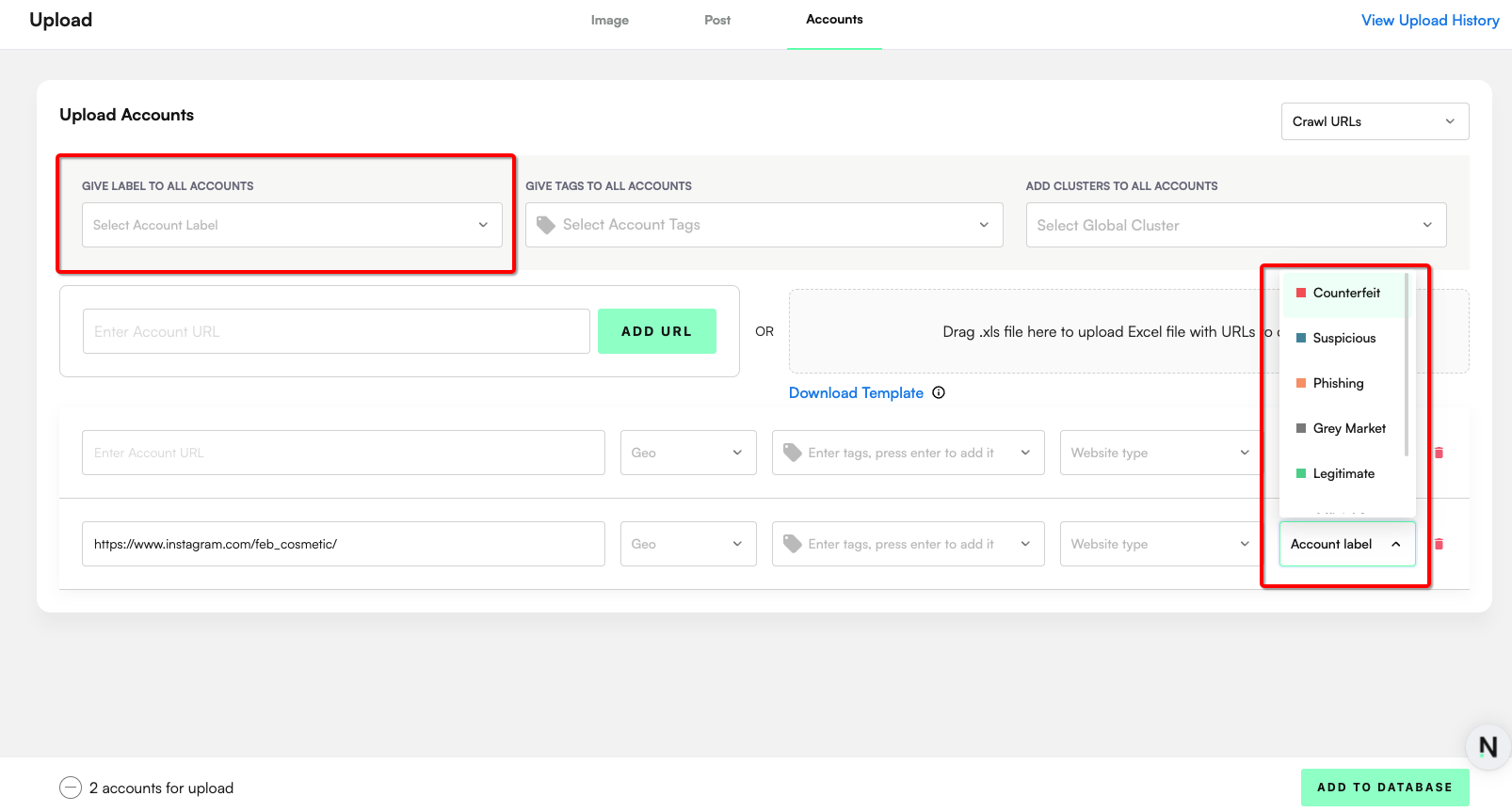
Add labels to the accounts - this is used to classify the accounts being uploaded (e.g. as a Counterfeit seller or as a Legitimate / Authorized reseller). Similarly, this can be done for each individual Account or in bulk.
5. Click 'Add to Database'. It will then process the upload of these accounts into Zeal 2.0.
You can also upload a list of URLs for the Accounts to be uploaded in bulk via automated crawling by providing an excel with the relevant details.
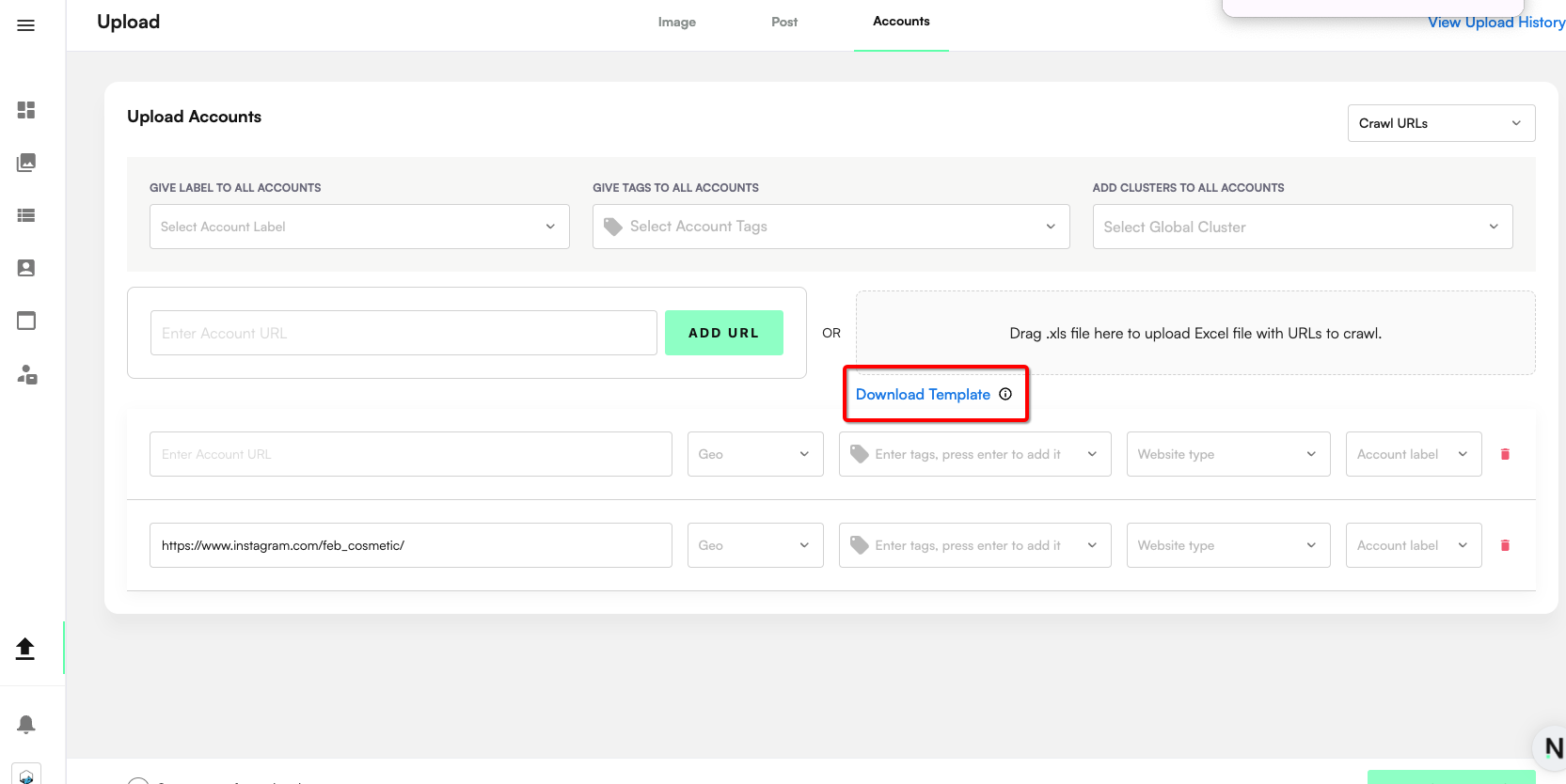
Click Download Template to download the Excel template to be populated
Populate the excel with relevant Account details - URL is mandatory, the other fields are optional.
Geo column accepts geography codes of ISO Standard Country Codes (2 letters / A-2) https://en.wikipedia.org/wiki/List_of_ISO_3166_country_codes
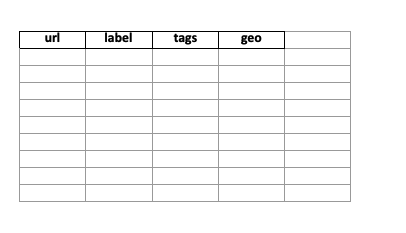
Ensure there are no typing errors when using the additional fields.
Click 'Add to Database'.
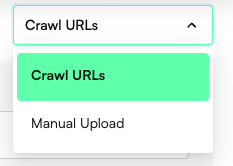
To upload Accounts manually, ensure the dropdown on the top right hand corner is on 'Manual upload'
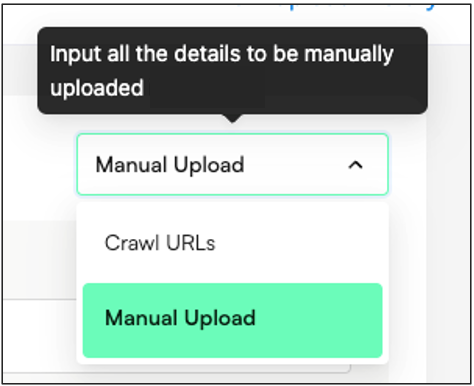
You can then input the relevant Account information manually via the user interface. To upload complete information, click 'Show more Info'. It is recommended to add as much data available.
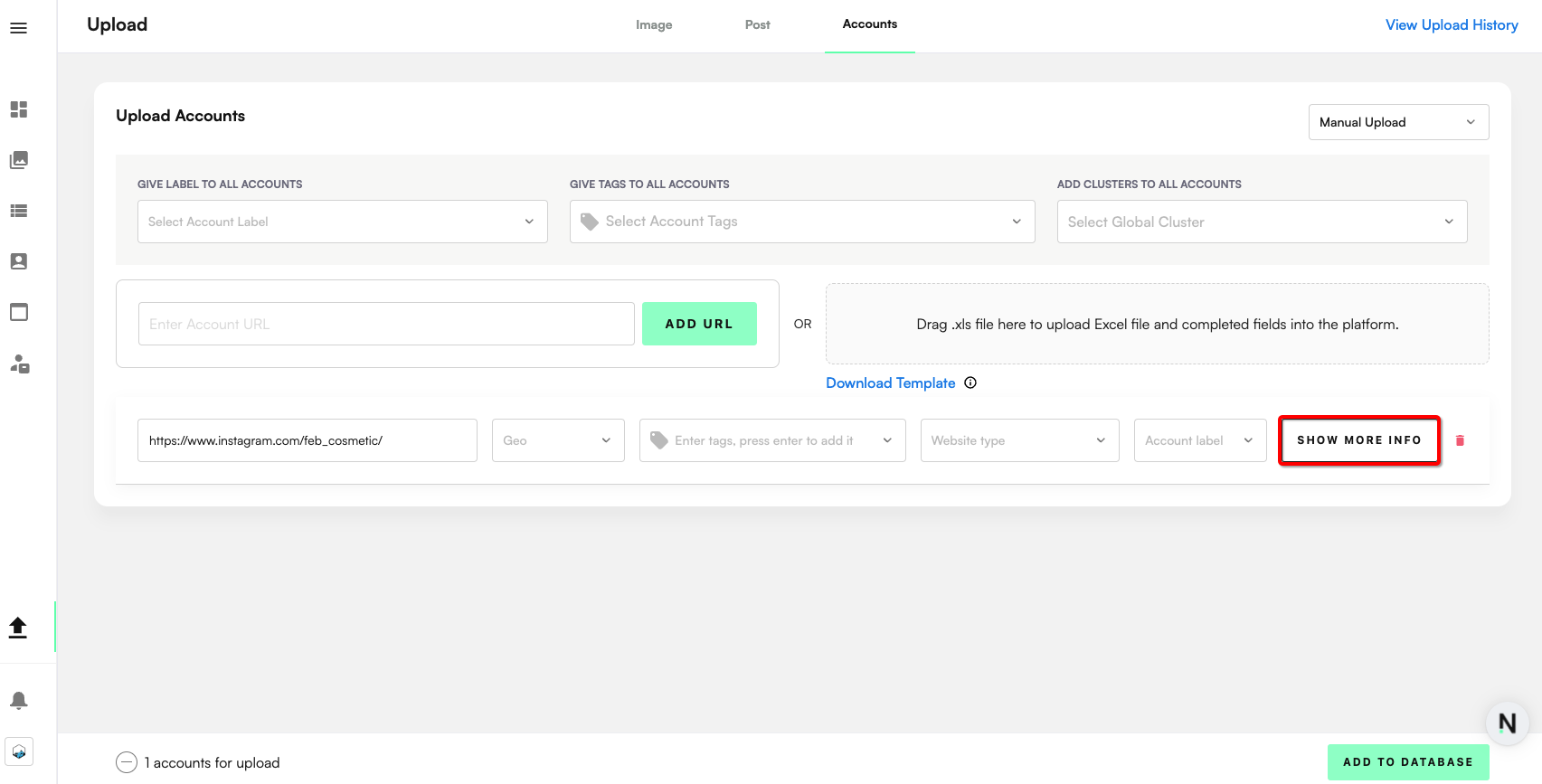
This gives you access to all fields for uploading Accounts, including:
Account Name
Geography
# Posts (social media)
# Followers (for social media)
Account description/bio
Archive link - Upload a screenshot of the Account