Auto-moderation rules are simple, customizable conditions that automatically classify (label) a post when it meets certain criteria. Instead of waiting for a human to review every item, the system checks things like keywords, image signals, or other identifiers and applies the right label on its own.
This helps quickly sort unmoderated posts, reduces repetitive manual work, and keeps your moderation process consistent from the moment a post enters the system.

When a post matches one of your rules:
Zeal automatically applies a Label to the post (e.g: Counterfeit, Trademark Abuse, Official store)
Rules are built from conditions, combined with AND logic (all conditions must be met).
When a post matches multiple rules, a risk-based hierarchy ensures the correct label is applied (rules run in the order you create them).
Default Rules are created for all organisations to help identify Legitimate Sellers as well as flag Counterfeit, Trademark, or Design Infringement risks.
Auto-Moderation rules are designed to:
Classifying trusted information (whitelists)—like potential authorized sellers or legitimate stores
Automatically label high-confidence infringements (e.g., Counterfeits) that meet certain conditions.
All users can view rules
Only Brand Partners & Admins can modify rules.
Note: In this first iteration, Auto-Moderation Rules apply to Posts only.
Auto-moderation rules can be built using the following conditions:
Image Common Label - Matches common labels detected in images
Image Label - Specific labels identified in the image
Logo Detected - Detects presence of logos in images
Image Features - Analyzes specific features within images
Image Feature Type - Categorizes types of features detected (Highly Suspicious, Obvious Counterfeit or Logo)
Image Label And Status - Combines image labels with status conditions (moderated, validated, etc)
No Listed Brand - Posts without an identified brand
Post Abnormal Price - Pricing that falls outside expected ranges
Post Description and Title - Content in both description and title fields
Post Title - Content specifically in the post title
Post Has Obfuscated Brand Name - Detects intentionally hidden or altered brand names
Post Is Checked - Posts that have been reviewed
Post Label - Labels assigned to posts
Post Listed Brand - The brand identified in the post
Price - Price value conditions
Post Product Condition - New, used, refurbished, etc.
Post Stock Count - Inventory quantity available
Website Name - Specific website or platform
Website Category - Category classification on the platform (also known as Channel: marketplaces, social media, etc)
Website Is Tracked - Websites that are configured in the Settings (Crawling Domain section)
Account Country - Seller's registered country
Account Follower Count - Number of followers the account has
Account Is Checked Or Validated - Moderation status of the account
Account Label - Labels assigned to the account
Account Name - Seller's account name
Account Tag - Tags associated with the account
These data points can be combined to classify very specific infringement scenarios.
Go to Settings → Moderation → Auto-moderation.
Add a new rule → Click the + icon.
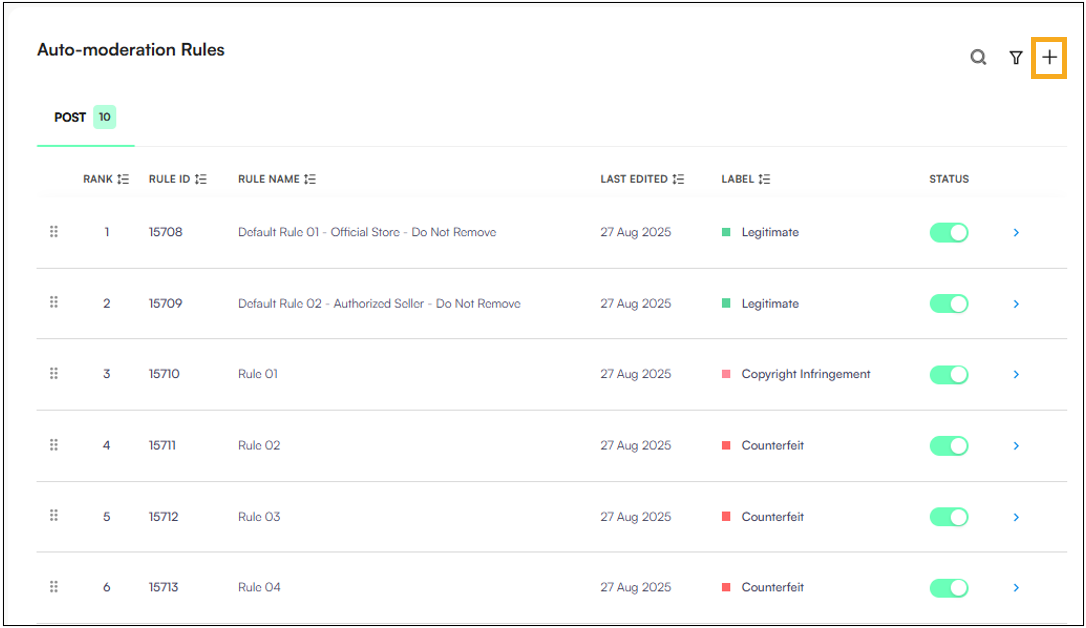
Name and label the rule
Rule Name: A descriptive name for the rule.
Label: The classification to apply when the rule is triggered (e.g., Counterfeit, Legitimate).
Click + to add conditions.
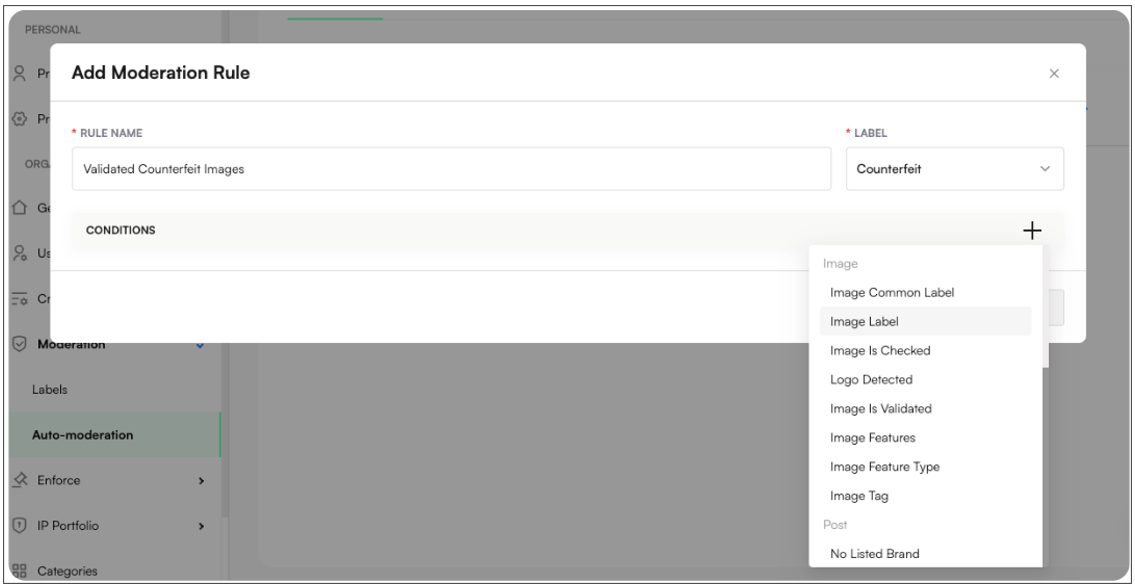
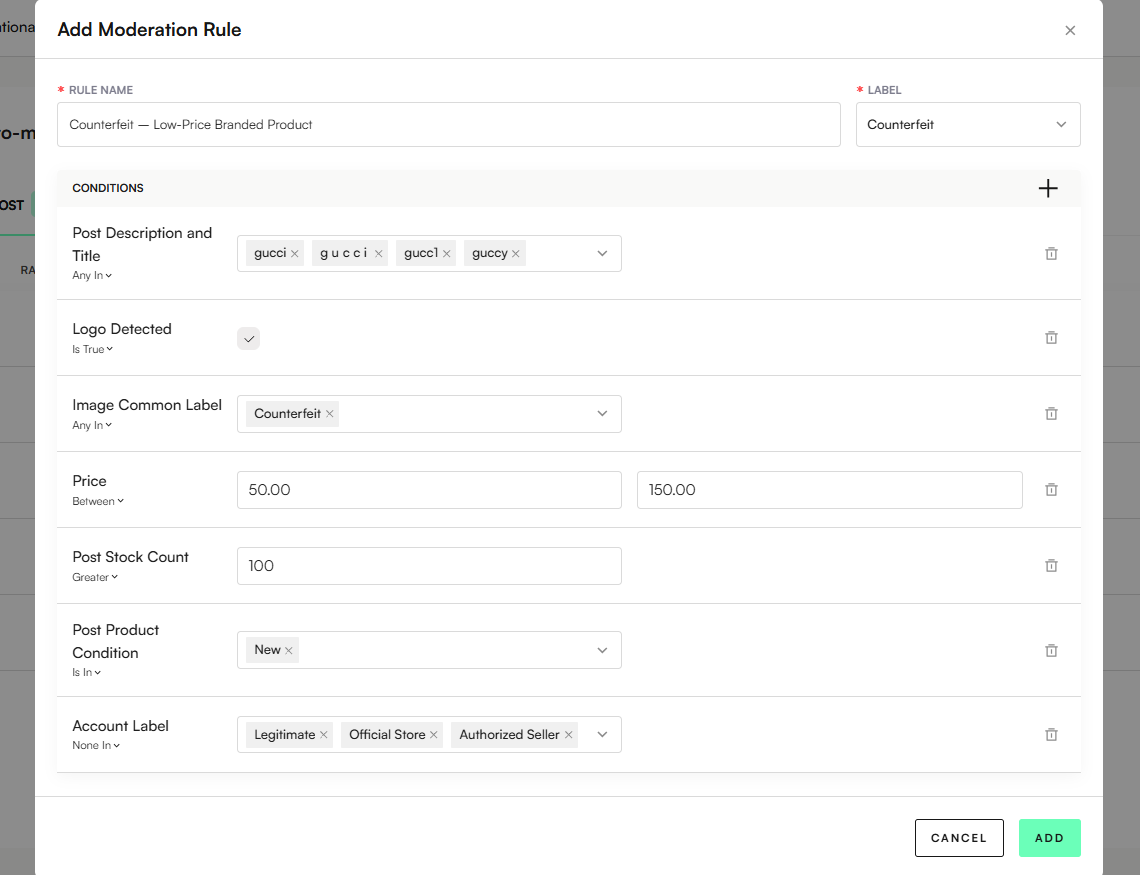
Example: Counterfeit - Low Price Products
Post Description and Title → any in → [gucci, g u c c i, gucc1, guci, gucki, gucchi, guci̇, guccy]
Image → Logo Detected → is true
Image Label → contains → Counterfeit
Price → between → 50 USD and 150 USD (based on Gucci’s typical retail range — e.g., handbags or shoes rarely priced this low)
Stock Counter → greater than → 100
Post Product Condition → is in → [“New”]
Account Label → none in → [“Legitimate”, “Official Store”, “Authorized Seller”]
Click Add.
Set rule priority - Drag and drop rules to adjust their order.
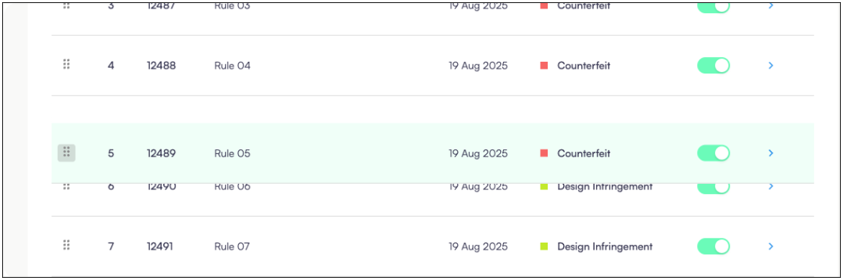
Priority determines which rule applies first if a post matches multiple rules.
Take a risk-based approach: lower-risk rules should be placed higher.
#4 Authorized Seller Accounts → Label as Official Store
#5 Counterfeit – Low-Price Gucci Products → Label as Counterfeit
Since verified or authorized accounts represent legitimate sources, the Official Store rule (#4) is placed above counterfeit detection (#5) to prevent mis-labeling genuine sellers.
Activate the rule
Click the rule Toggle:ON to Active.
Once active, the rule applies to all historical and future listings that meet its conditions.
Rule Precision Scores provide a data-backed accuracy rating for every moderation rule in your organization. This article explains how to interpret these scores, the math behind them, and how to use them to optimize our moderation logic.
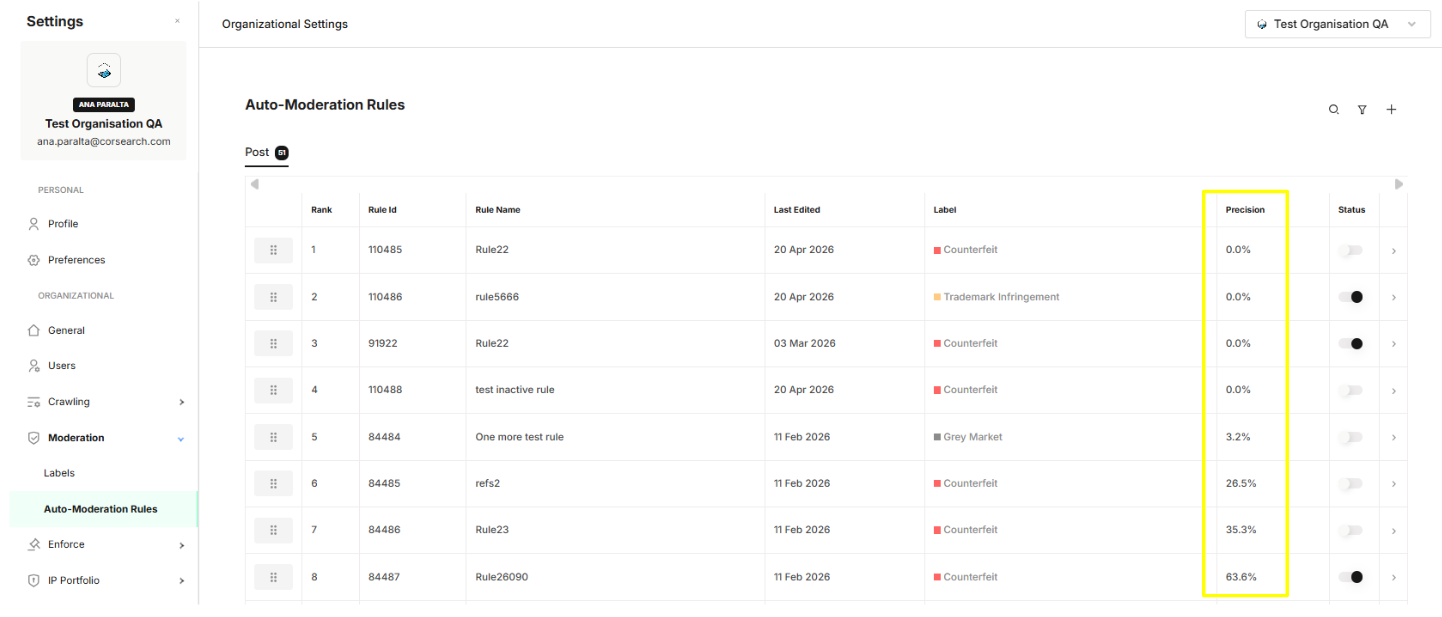
Go to Settings → Moderation → Auto-Moderation Rules
Open any rule to Edit (pencil icon)
Select the Preview tab
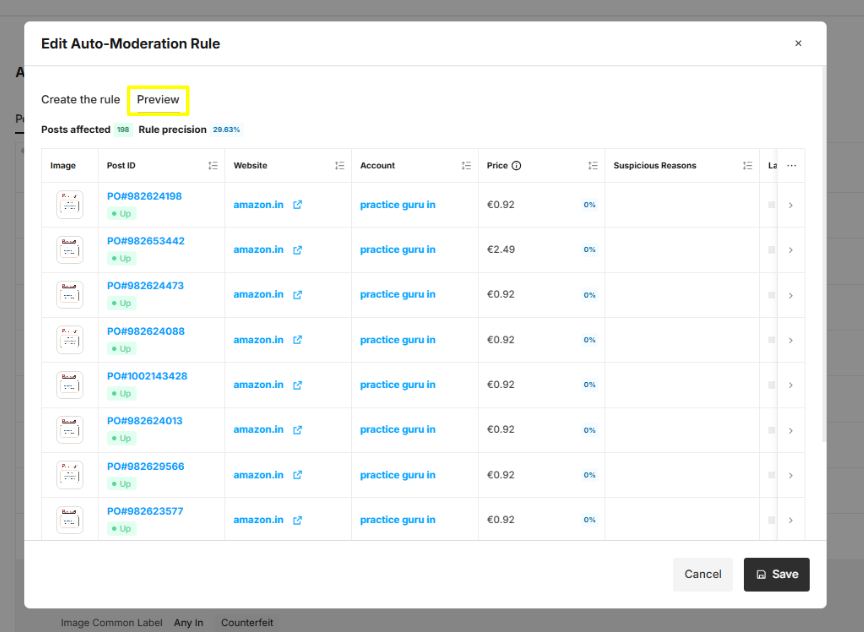
The system automatically calculates precision by running your rule against a Labeled Evaluation Pool. It compares the rule’s decisions against human-verified labels.
The Formula:

True Positives = Rule labels content as Counterfeit, and QA confirms it is Counterfeit = The rule was right.
False Positives = Rule labels content as Counterfeit, but QA changes/updates the label = The rule was wrong.
Example: If a rule flags 100 posts, and 90 of those are confirmed Counterfeits, the Precision Score is 90%.
Not all scores are created equal. Use these benchmarks to guide your actions:
Check the Confidence Level (Sample Size)
500+ Labeled Posts: High Confidence. Use this score to make definitive decisions (e.g., turning a rule into "Auto-Delete" mode).
Under 500 Labeled Posts: Directional Signal. The score may fluctuate. Use it to identify potential issues, but do not delete rules based on this alone.
90%–100% (High Precision): These are your "Gold Standard" rules. They are safe for automated labelling.
70%–89% (Moderate Precision): These rules are useful but "noisy." While most of the labels it applies are correct, about 2 or 3 out of every 10 labels are incorrectly applied.
Below 70% (Low Precision): These rules require immediate tuning. They are likely frustrating users and creating unnecessary work.
Best Practice: Combine Logo Detected with Image Feature Type to separate legitimate resellers from high-risk infringers.
Real Example: * Condition: Logo Detected (Your Brand) AND Image Feature Type (Obvious Counterfeit).
Action: Auto-label as "Counterfeit".
Why: A logo alone isn't enough to ban (could be second-hand), but a logo combined with Zeal’s "Obvious Counterfeit" AI classification is a high-confidence match.
Best Practice: Target sellers trying to fly under the radar by checking for hidden brand names alongside abnormal pricing.
Condition | Logic | Value |
| IS | True |
| IS | True |
Resulting Label | "Counterfeit" |
Real Example: A seller lists a "Luxur* Bag" (obfuscated) for $50 when the MSRP is $2,000. This combination is a classic signal for counterfeiters avoiding keyword filters.
Best Practice: Use Post Product Condition and Price to monitor MAP (Minimum Advertised Price) compliance or unauthorized "New" listings.
Real Example:
Condition: Post Product Condition (New) AND Price < $Target_Price AND Account Is Checked Or Validated (False).
Action: Label as "Unauthorized Seller."
Why: This helps identify "grey market" sellers who are selling new products without being part of your authorized dealer network.
Best Practice: Filter out "noise" by using Account Follower Count to prioritize high-impact targets.
Real Example:
Condition: Image Label (Your Product) AND Account Follower Count > 10,000 AND Account Label (NOT "Authorized").
Action: Label as "Unauthorized Account".
Why: An unauthorized seller with a large following does more brand damage than a seller with 2 followers. This ensures your manual moderators see the biggest threats first.
