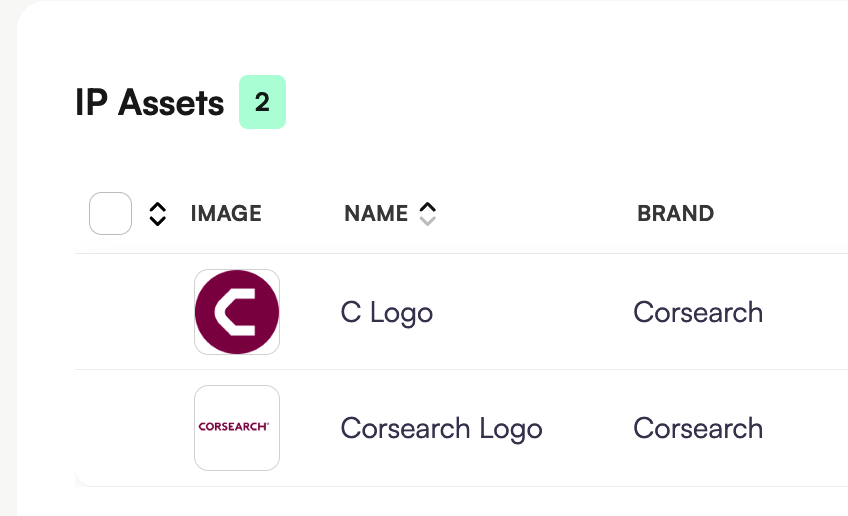
IP Assets represent the trademarks and designs protected by your brand. Each IP Asset can include multiple certificates by region and type, which serve as the legal basis for protection.
By configuring IP Assets, the system can automatically detect them in listings and match the appropriate certificate for enforcement (Only Admin, Account Manager and Enforcers can make changes to the IP Assets).
1. Navigate to Settings > IP Portfolio > IP Assets.
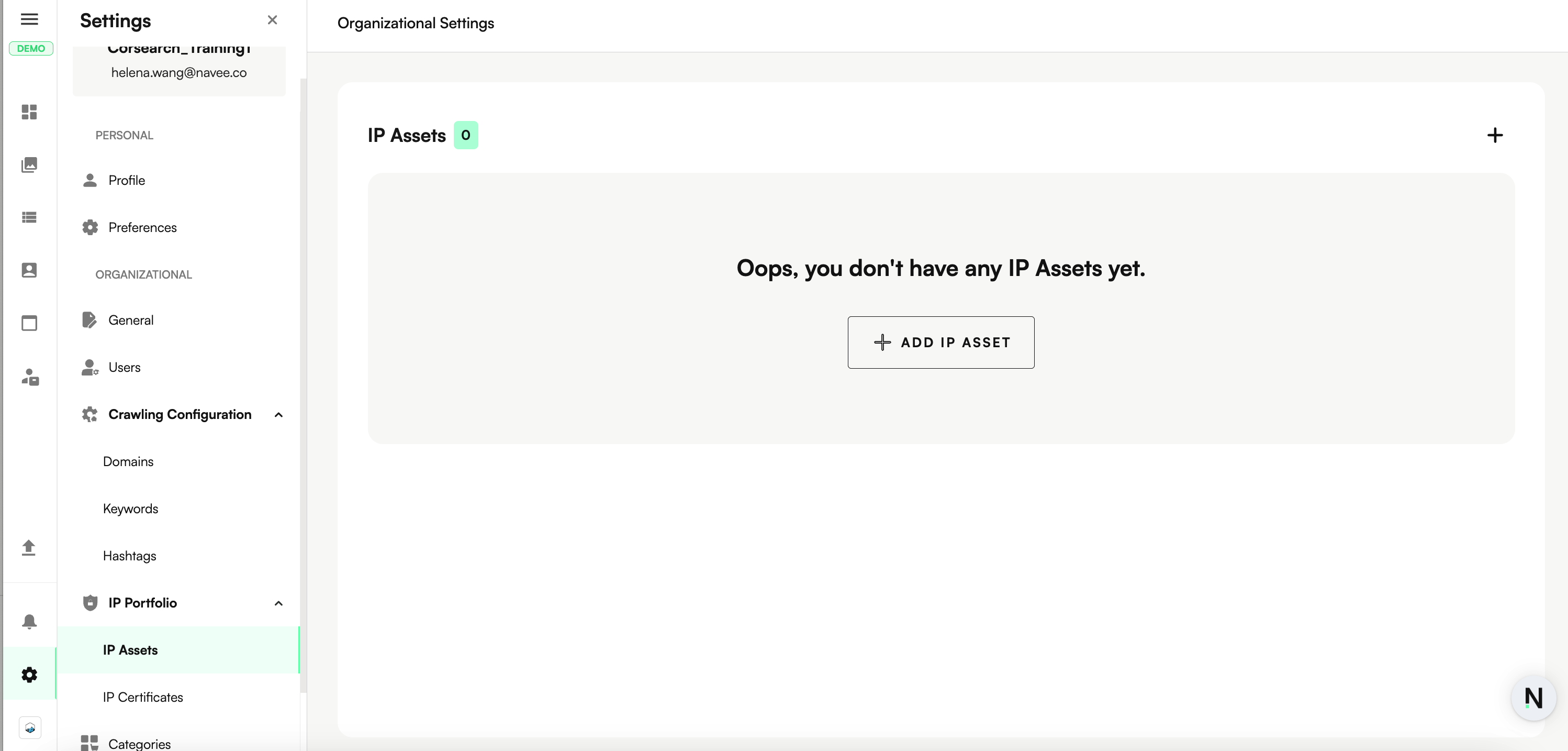
2. Click Add IP Asset. This opens a modal to populate all relevant details
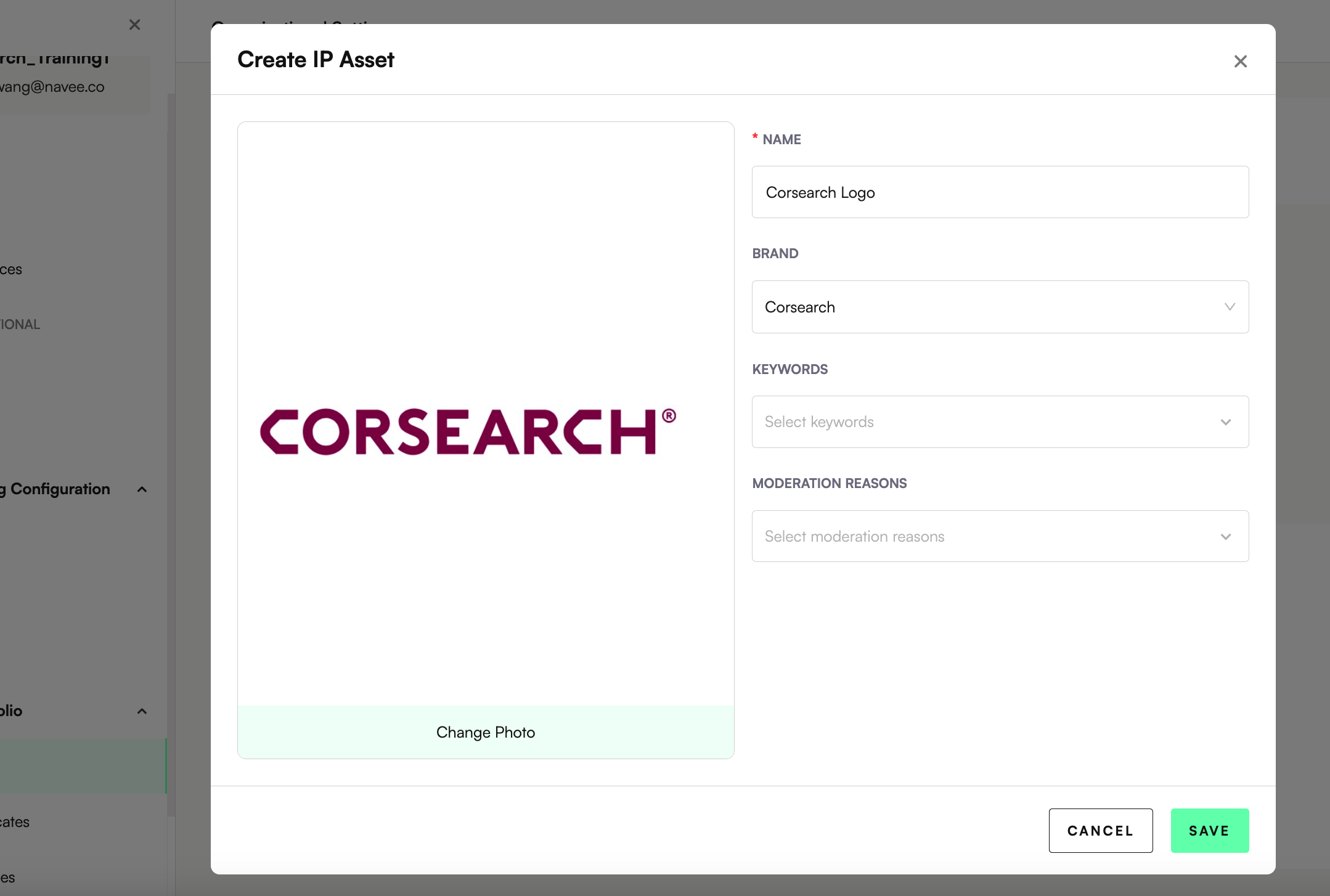
Image of IP Asset - this is optional but recommended for easy identification of the asset.
Name of IP Asset - name this to easily identify and differentiate the assets protected. E.g. ‘Corsearch text Logo’ vs ‘C Logo’.
Brand - link the relevant brand for this asset. If you have no brands available, please add the brand in Settings > General section.
Keywords - OPTIONAL - link the IP Asset to search terms that are likely to indicate sale of the asset. This is most useful for Products that have Patent design protections. For Trademarks that are better detected using features detected in images, leave this field empty.
Moderation Reasons - Link the IP Asset to image features that are detected in listing images. For Logo IP assets - link the Logo detected insight.
3. Click Save.
Once IP Assets are configured, you can upload relevant IP certificates.