Admins and QAs can configure keywords and hashtags to be searched across your crawled domains, helping capture relevant or infringing content.
Any changes to keywords/hashtags will take effect the next time those domains are scraped.
Navigate to Settings > Crawling > Keywords.
Set the language
Choose the Language for the keyword — this is used to translate the term for crawls.
(Optional) Mark as Priority
Click the Start to toggle Priority keyword if it’s a high-importance term. Use sparingly for distinctive terms (e.g., your brand name) so results stay relevant. These keywords will also show up in the Visibility section of the Dashboard section).
Save changes by clicking the Checkbox Symbol
Your updates will be applied the next time those domains are crawled.
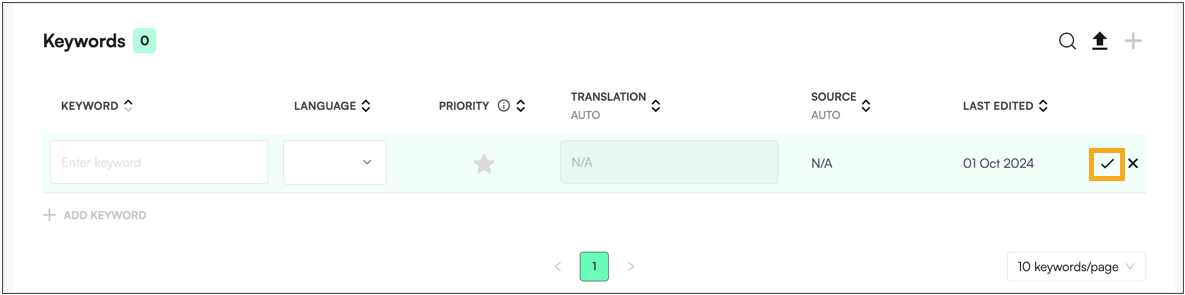
Translation, Source and Last Edited date are populated automatically.
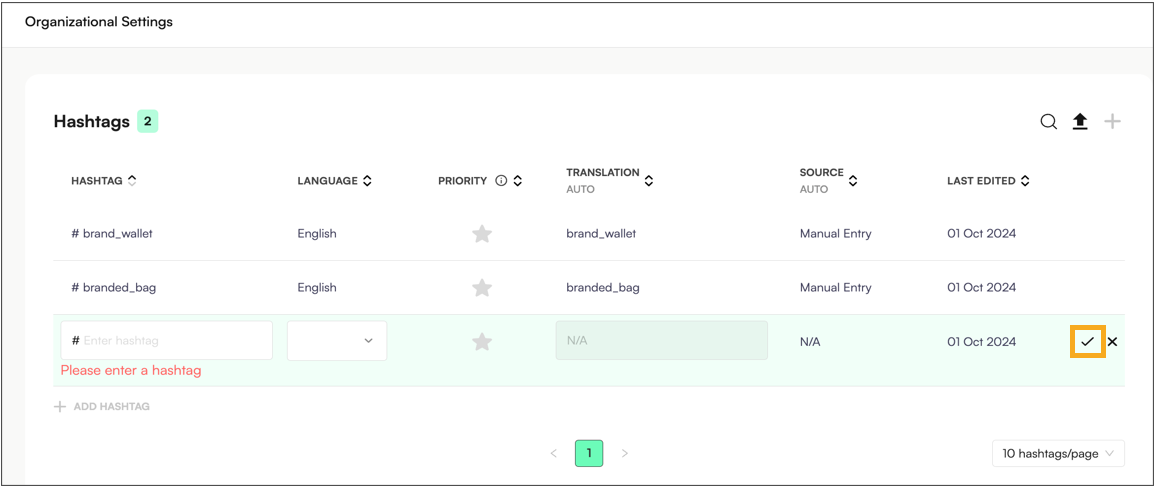
Navigate to Settings > Crawling > Hashtags.
Select + or the 'Add Hashtag' button to add a new hashtag.
Add the Hashtag name and language of the hashtag.
Select the Star Icon if it is a priority hashtag (also tracked in the Dashboard).
Priority hashtags should be limited to distinctive hashtags such as the brand name, to give relevant results when crawled. Three priority hashtags can be set per language.
Click the upload button to access the template and upload an Excel of keywords.

Fill out the Excel template. The same template can be used to upload both keywords and hashtags in the same file.
There are two required fields:
Name: name of the keyword or hashtag
Type: "KEYWORD" or "HASHTAG" to select whether it is a keyword or hashtag
You can also optionally set the language and priority of the keyword via Excel
Language: use the ISO codes "EN" etc.
Is_Priority: use "Y" or "N" to set priority. A maximum of 3 priority keywords can be set per language.
