Admins and QAs can configure which domains are automatically monitored. The number of domains included depends on the contract with Corsearch.
If you need a domain that isn’t currently available, please contact your account executive to request it from our Tech team.
Navigate to Settings > Crawling Configuration > Domains.
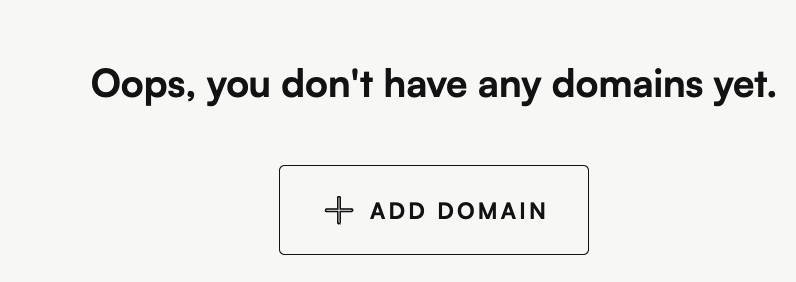
Click Add domains or the + button to begin adding domains to crawling.
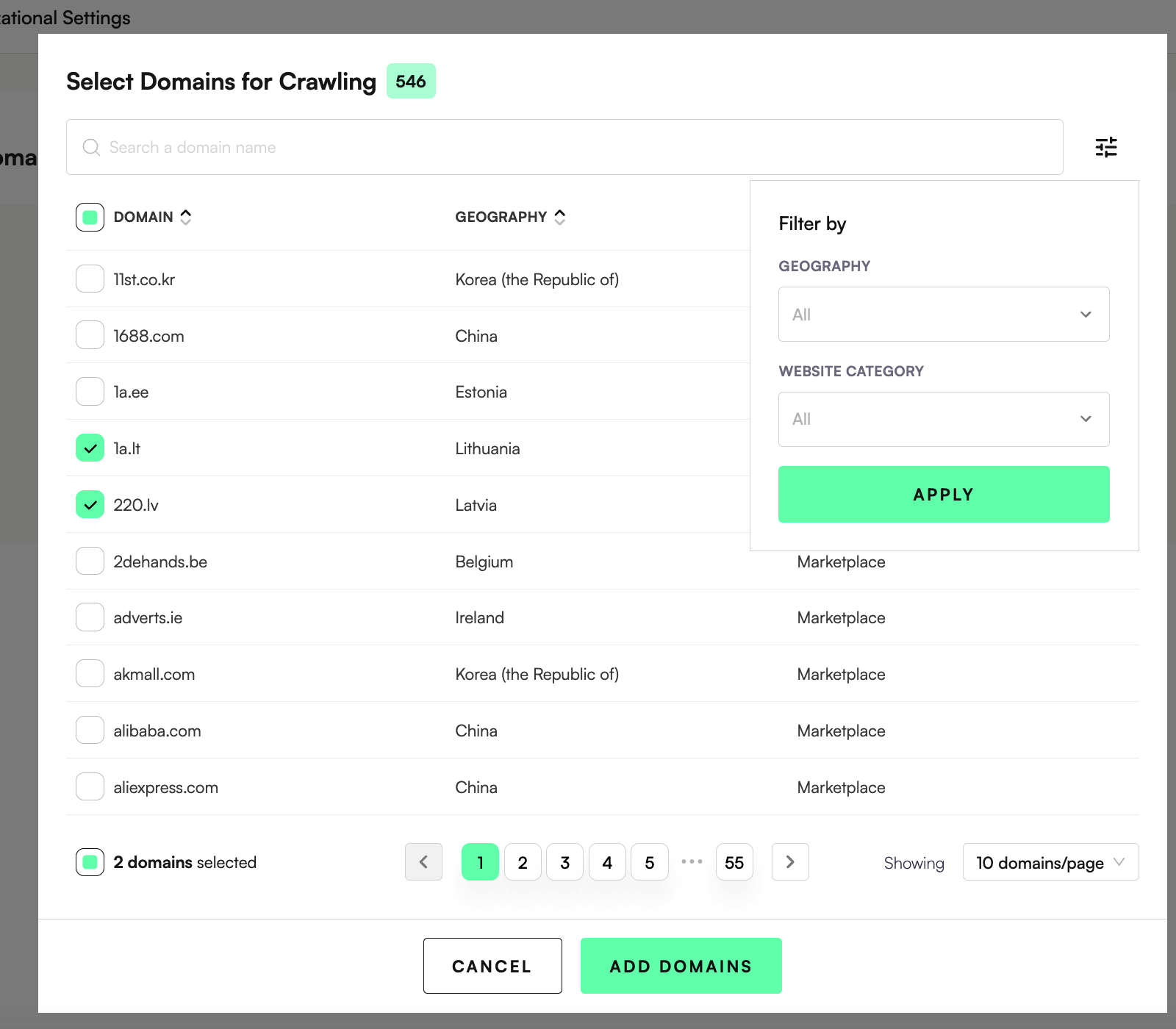
Select domains for crawling. You can search or filter by geography and website category.
The most common categories are Marketplace, Social Media, E-commerce and Ads. Most global platforms (such as Instagram & Facebook) will be allocated the geography USA.
Set tiers for domains using the tier dropdown:
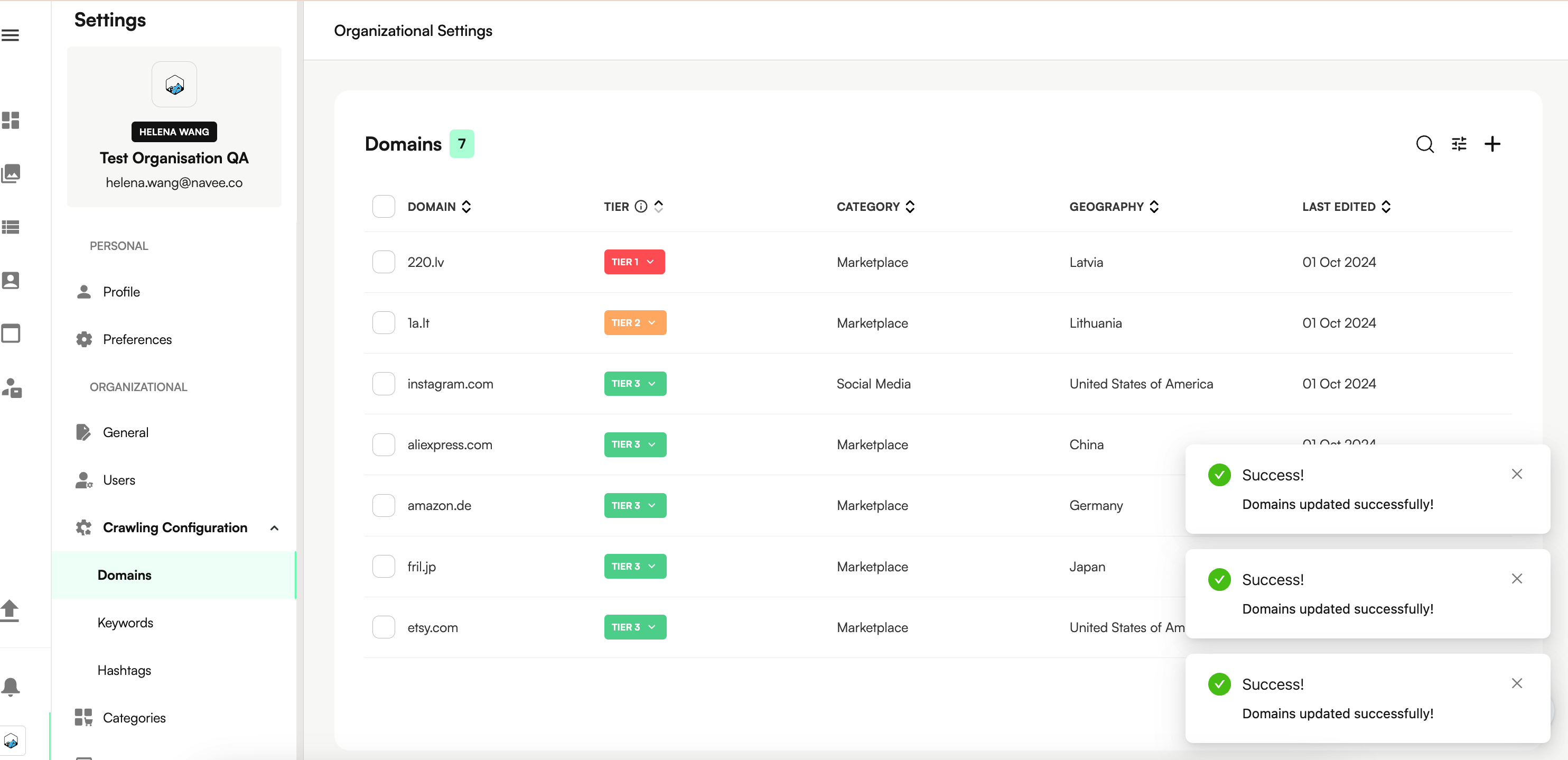
Tiers indicate the crawling frequency. Tier 1 represent the tracked platforms as agreed in the contract.
Tier 1 - once a day or more
Tier 2 - every 2-3 days
Tier 3 - weekly
The selected domains are now configured and will automatically begin collecting data.
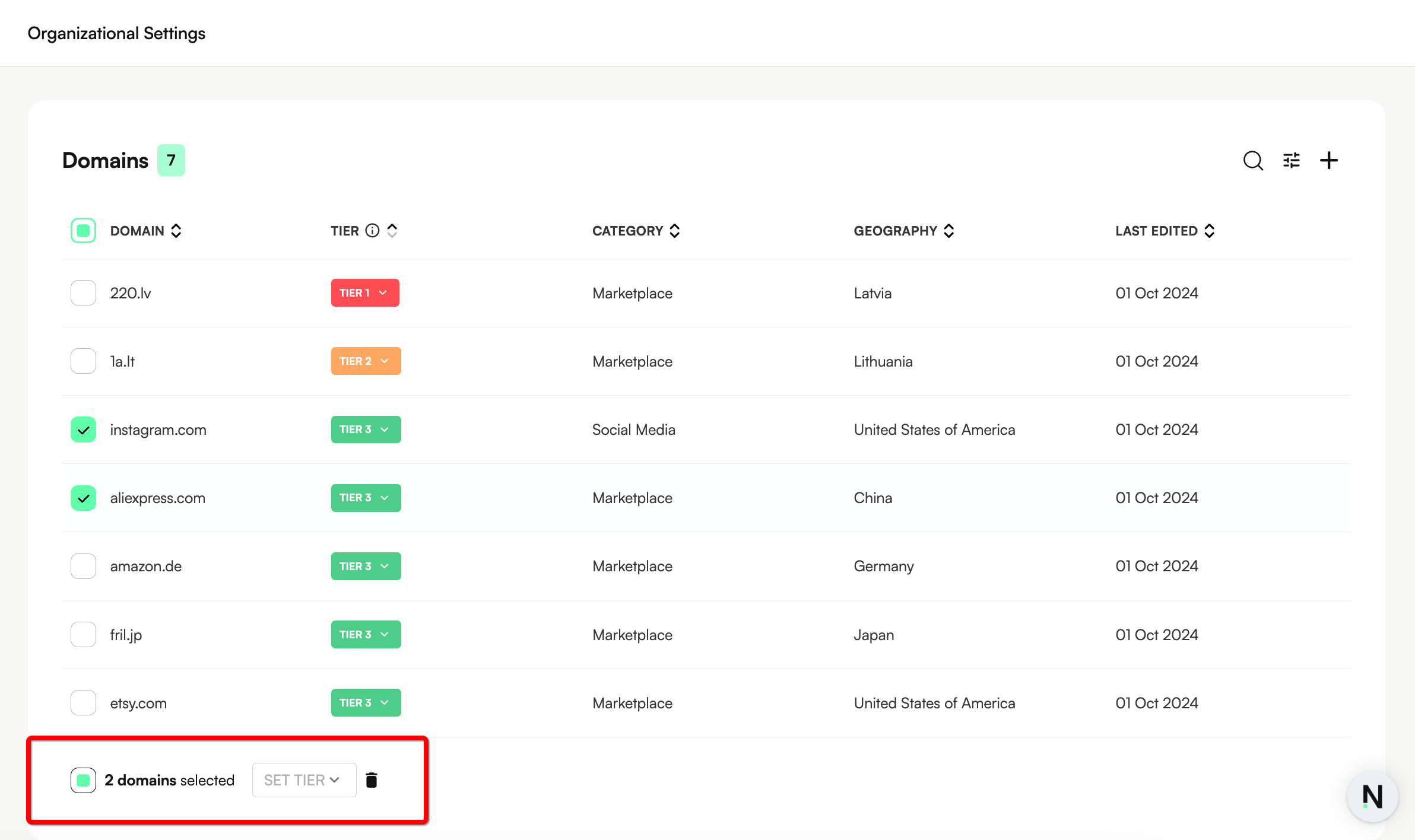
You can update your domain settings at any time, including tier assignment, deletion, and bulk actions.
Adjust the Tier of a domain using the dropdown in the Tiers column.
As a guideline:
Smaller brands: up to 10 Tier 1 platforms
Larger clients: up to 90 Tier 1 platforms
Lowering a domain’s tier reduces how often it is monitored — useful for platforms with low volumes of relevant content.
Hover over the domain row and click the trash icon to remove the domain from tracking.
Use the checkboxes to multi-select domains.
Apply bulk actions to:
Change tiers
Remove multiple domains at once
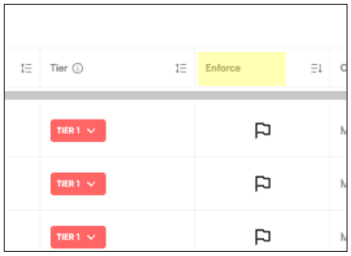
Note: Domains marked with a bolded flag are configured for enforcement in the Enforce Domains section. Domains without a flag are not configured for enforcement and are used for scraping only: