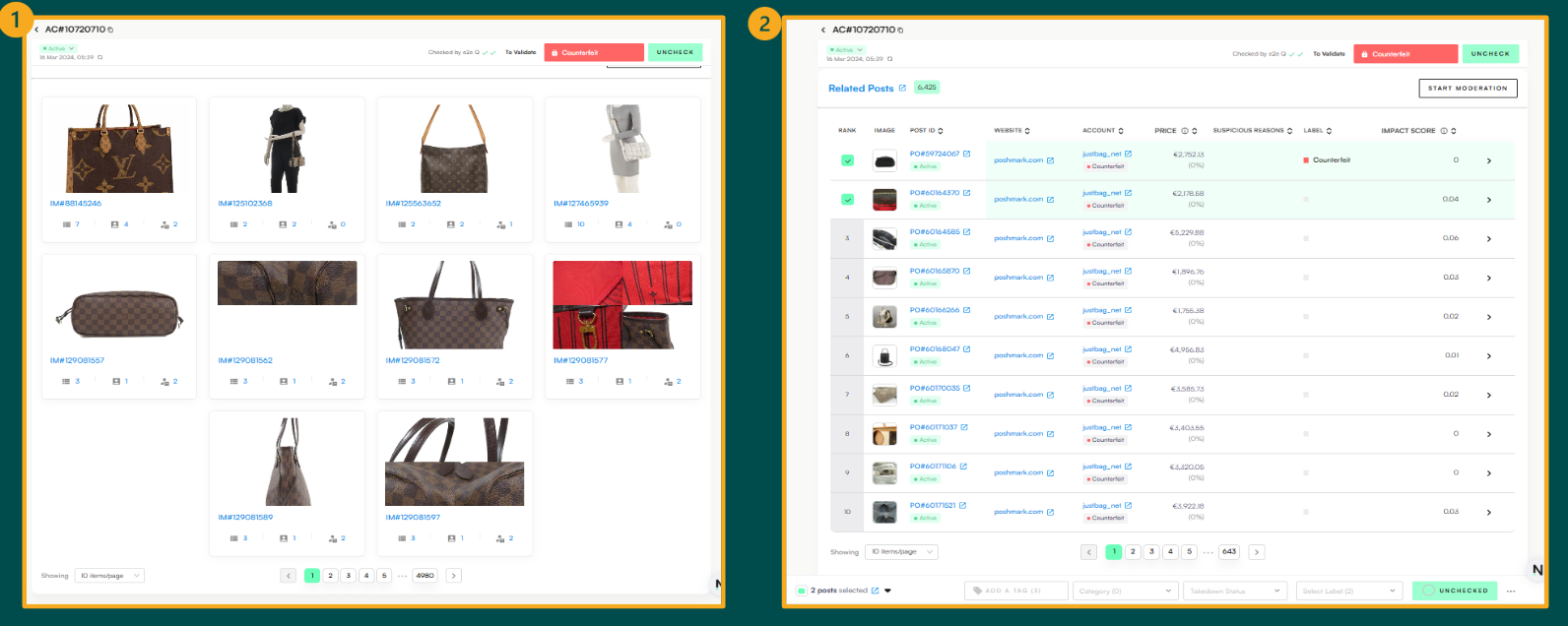
The Account View provides a focused look at sellers or user accounts. It allows users to search/view all posts linked to a specific account, making it easier to identify patterns, spot repeat offenders. It displays key information such as:
👤 Account/seller names
📝 Number of posts per account/seller
📊 Percentage of infringing posts
🏷 Labels
🗂 Clusters
Account View helps identify repeat infringers, analyse account/seller behaviour and detect infringing trends.
ACCOUNT VIEW INFORMATION
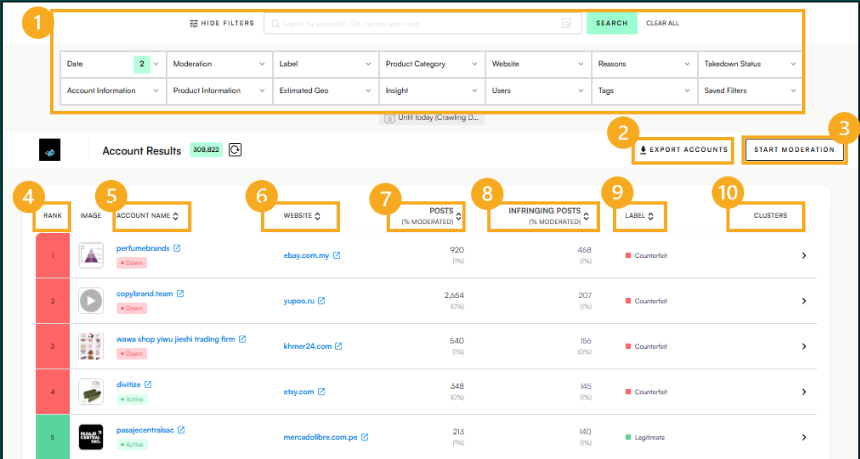
In Account View, accounts/sellers are ranked by the percentage of infringing posts, with the highest listed first. The Account View displays the following important features and information:
Search Bar & Filters – Narrow results by date, geography, label, and more.
Export – Export all filtered accounts/sellers in Excel format.
Start Moderation – Begins the moderation/labelling process for filtered accounts.
Rank – Reflects the overall severity and frequency of infringements linked to the account.
Account Name – Name of the account or seller (clickable link to view posts).
Website – Platform or website where the account is active (e.g., AliExpress, Instagram).
Posts – Total number of posts associated with the account.
Infringing Posts – Number of posts flagged as infringing.
Label – Type of infringement detected/classification (e.g., copyright, counterfeit, legitimate).
Clusters – Potentially infringing networks where the account/seller is active.
EXPANDING AN ACCOUNT FROM THE ACCOUNT VIEW
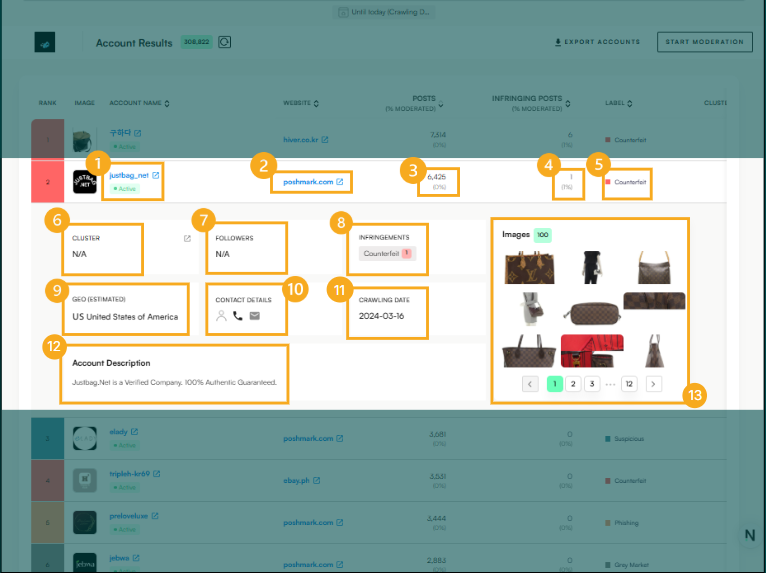
Clicking on an account will expand specific information about the account, namely:
Account Name & Status – Name of the account or seller (clickable link to view posts) and status (online/offline).
Website – Platform or website where the account is active (e.g., AliExpress, Instagram).
Posts – Total number of posts associated with the account.
Infringing Posts – Number of posts flagged as infringing.
Label – Type of infringement detected/classification (e.g., copyright, counterfeit, legitimate).
Clusters – Potentially infringing networks where the account/seller is active.
Followers – Number of followers/subscribers from an account/seller.
Infringements – Types of infringements found from this account/seller.
Geography (estimated) – Country where the account/seller operates.
Contact Details – Phone numbers and email address of the account/seller.
Crawling Date – Date when this account/seller was first detected.
Account Description (if existing) – Summary of the account/seller/store.
Images – Images used in the posts from the account/seller.
OPENING AN ACCOUNT IN A NEW WINDOW
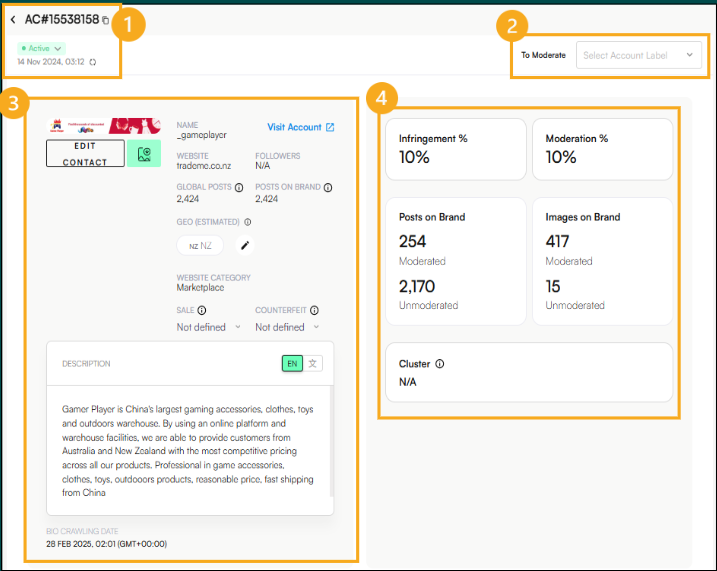
Clicking on an Account Name opens the individual account view, where users can take moderation actions and view detailed information about the account/seller, its images, and infringing elements, namely:
Account ID, status & crawling date – Account identification number (tied to the account name), status of the account/seller (online/offline) and date of when the account was first detected.
Label – Type of infringement detected/classification (e.g., copyright, counterfeit, legitimate).
Post Details & Description:
Name – Name of the account/seller.
Website – Website, marketplace or social media platform where the account/seller is active.
Followers – Number of followers/subscribers of the account/seller (if applicable).
Global Posts & Posts on Brand – Total number of posts detected across all brands (Global Posts) and the subset specifically related to the selected brand (Posts on Brand).
Geography (estimated) – Country of where the account/seller is active.
Moderation statistics:
Infringement % – Percentage infringement from the account/seller.
Moderation % – Percentage of total posts from the account/seller that have been labelled (moderated).
Posts on Brand (Moderated VS Unmoderated) – Total number of detected posts mentioning the brand, categorized by whether they have been labelled (moderated) or not (unmoderated).
Images on Brand (Moderated VS Unmoderated) – Total number of brand-related images detected, categorized by whether they have been labelled (moderated) or not (unmoderated).
Cluster – Networks where the account/seller has been detected.
Scrolling down further will display the following information:
Tags – All tags applied to this account/seller.
Related Accounts – Additional accounts/sellers that are related to the account selected. Related accounts typically share the same contact information (such as phone numbers and email addresses).
Comments – Mention users by typing @username followed by your message, then click the arrow to submit. To attach files or reference images, use the paperclip icon.
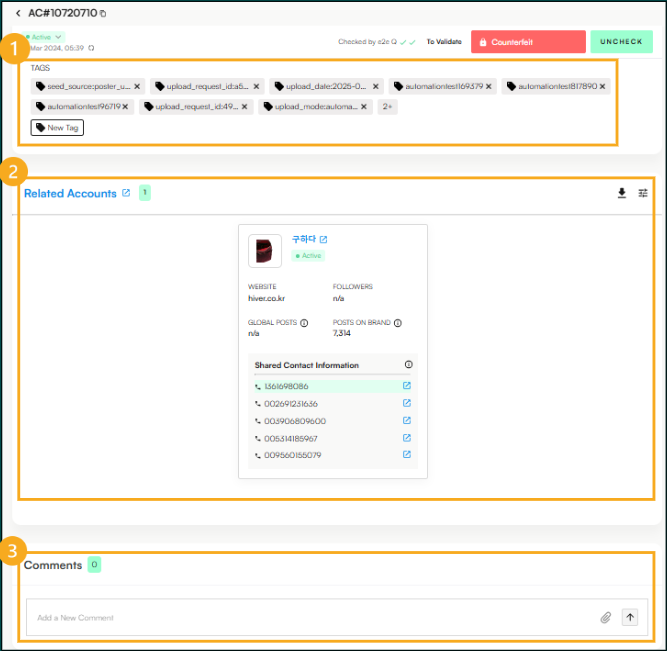
Scrolling down to the bottom of the page will display the following information regarding the selected account:
Images – Displays all the images being used by the selected account/seller.
Related Posts – All posts being advertised from this account/seller. Users can also multiselect the posts to add and/or make changes to the posts (such as adding tags, selecting/changing labels, and updating takedown status (online/offline).