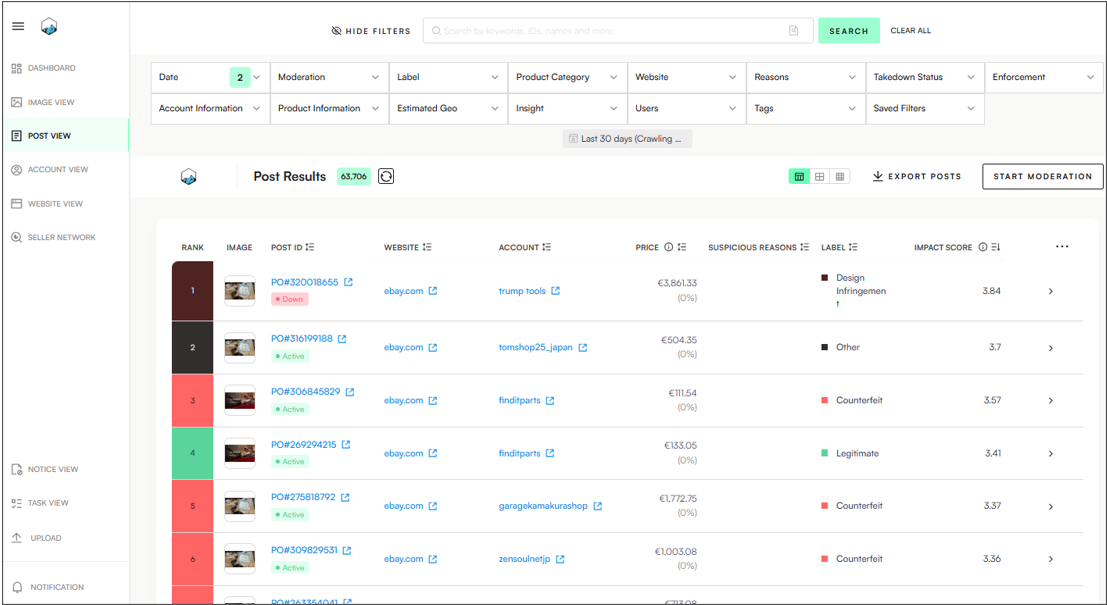
The Post View provides a detailed overview of all detected posts from either a single seller or multiple accounts/sellers. It displays critical data for analysis and enforcement, including:
👤 Account/seller details
🌐 Website source
💲 Pricing information
⚠ Suspicious or infringing elements
🖼 Associated images
Each post can be expanded from the feed view for a quick snapshot, or can be opened in a new window for more detailed review.
POST VIEW INFORMATION
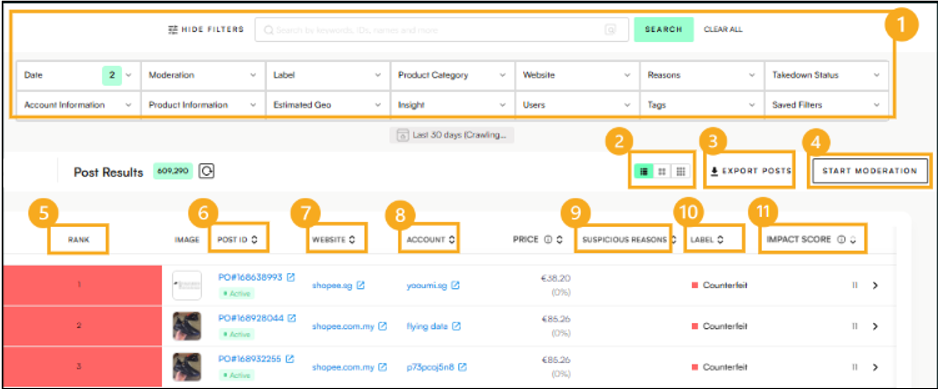
The Post View displays the following important features and information:
Search Bar & Filters – Narrow results by date, geography, label, and more.
List/Card View – Change how the content is displayed.
Export – Export all filtered posts in Excel format.
Start Moderation – Starts the moderation/labelling process of posts.
Rank – Indicates the infringement type and severity of the post (post must be moderated/labelled first to display the rank).
Post ID – Post identification number.
Website – Marketplace, social media platform or website where the post exists.
Account – Accounts or sellers advertising the post.
Suspicious Reasons – Filter posts that were flagged for specific behaviours or patterns that may indicate potential infringement or abuse (i.e Logo Detected or Suspicious Seller).
Label – Classification of the infringement type.
Impact Score – A numerical indicator of how likely the post is infringing. Higher scores suggest greater impact and higher risk.
EXPANDING A POST IN POST VIEW
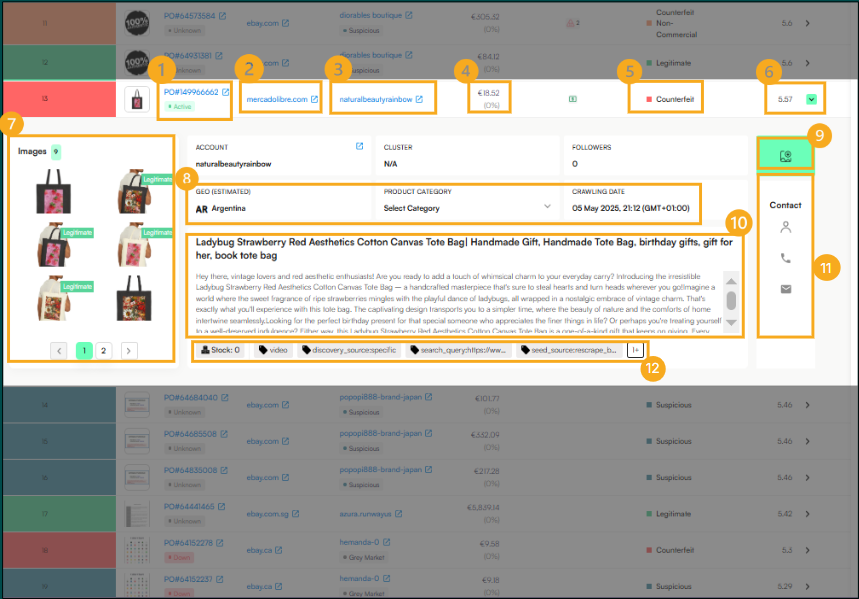
Clicking on the post will expand specific information about the post, such as:
Post ID & Status – Post identification number, hyperlinked to open the post in a new window and post status (online/offline).
Website – Marketplace, social media platform or website advertising this post.
Account – Account or seller advertising this post.
Price – Price being advertised in this post.
Impact Score – A number showing how likely a post is to infringe. Higher scores mean higher risk.
Label – Classification of the infringement type (i.e counterfeit).
Images – Images used in the post.
Product category, geography, and crawling date – Detection date.
Screenshot – See the screenshot of the full post at the time of detection.
Title & Post description
Contact details – If available.
Tags – Tags applied to this post.
Note: Expanding a post in the Post View is the most efficient method to quickly check/review posts.
OPENING A POST IN A NEW WINDOW
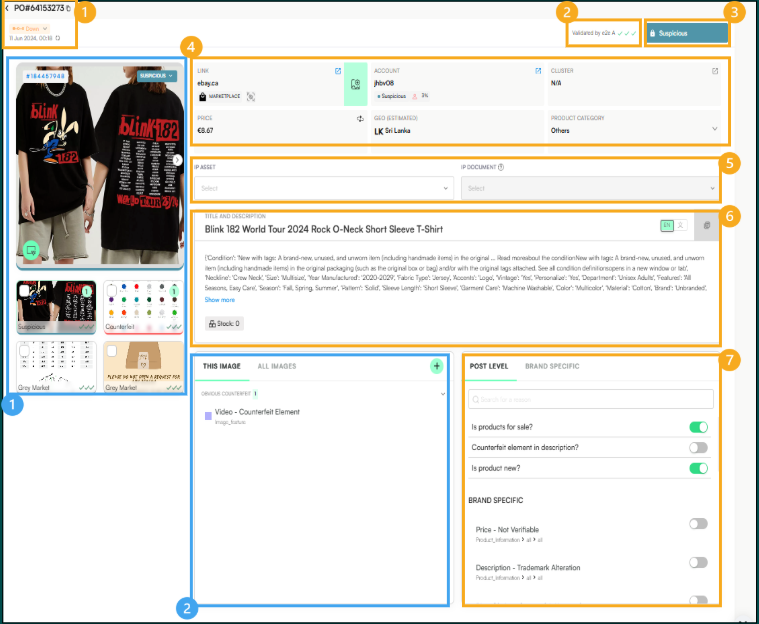
Clicking on the Post ID opens the Individual Post View, where you can take moderation actions and view detailed information about the post, its images, and infringing elements—all on the same screen.
A) Post Details
Post ID, status & crawling date
Moderation status:
One check mark means the image has been moderated.
Two check marks indicate it has been reviewed for accuracy and completeness.
Three check marks confirm that the post has been fully validated and is ready for enforcement.
Label – Classification/infringement type.
Website, account/seller, geography, price & product category
IP Asset/IP Document – Documents required for enforcement.
Post title & description – With original language if applicable.
Post and brand-specific infringing elements – e.g., counterfeit terminology in the post.
B) Images & Image Moderation
Images – Images being used in this post. Each image has a clickable ID that opens a detailed view in a new window.
Feature Labels – Used to mark specific infringing elements within the image (i.e logo detection or logo missing).
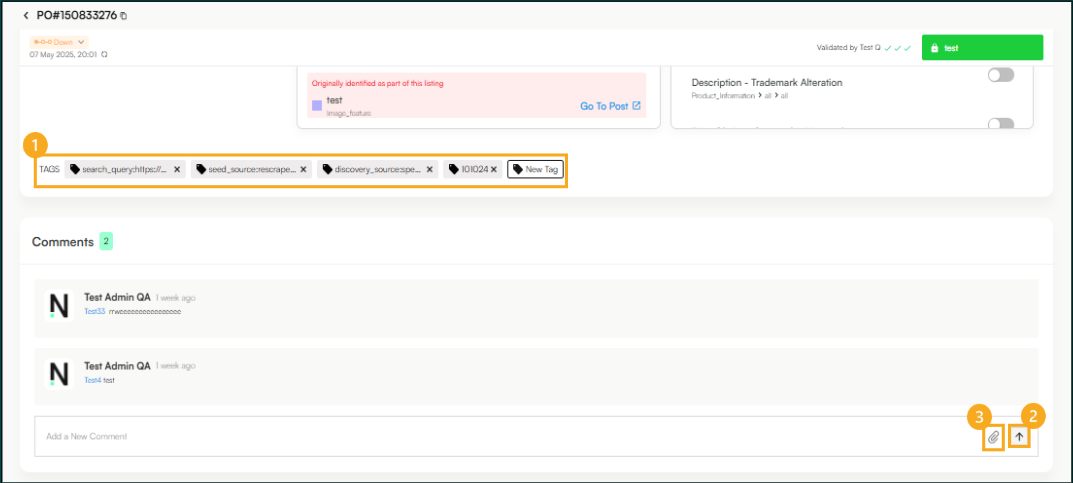
Scrolling down further, users can find a section to collaborate directly in the post by adding comments and tagging team members:
Users can add a Tag to this post by clicking “New Tag”.
Mention usernames using @username followed by your message and click the arrow to submit.
Attach files or reference images using the paperclip icon.
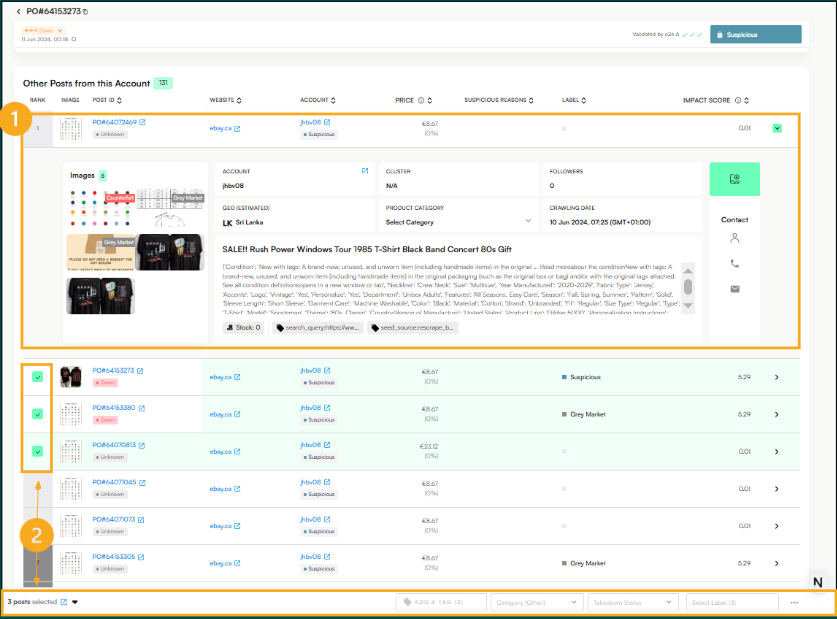
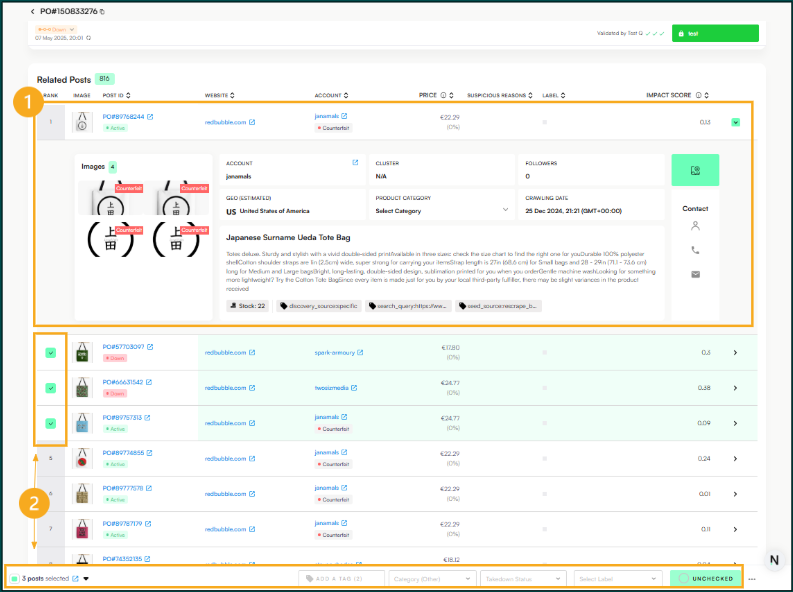
Scrolling further, users will see all the Related Posts similar to the one selected. The Related Posts section displays other posts that share similar content, images, or characteristics with the one you're viewing.
Users can:
Click to expand or open the related post in a new window for detailed viewing.
Multi-select posts to add additional information (such as tags, categories, takedown status, labels) and mark posts checked/unchecked (depending on permissions).
Scrolling to the bottom reveals all other posts from the same Account or Seller as the selected post.
Users can:
Click to expand or open the related post in a new window for detailed viewing.
Multi-select posts to add additional information (such as tags, categories, takedown status, labels) and mark posts checked/unchecked (depending on permissions).