Meet Tasks! In Zeal 2.0, while the Explore section is where your raw data (Images, URLs, Accounts, and Domains) lives, the Tasks section is the engine that drives your workflow.
Instead of aimlessly browsing through massive datasets, you use Tasks to create focused, targeted assignments. Once you configure and start a task, the system automatically jumps you into the correct Explore view, pre-filtered and equipped with the exact action buttons you need for that specific job.
Enforcement Tasks
Task Notifications
Moderation tasks are designed for the first line of defense. You create these tasks to sift through newly collected, un-labeled data and classify it.
What happens in this task: Moderators review content and apply labels (e.g., Counterfeit, Copyright Infringement, Phishing). Once labeled, the items receive their first check mark (✓).
Examples of Moderation Tasks:
The Daily Sweep: A task targeting 500 newly scraped URLs from the past 24 hours that mention your brand name, assigned to a team of moderators to quickly clear out legitimate resellers and label the infringements.
Image Batching: A task focusing exclusively on the "Images" dataset, where a moderator reviews 200 images to verify if they are unauthorized logos.
Account Triage: A task filtering for social media accounts created in the last week that use your brand's name in their handle, allowing a moderator to quickly label impersonator accounts.
Review tasks are created for Quality Analysts (QAs) to audit work that has already been moderated. You create these tasks by targeting datasets that already have one check mark (✓).
What happens in this task: QAs review the assigned labels for accuracy. They can fix mistakes, remove irrelevant items, or confirm the decisions by applying a second check mark (✓✓).
Examples of Review Tasks:
Junior Moderator Audit: A task created to review 100% of the "Counterfeit" labels applied by a newly hired moderator over the past week to ensure they understand the brand guidelines.
The "Suspicious" Queue: A task pulling in all items labeled Suspicious. A senior QA reviews these edge-case listings to definitively re-label them as either Legitimate or an actual infringement before they reach the client.
High-Priority Domain Check: A task isolating only website Domains that were auto-moderated for phishing. The QA quickly verifies the system's accuracy before moving them forward.
Validation tasks are the final approval gate. These are built for clients, brand managers, or external legal reviewers to officially sign off on takedowns. You create these tasks by targeting QA-approved datasets bearing three check marks (✓✓✓).
What happens in this task: The client reviews the fully vetted infractions and applies commercial or legal judgment. They can approve (Validate & Enforce), reject (No Action), or pause (On Hold) the item. Validated & Enforced items move to Enforcement queue within the Notice View.
Examples of Validation Tasks:
Weekly Takedown Approval: A task containing 50 highly vetted social media accounts flagged for impersonation. The client brand manager reviews the list on Friday afternoon and hits "Validate and Enforce" to trigger the Monday morning takedown notices.
VIP/Whitelisted Seller Check: A task pulling in flagged items from a specific marketplace (e.g., Amazon). The client reviews the list to ensure none of their newly authorized third-party resellers accidentally got caught in the moderation net.
Legal Escalation Queue: A task containing complex copyright infringements on standalone domains. The client's external legal counsel reviews this specific task to decide if a standard takedown is sufficient or if a larger lawsuit is required.
Tasks help you organize and streamline your workflow. In Zeal, you can create tasks specifically for Moderation, Review (QA Check), and Client Validation.
Here is how to set up a new task:
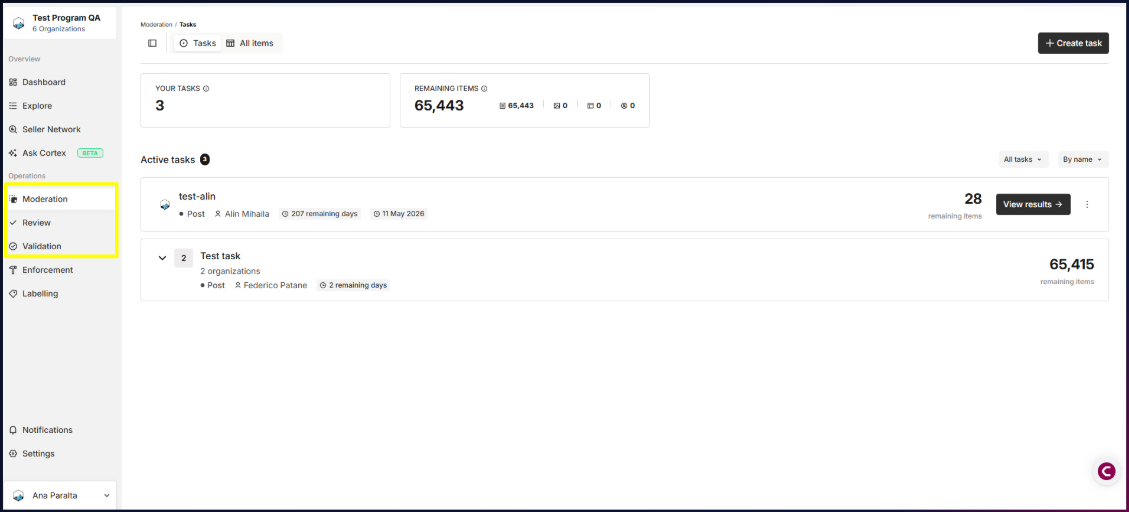
Navigate to any of the spaces under Operations (Moderation, Review, Validation)
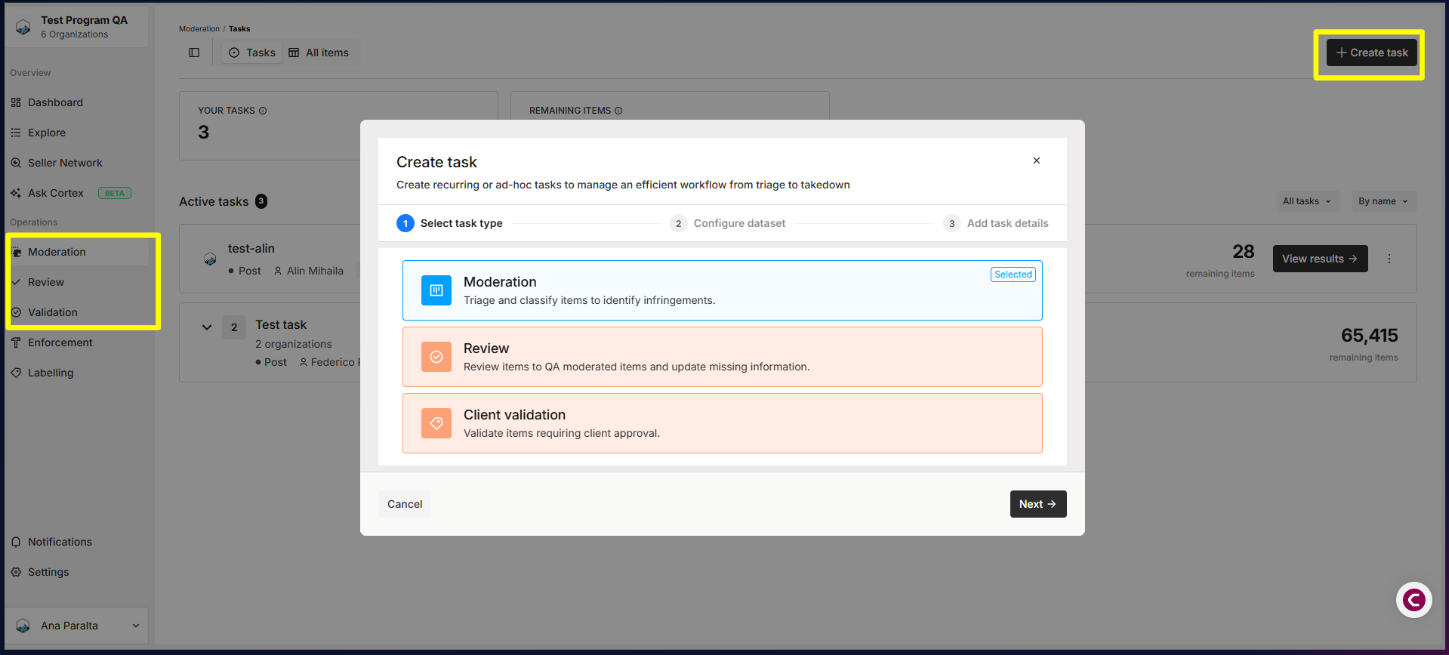
Click “Create Task”
Select the Task Category: Choose whether your task is for Moderation, Review, or Client Validation.
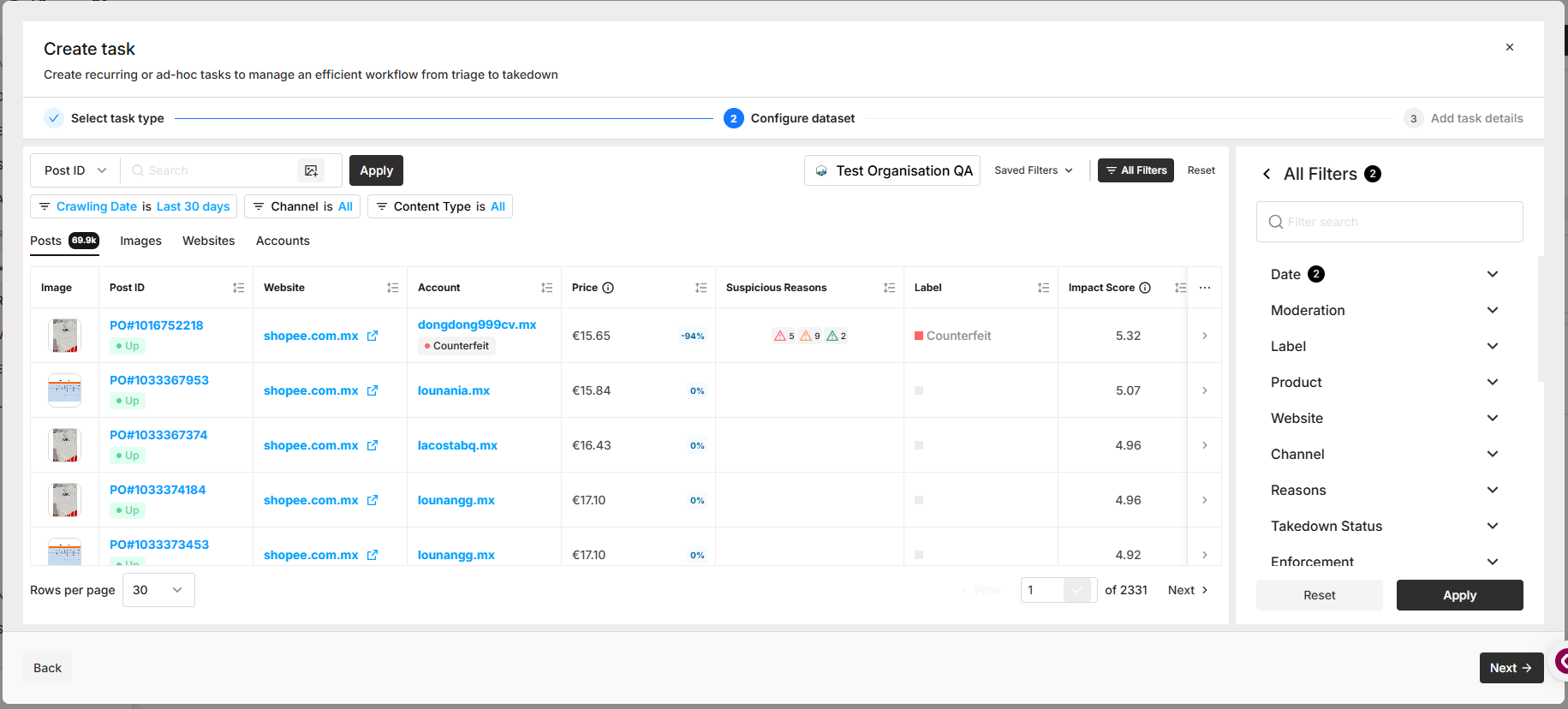
Choose Your Dataset: Select the specific data you want to target.
Tip: Setting up your dataset here works exactly the same way as saving a new set of filters!
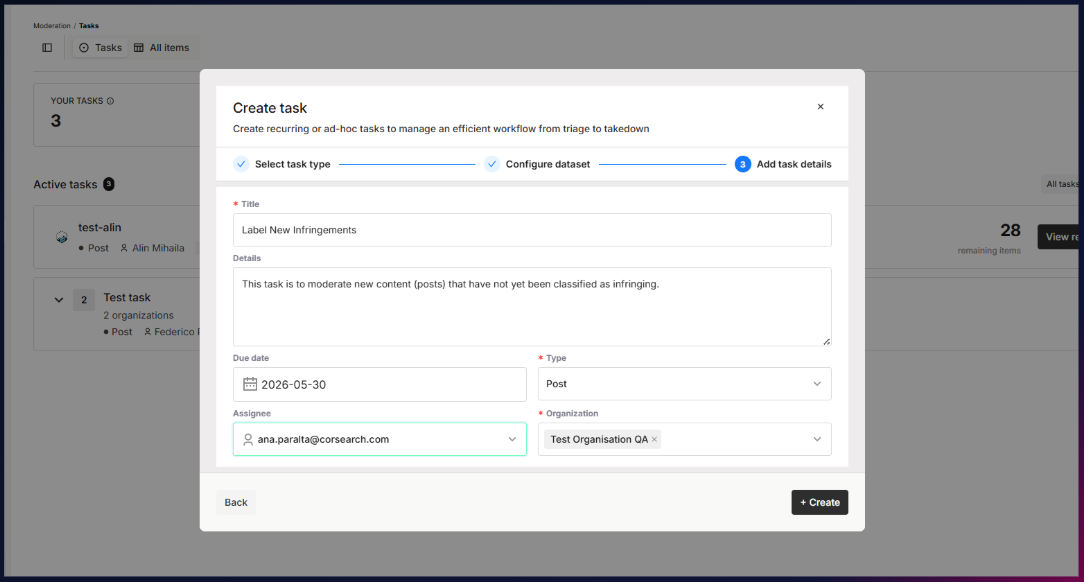
Add Task Details: Fill in the essential information to keep your team aligned:
Name & Description
Deadline
Data Type (Select from Images, Posts, Accounts, or Websites)
Once your task is created and you are ready to begin:
Simply click the View Results button.
Zeal will seamlessly take you directly into the Explore section, automatically displaying the dataset you configured for that task.
