Categories are a way to group similar products together so they can be managed, displayed, and reported on more effectively. In Zeal, categories act as the backbone of your product structure, helping both users and internal teams understand what a product is, where it belongs, and how it should be handled.
At a high level, product categories are used to:
Organize products logically
Grouping products into categories such as Apparel, Electronics, or Health & Wellness makes large catalogs easier to manage.
Improve navigation and discoverability
Categories help users quickly find relevant products and understand how items are related.
Support reporting and analytics
Categories allow Zeal to aggregate data, track performance, and generate insights at a category level rather than only per product.
Apply auto-moderation rules at scale
Pricing rules can be applied to entire categories instead of individual products.
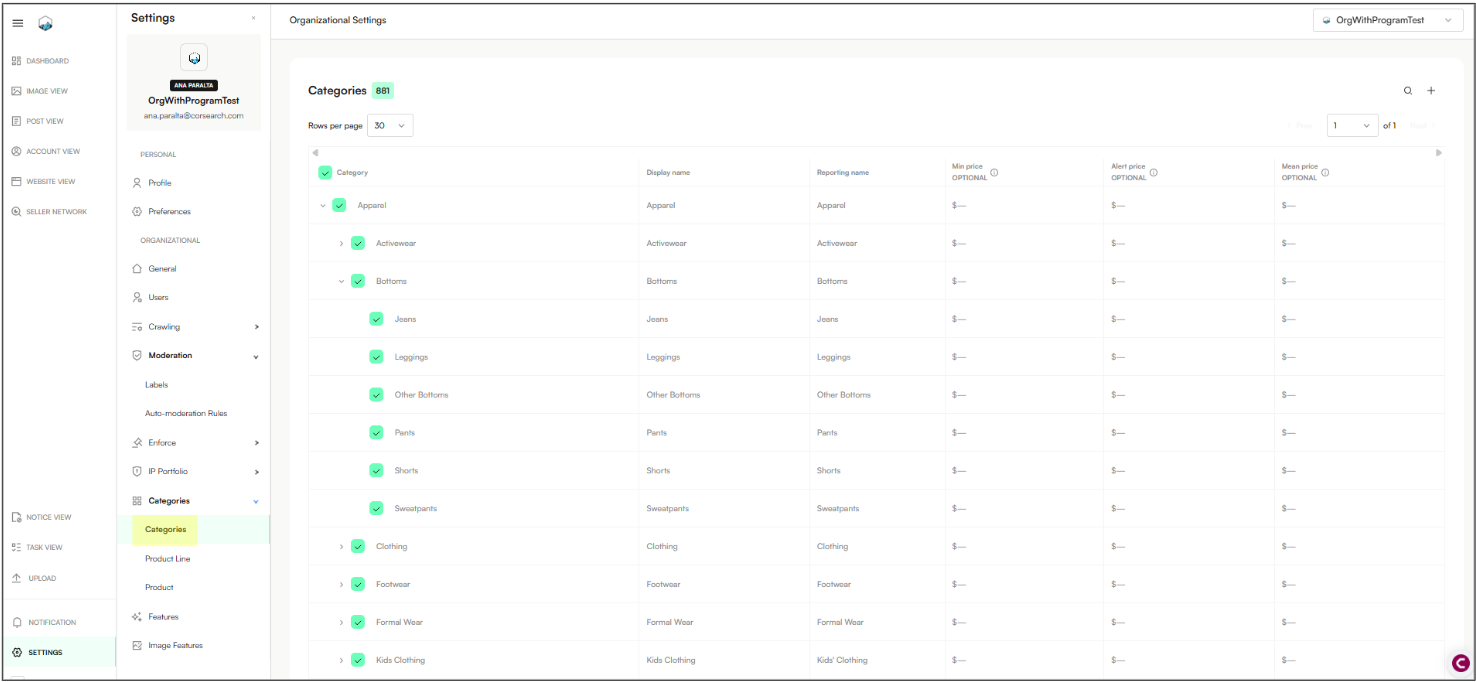
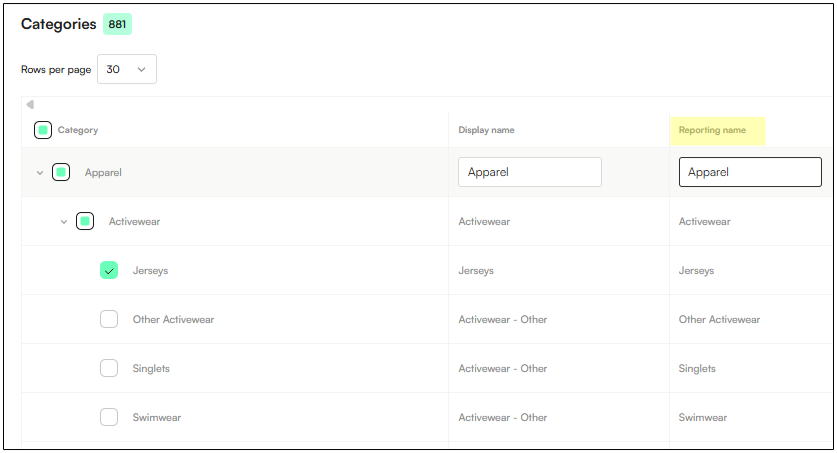
When you open Categories, you’ll see a structured table with the following key elements:
Categories are displayed in a hierarchical list.
Parent categories can be expanded to reveal subcategories.
Green check icons indicate enabled categories.
This structure helps maintain clarity as your catalog grows.
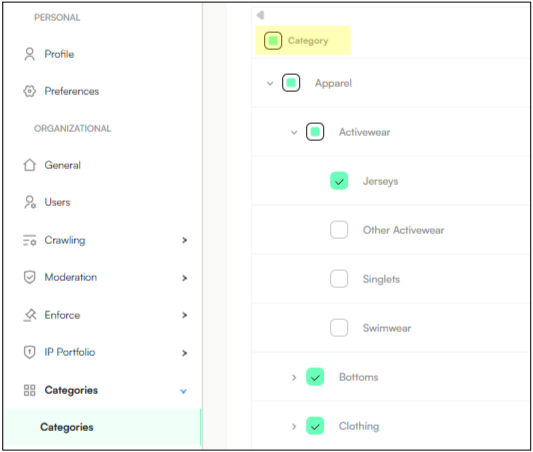
The customer-facing name of the category.
Shown in product listings and selection menus.
Should be clear, descriptive, and consistent.
Note: Users can customize display names to match their preferred naming conventions. If a specific theme or category is missing, the category tree can be updated and category names edited accordingly.
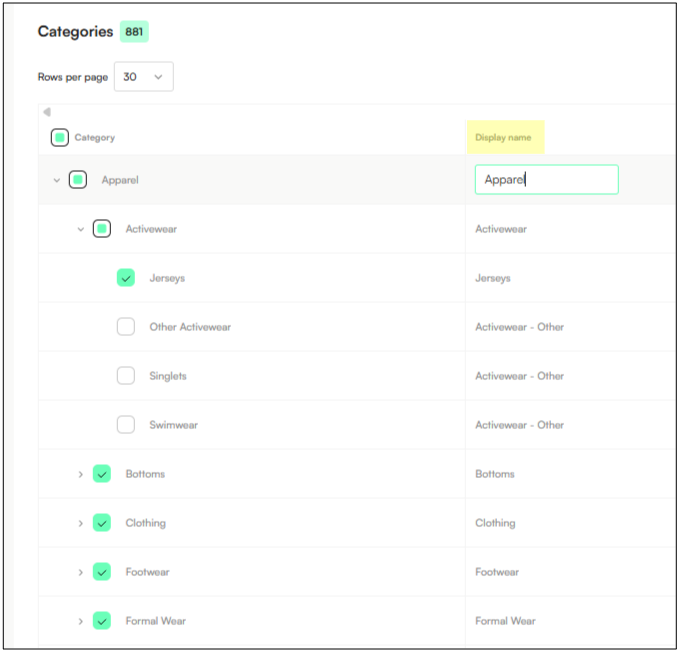
Used internally for analytics and reporting.
Can match the display name or be adjusted to consolidate multiple categories under one reporting label.
Minimum Price: Sets a pricing floor for all products in the category.
Alert Price: A price threshold that flags listings for review when the price is unusually lowl.
Mean Price: This price refers to the brand's standard selling price, it is set as the usual rate for offering the product.
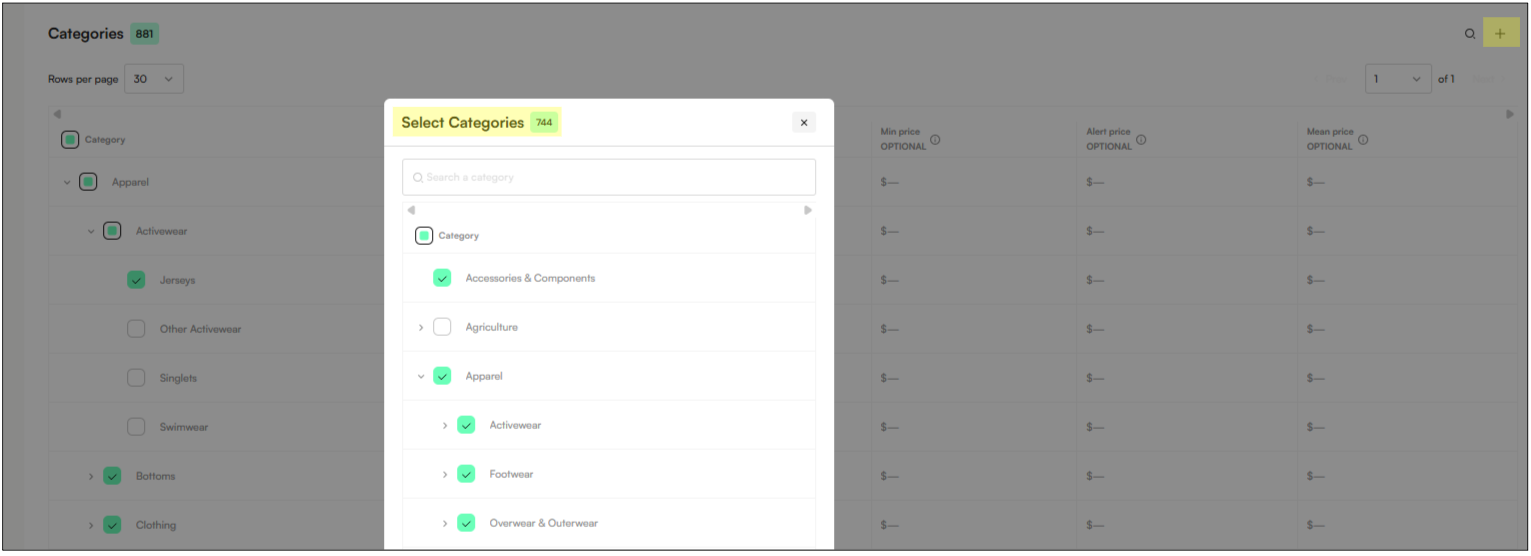
To add additional categories:
Click the plus (+) icon in the top-right corner of the Categories screen.
Select the category or categories you want to add.
Confirm your selection.
The newly added categories will appear in the category tree and can be configured immediately.