Product Lines organize related products, while Products represent specific items—together enabling clearer classification, filtering, and analysis in Zeal.
The Product Lines & Products allows you to structure your brands’ catalog in a clear and scalable way. This setup helps the system understand what you sell and how individual products relate to broader categories, enabling more accurate tracking, analysis, and reporting.
Product lines must be configured first, as each individual product is created and managed within an existing product line.
A Product Line represents a group of related products that belong to the same category. Product lines must be configured first, as each individual product is created and managed within an existing product line.
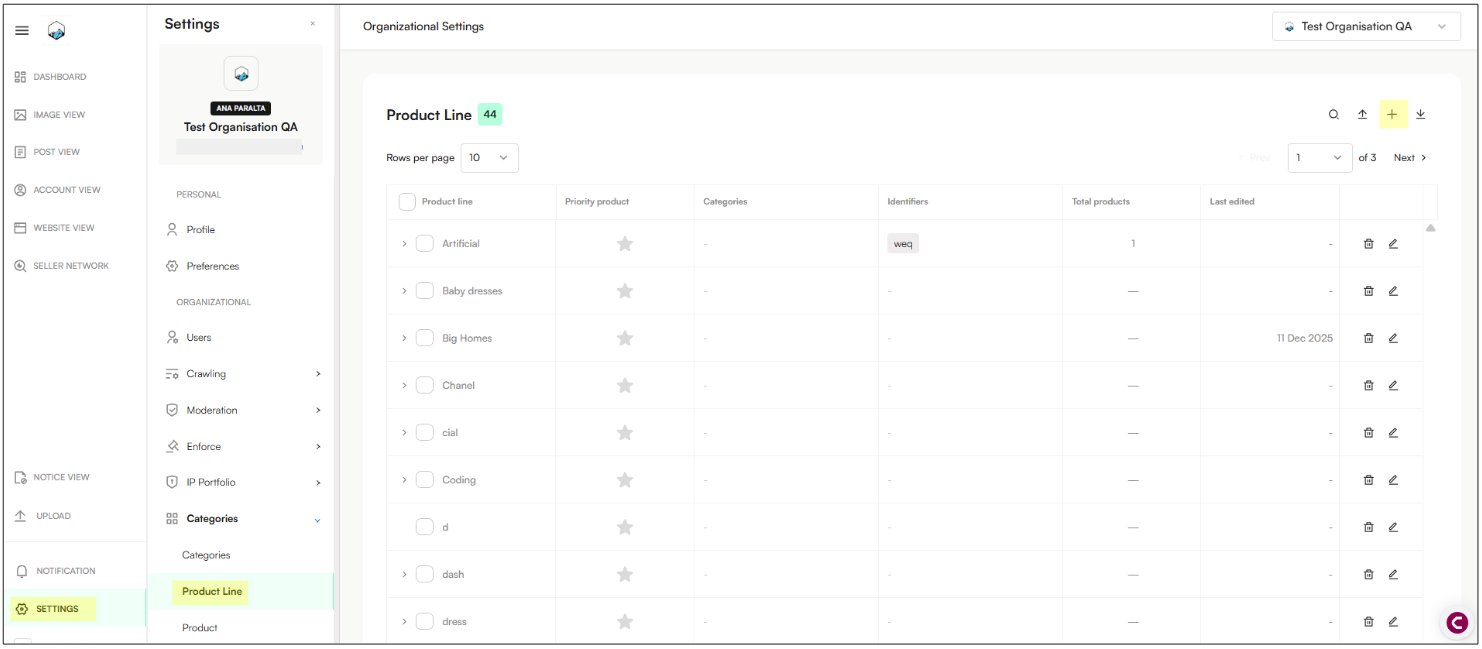
Navigate to Settings
Click Categories → Product Line
Click the plus icon to add a new Product Line:
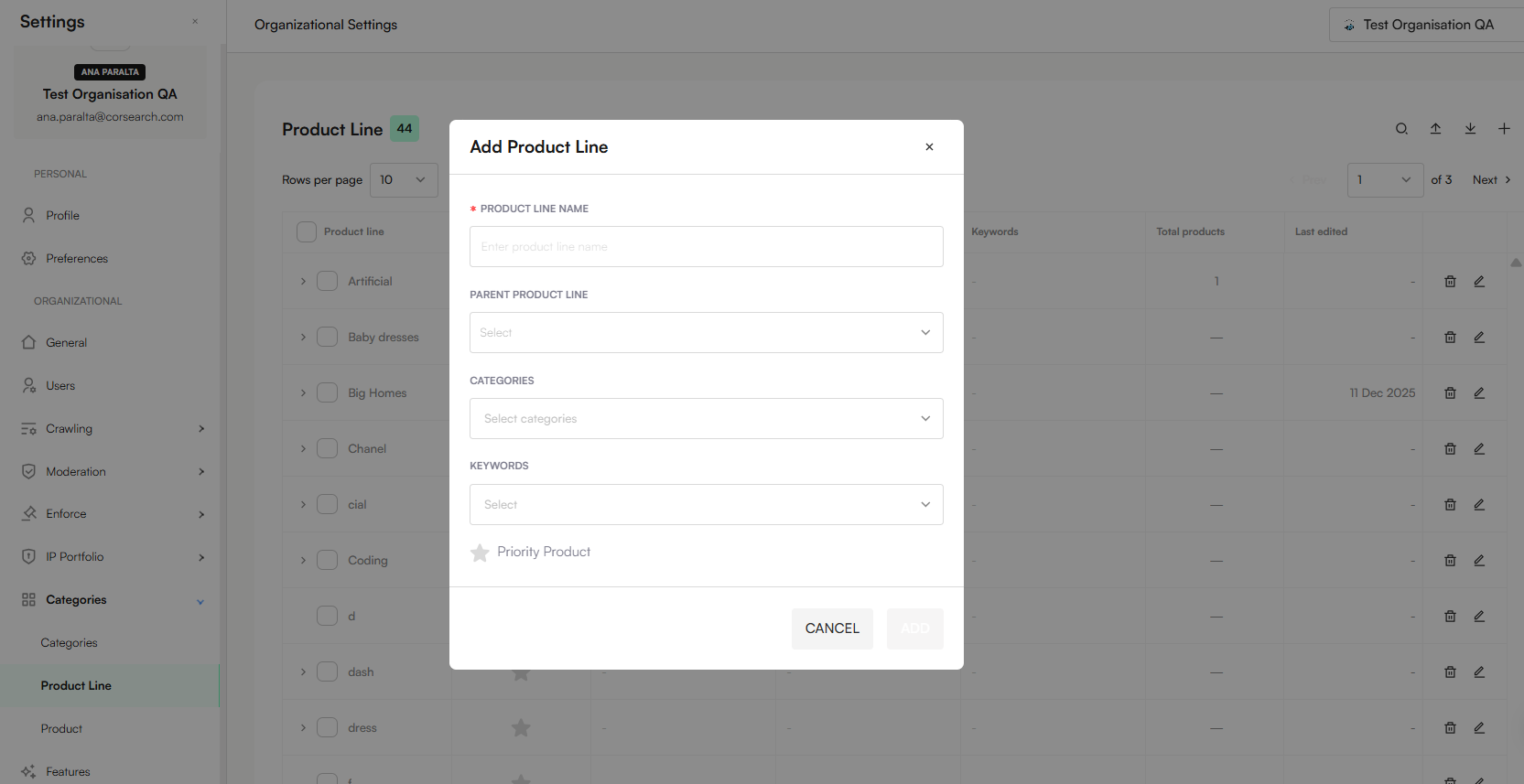
Type the product line name
Add a parent product line
Note: The first product line you configure will be considered the parent product line.
Select the Category the Product Line belongs to
Add the keywords you want.
Note: These keywords enable the system to automatically identify and associate content with a specific product line.
Click Add
Users can add multiple product lines at once using the bulk upload option.
Navigate to Settings
Click Categories → Product Line
Click the upward arrow icon
Click Download template

Fill the Excel template
Note: The template includes a second tab (Glossary) to help guide you when completing the file.
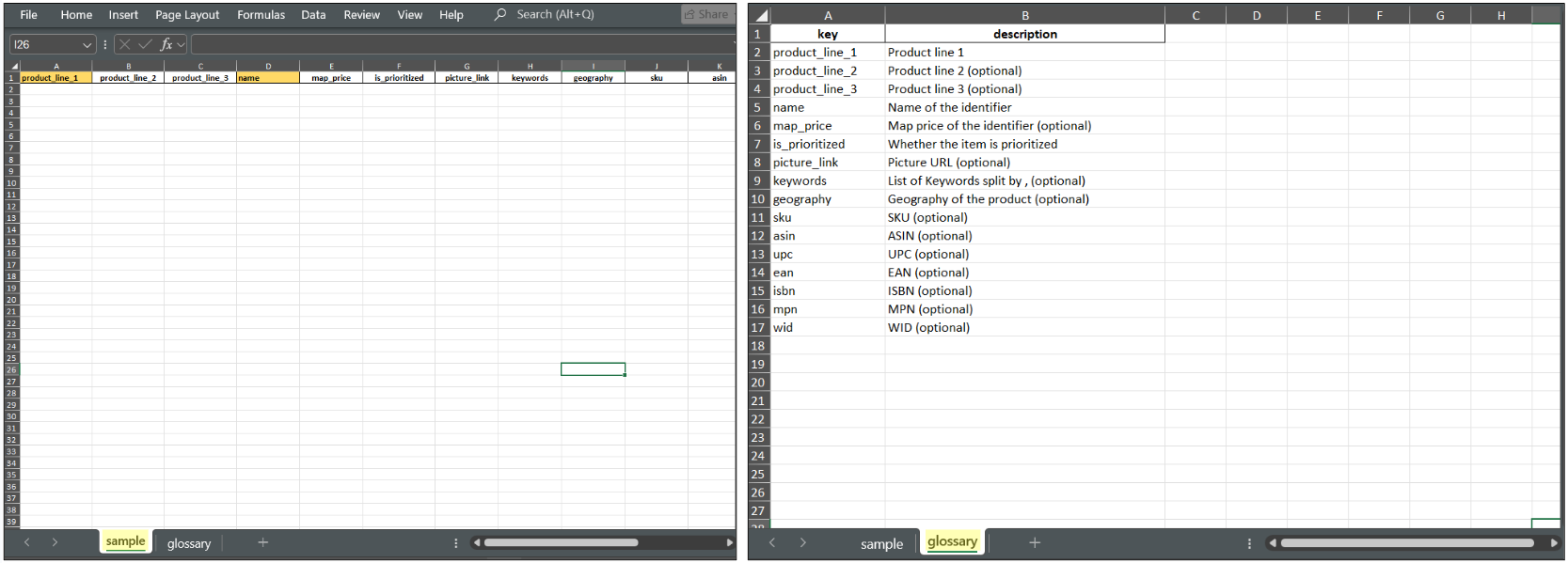
Save the Excel file
Drag and drop or upload the Excel file:
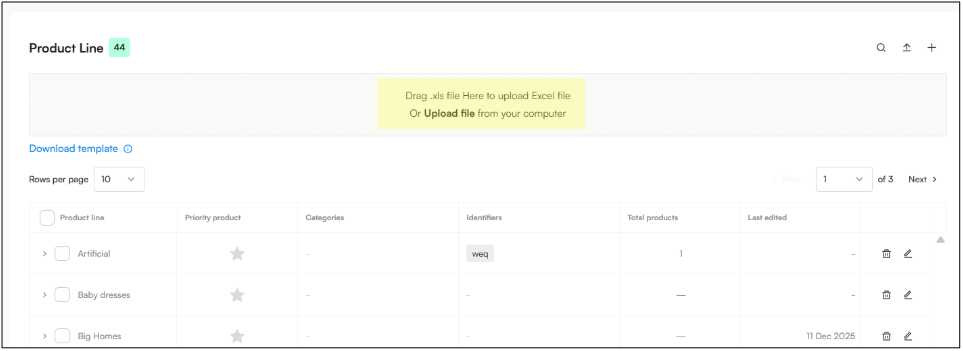
After uploading the file, all product lines included in the Excel sheet will be displayed on the screen.
A Product is a specific item or model within a product line. It represents an individual SKU, model name, or concrete offering.
Navigate to Settings
Click Categories → Product
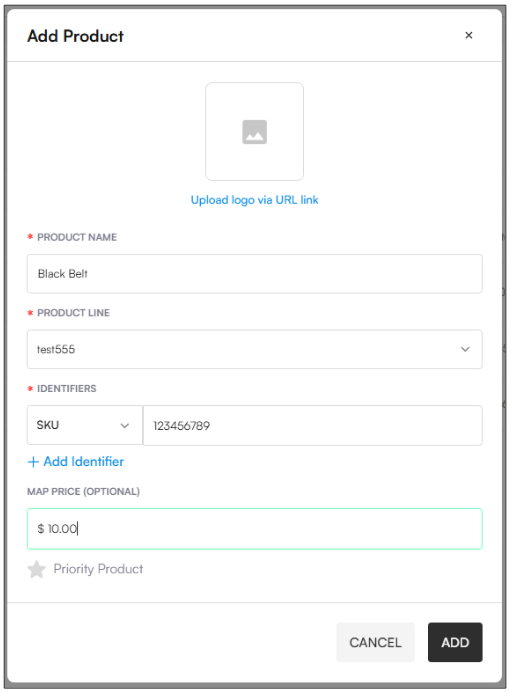
Click the upward arrow icon to add a new product

Type the product name
Add a parent product line
Add specific identifiers (e.g: SKU, ASIN, EAN and others)
Add the price for this product (optional)
Click Add
Navigate to Settings
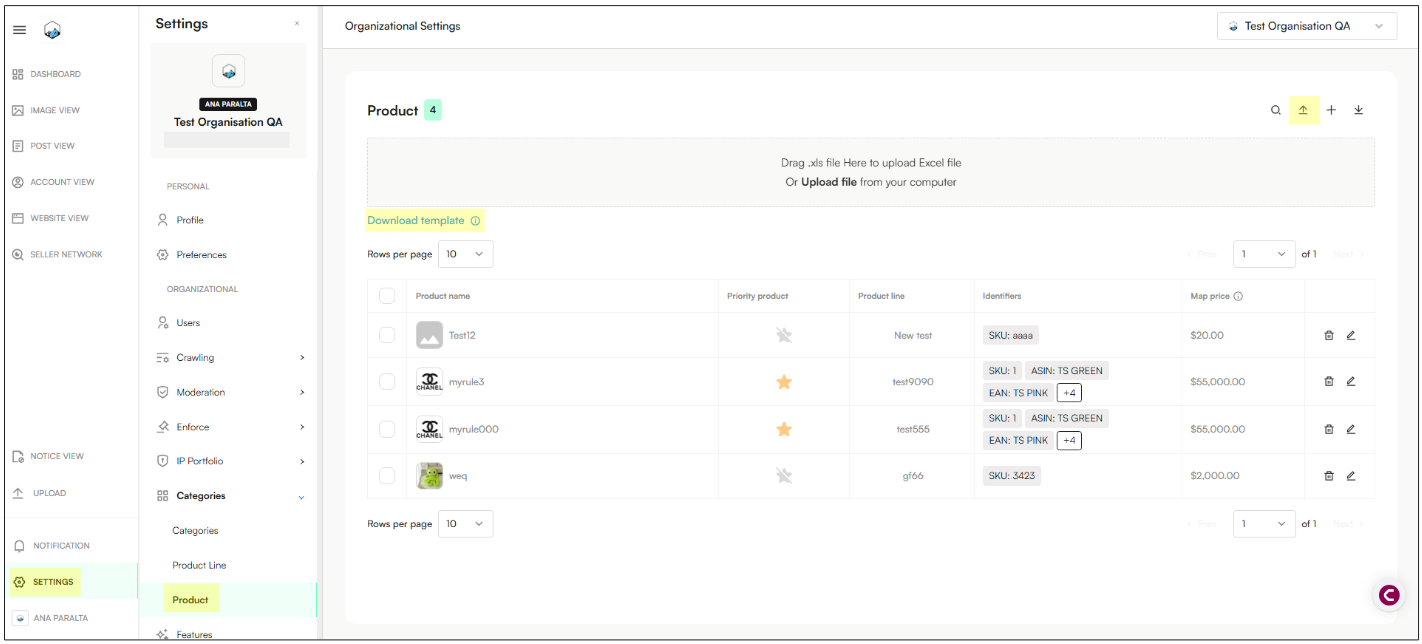
Click Categories → Product
Click the upward arrow icon
Click Download template
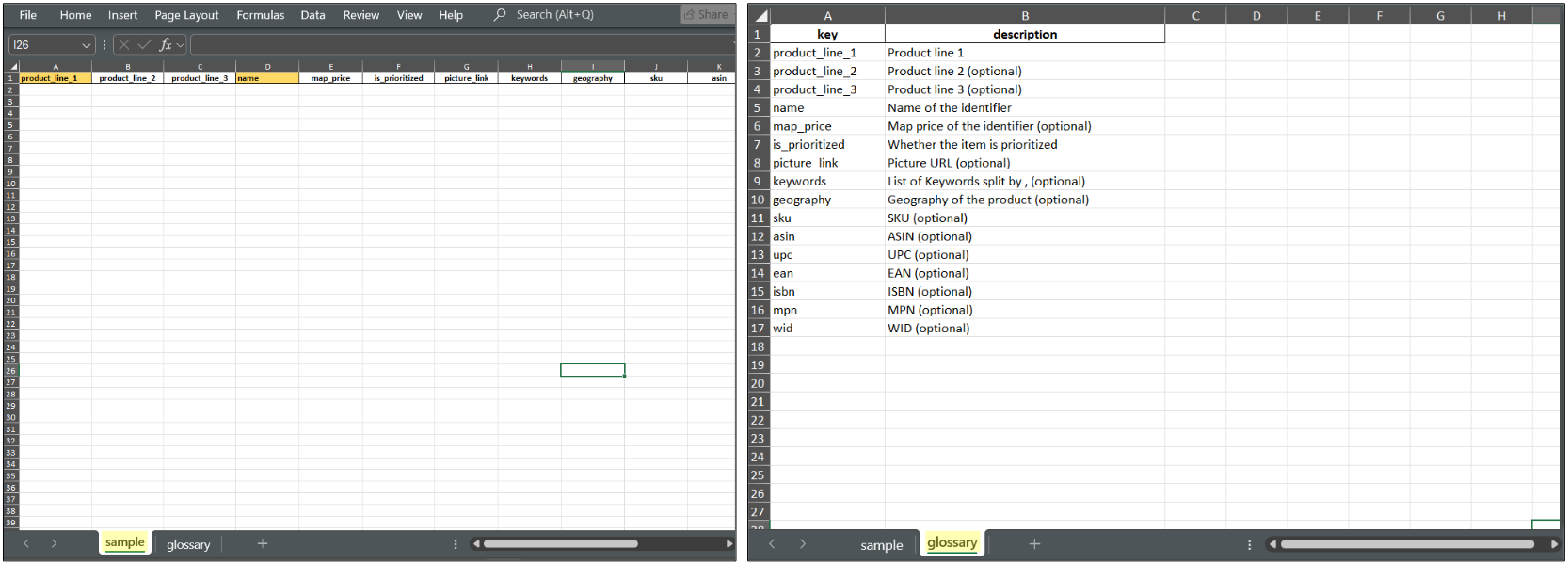
Fill the Excel template
Note: The template includes a second tab (Glossary) to help guide you when completing the file.
Save the Excel file
Drag and drop or upload the Excel file:
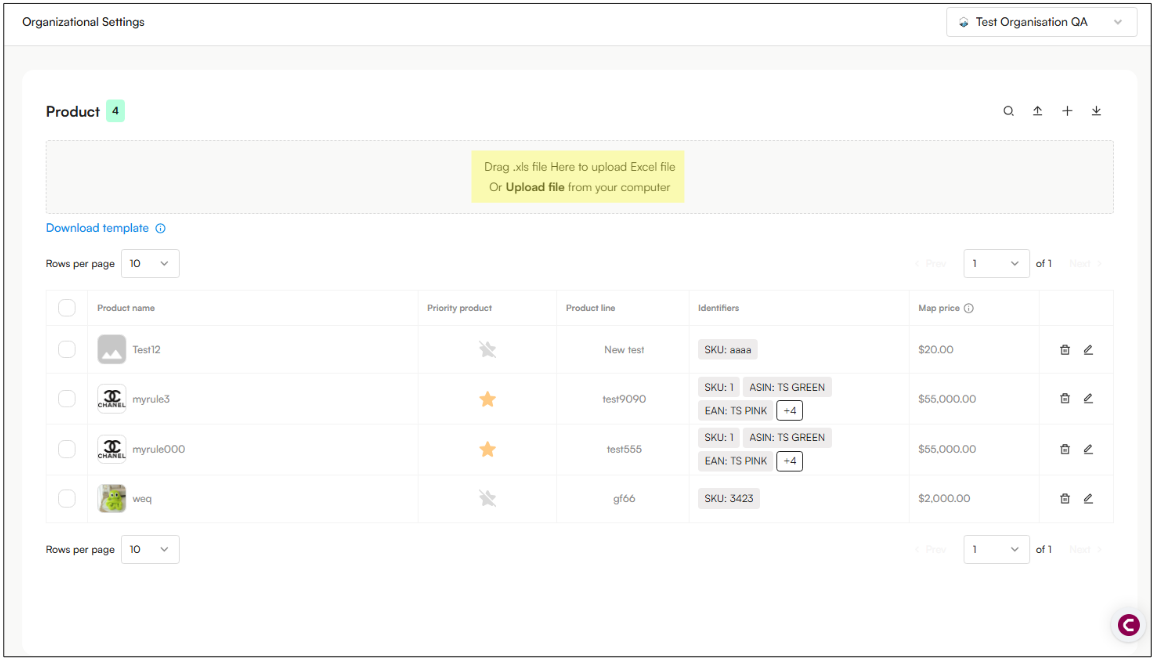
After uploading the file, all products included in the Excel sheet will be displayed on the screen.
