The Search Bar gives users tools to refine results across posts, accounts, and websites. Each search option targets a specific type of data, allowing you to pinpoint exactly the listings or entities you need to investigate.
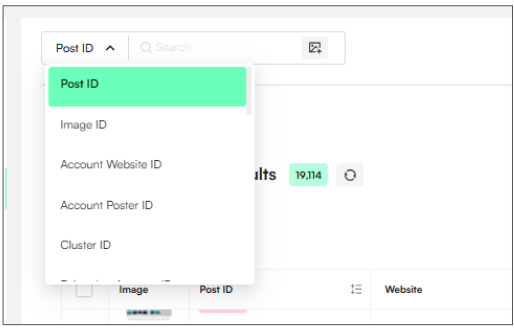
The definitions below explain what each search field does and how it can be used to filter, include, or exclude results with precision:
Post ID: Find a specific listing using its unique Zeal identifier.
Image ID: Search for a specific image by its Zeal identifier.
Account Website ID: Identify a specific website entity via its Zeal identifier.
Account Poster ID: Locate a specific user account using its its Zeal identifier.
Search keyword as Post URL: Filters by matching keywords against the full web link of a post (useful for specific domains or URL structures).
Search keyword as Website URL: Filters based on keywords in a captured site URL (ideal for finding seller networks or fraudulent structures).
Search keyword as Account URL: Searches for keywords in profile or shop links to spot repeat infringers.
Search keyword as Cluster Name: Matches keywords against "Cluster Names"—Zeal’s automatically grouped networks of related accounts and sites.
Search keyword as Account name to include: Returns results where the seller's name contains your keyword (aliases, brand names, etc.).
Search keyword as Account name to exclude: Hides results where the account name matches the keyword (useful for filtering out legitimate sellers).
Search keyword in text to include: Searches for keywords inside titles, descriptions, and bios.
Search keyword in text to exclude: Removes results where the keyword appears in titles, descriptions, or bios.
Search keyword in Title to include: Searches for keywords only within the listing titles.
Search keyword in Title to exclude: Excludes results based only on keywords in the titles.
Search keyword in Comments to include: Searches for keywords found within the post’s comment section.
Search keyword in Comments to exclude: Filters out results where specific keywords appear in the comments.
Search keyword as text in OCR to include: Uses Optical Character Recognition to find keywords printed inside images (labels, logos, or text overlays).
Search keyword as text in OCR to exclude: Hides results where the specified text is detected inside the images.
Search keyword as Contact Info to include: Finds results containing specific phone numbers, emails, or messaging handles.
Search keyword as Item Sizes to include: Filters for specific product sizes (e.g., "Large", "50ml", "EU 40").
Search keyword as Item Sizes to exclude: Removes listings that mention specific sizes or variants.
DNS-Records to include: Searches for terms within a website's technical DNS records (A, AAAA, or MX records).
WHOIS Entity Name to include: Finds results based on the registered owner or organization name of a website.
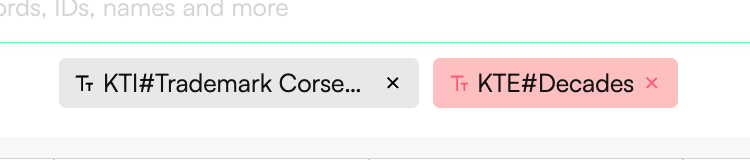
The Keywords in Text to Include / Exclude function allows you to filter listings, accounts, and websites based on specific words or phrases found in their text fields.
Different sections of Zeal search different datasets:
Posts View searches keywords found in the listing Title or Description
Account View searches keywords found in the Account Bio
Website View searches keywords found in any website bio or captured description
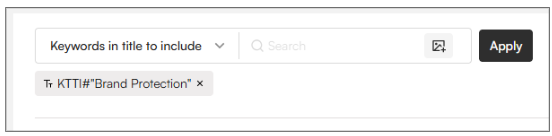
Use double quotation marks to search for an exact phrase in the Keywords in Text field.
Example:
Searching "Brand Protection" will return only results containing that exact phrase.
It will not return results such as “Protection of Brands”, because the wording and order are different.
When you enter multiple keywords as separate search terms in the Keywords in Text field, Zeal treats them as an OR search.
Example:
Searching Core and Brand Protection as separate inputs will match entries containing either “Core” or “Brand Protection”.
This means entries that include “Protection of Brands” will also appear when matched under the “Brand Protection” term.

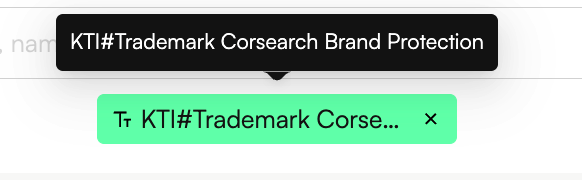
If you enter multiple keywords in the same search field without quotes, Zeal will search for results that contain all of those keywords somewhere in the text.
Example:
Searching trademark Core Brand Protection
will return results containing Trademark AND Core AND Brand Protection—all of them present within the same listing, account, or website text.
You can remove unwanted results by adding terms to Keywords to Exclude.
Example:
Adding decades as an excluded keyword will return results that do not contain the word “decades.”
Zeal will show entries matching your included keywords AND excluding any that contain the blocked terms.