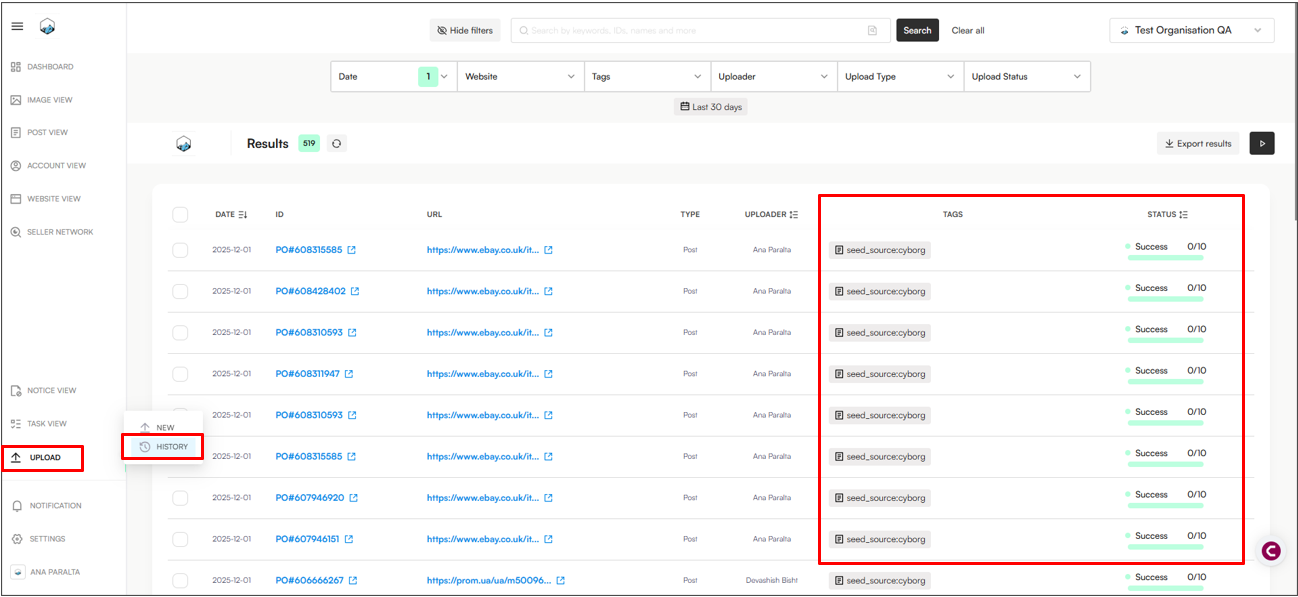
Open Google Chrome
Go to a domain/platform of your choice (e.g: ebay.co.uk).
Note: See all the domains supported by Cyborg here.
Search for any keyword(s) (e.g: “gucci bag”).
Click the Cyborg Icon on the right side of the screen — you’ll see the Cyborg side panel.
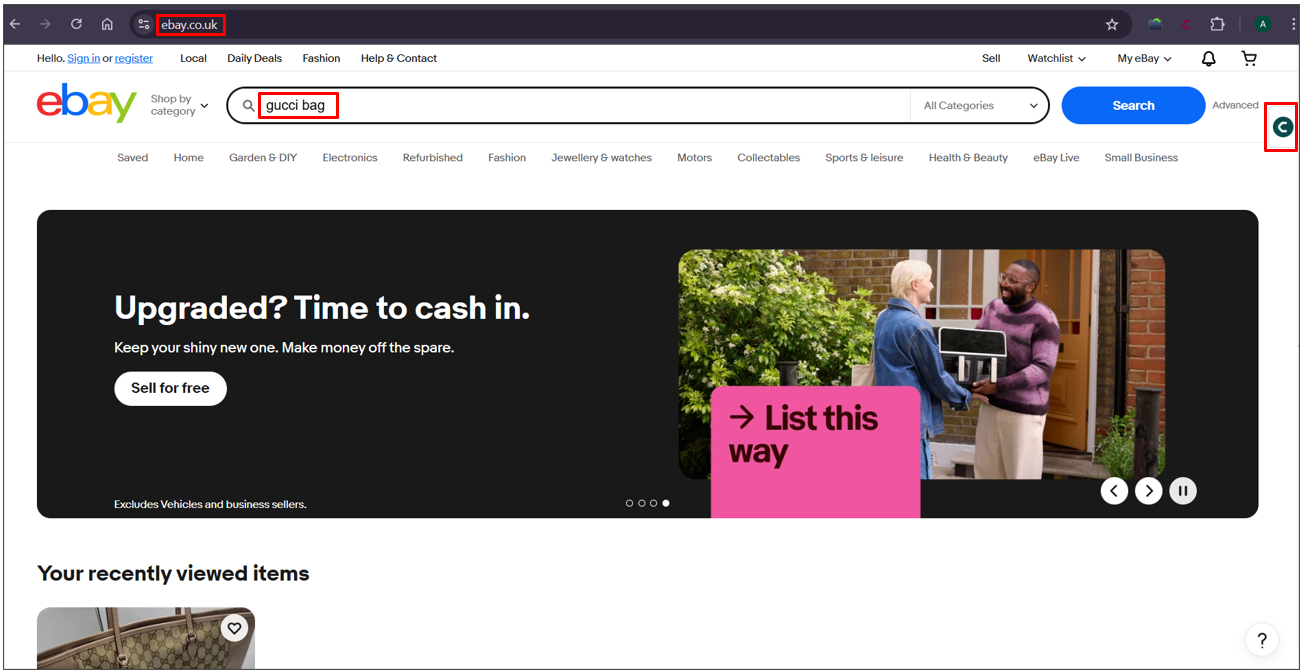
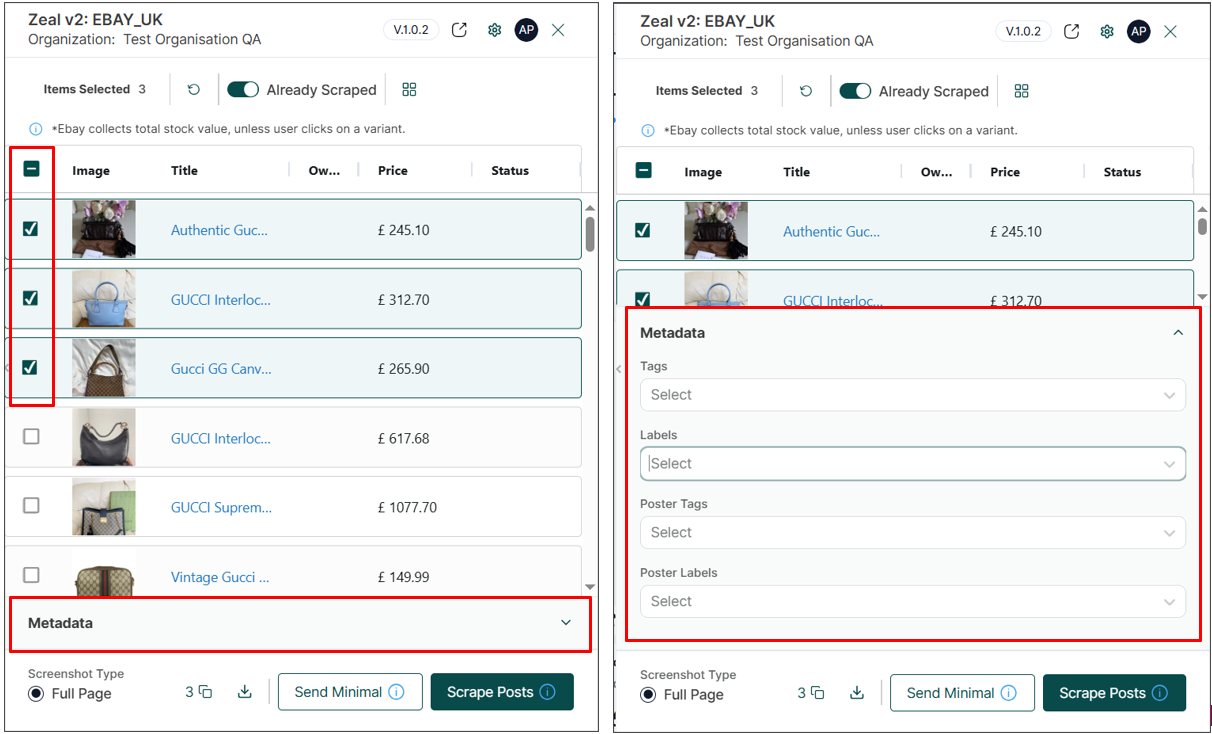
In the Cyborg side panel, you can select multiple listings at once using the checkboxes beside each item. If a listing has already been scraped, it will display a “Scraped” badge:
Note: The side panel contains all the listings/posts from your search.
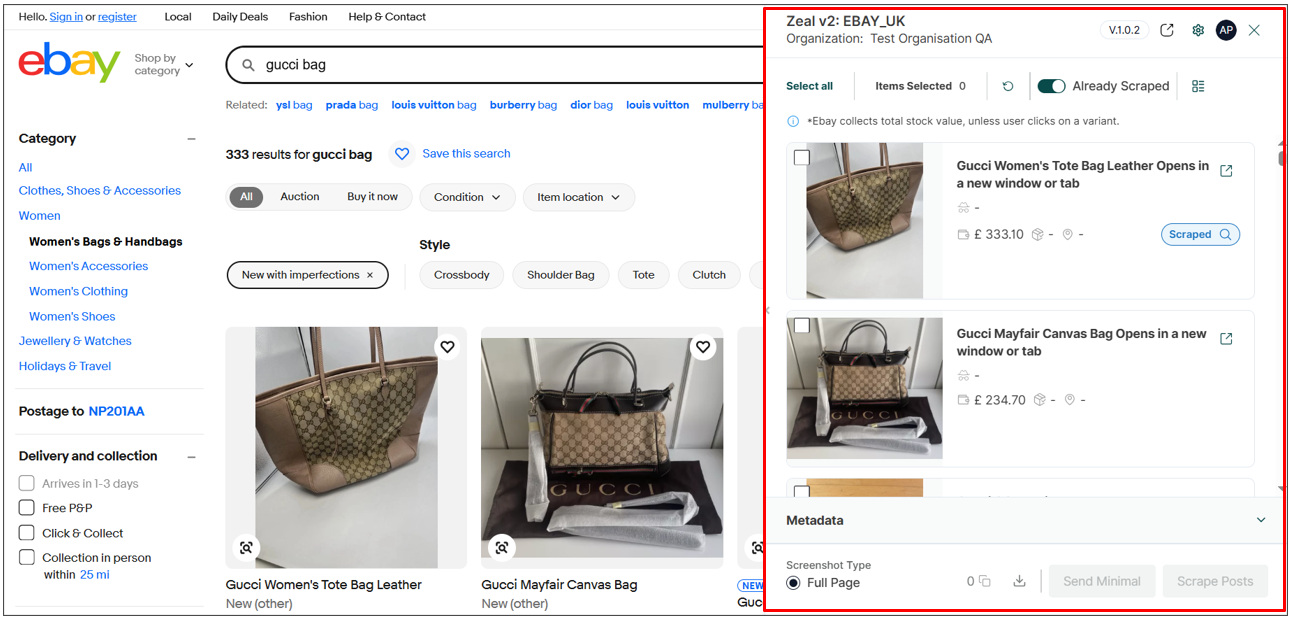
Note: You can customize the side panel from thumbnail view to list view:
Select all listings you wish to scrape into Zeal 2
Open the Metadata tab (optional)
Note: In the Metadata tab, you can assign tags and labels to the selected posts. When the listings are scraped into Zeal, they will automatically include the tags and labels you applied.
Click Scrape Posts
Note: You can also click Send Minimal to scrape limited data without a screenshot. This method is recommended for platforms or domains that are difficult to navigate or scrape (e.g., Taobao, Tmall, JD).
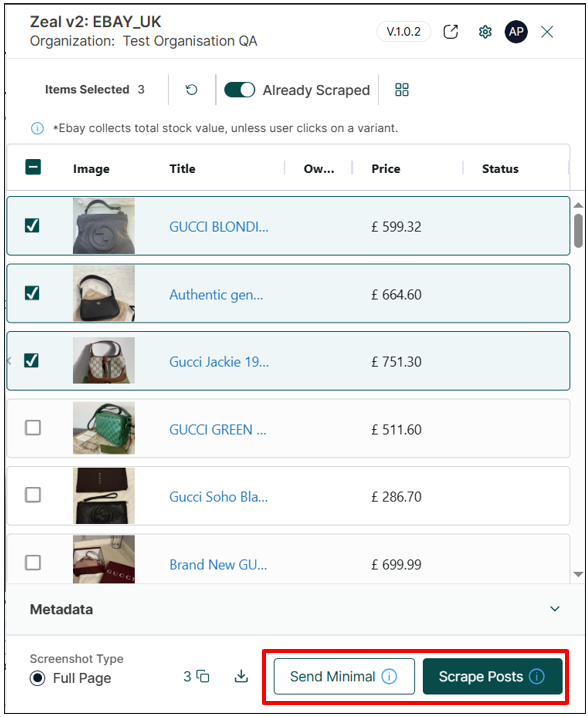
Cyborg will open each listing one by one to scrape it. Please avoid using Google Chrome during this process to prevent crashes or interruptions.
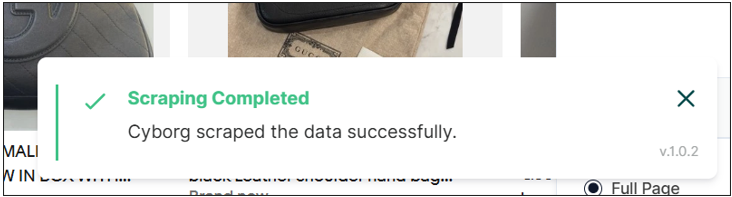
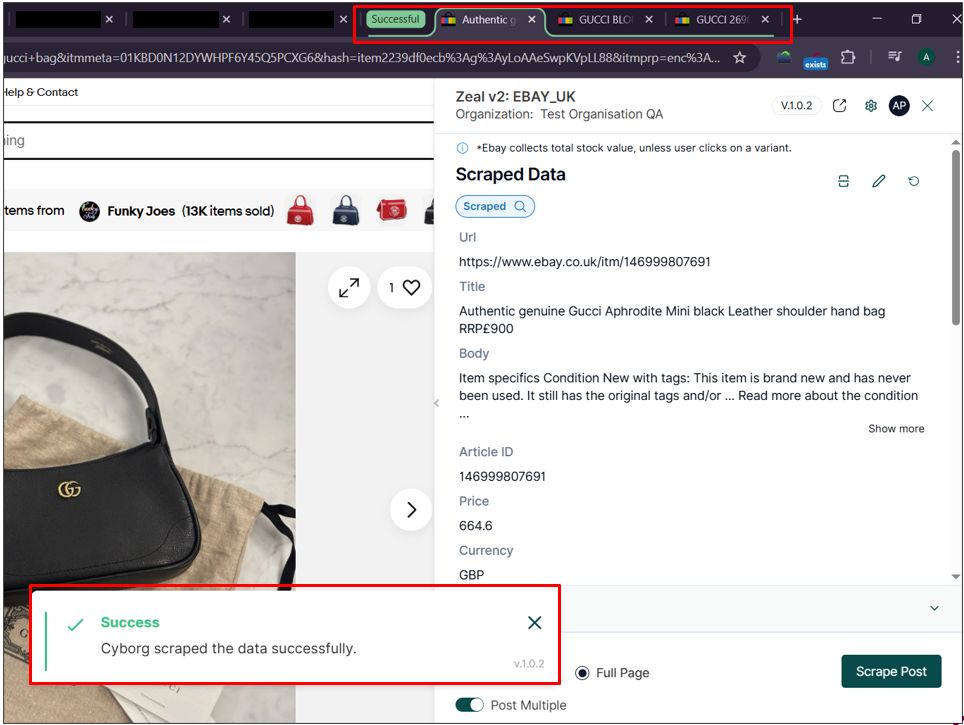
A toaster notification will show up at the bottom of the page once all listings have been successfully scraped:
Open a listing from ebay.co.uk
Click the Cyborg Icon to open the side panel
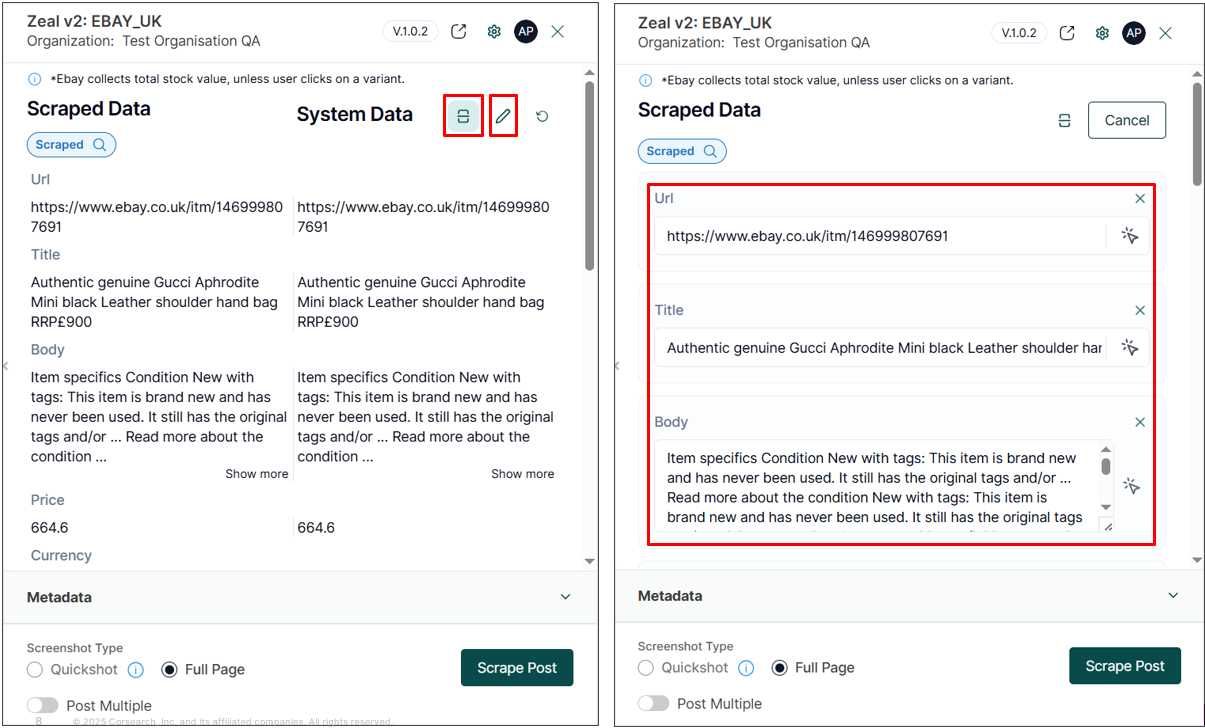
If a listing has already been scraped, it will show Scraped in the side panel (and will also display “exists” in the Cyborg extension icon):
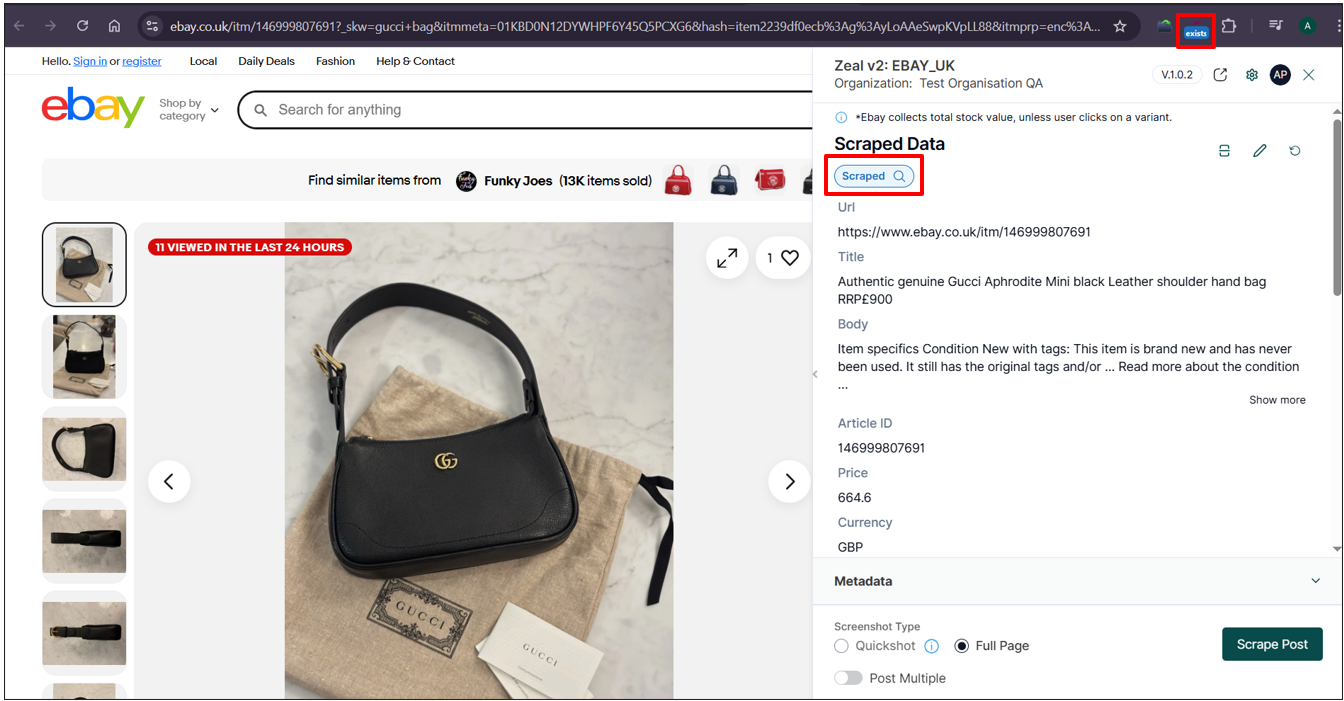
Note: Users can click System Data tab to see what information has already been scraped into Zeal 2. Users can also click the pencil icon to edit the scraped information:
Click Scrape Post
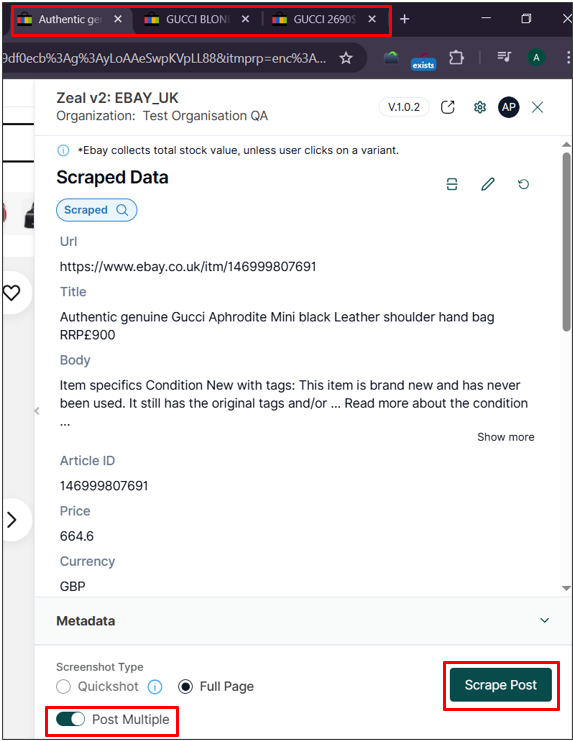
Users can also open multiple listings into separate tabs to be scraped in sequence. To do this, make sure to toggle Post Multiple: ON and click Scrape Post:
Cyborg will open each listing one by one to scrape it. Please avoid using Google Chrome during this process to prevent crashes or interruptions.
If all listings are successfully scraped, all the tabs will be grouped together displaying Successful:
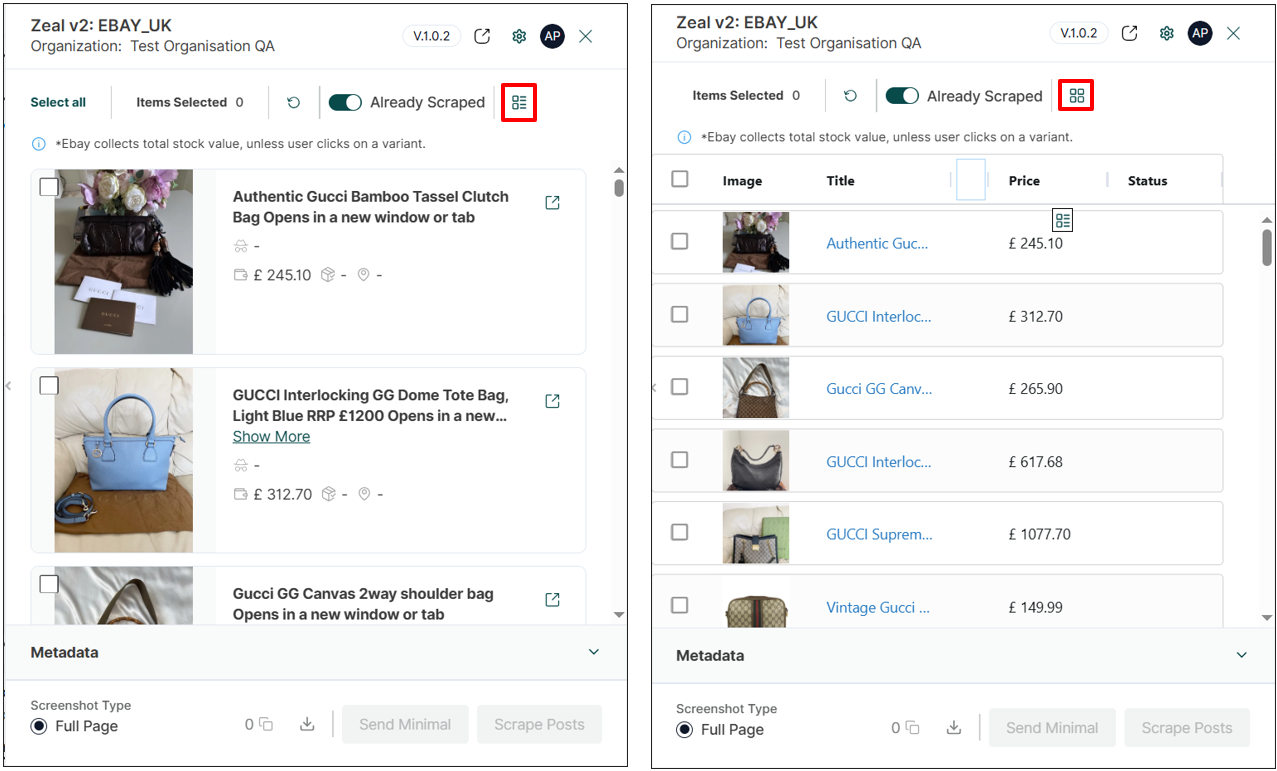
1. Log in to Zeal 2
2. Navigate to the Uploads History section
3. Locate your uploaded item.
It may take anywhere from 5 minutes to a few hours to appear, depending on the current upload queue.
4. Identify uploads sourced through Cyborg.
Items scraped via Cyborg will include the tag seed_source:cyborg.