Summary:
• Re-Enforce Button and Workflow
• On Hold & No Action Workflow
• Using the On Hold Button to Move Notices from In Progress to Processed
• Recipient Details Added to Notices and Notice View
• Default Enforce Option for Website notices
• Retain Post Moderation Settings
• “Accounts” Renamed to “Accounts & Websites”
• Batch Update Button
• Faster Takedown Status Updates
• Apply Button Now Works for Tag Deletions
• Faster Website Filter Loading
• Export Function Added to Settings
• Brand Description & Project Scope Field
• Create New Organization
• Programs UI Improvements
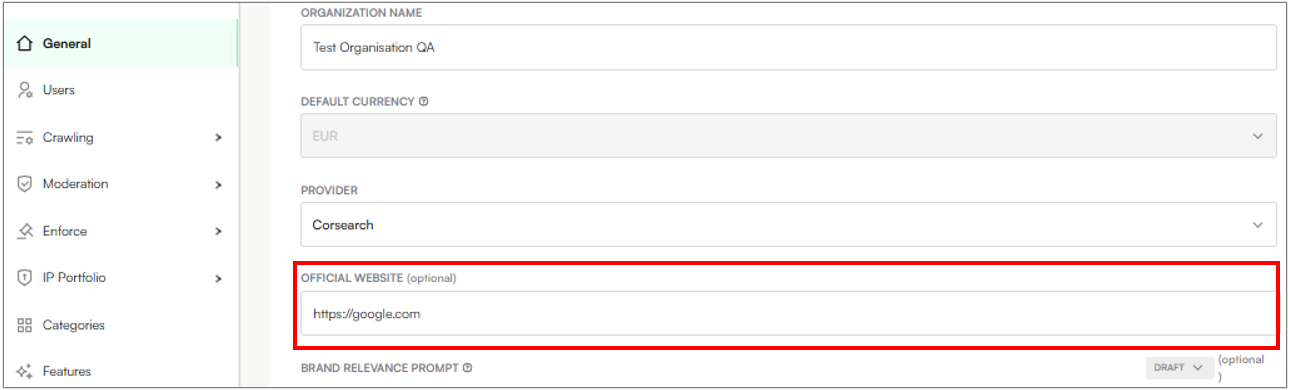
• Website Field in Settings
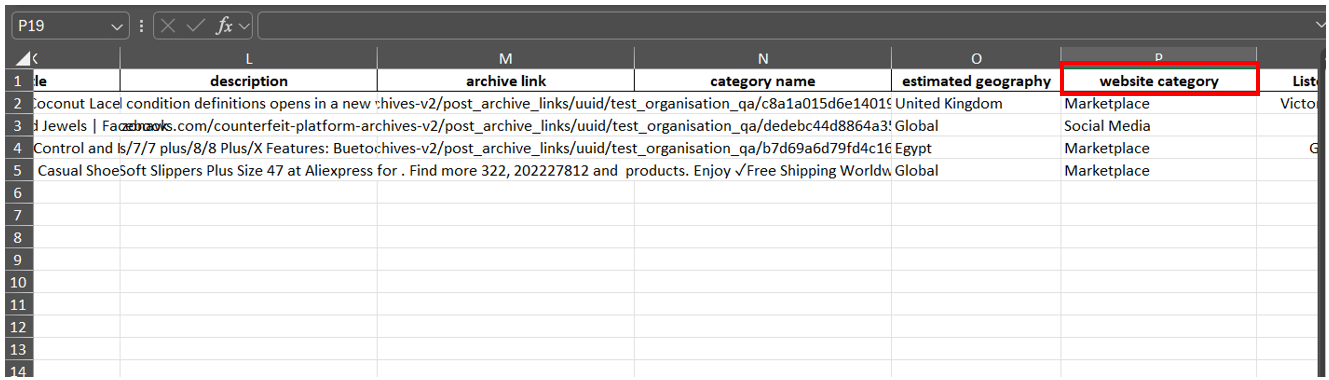
• Website Category Added to Export Files
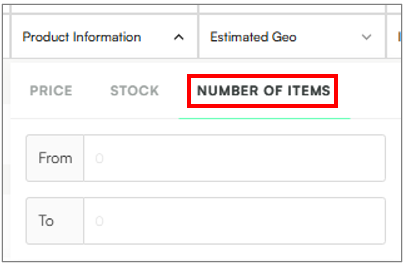
• Number of Items in Bundles Filter
• Multi-Select and Bulk Labelling for Image Features (Task View)
• Delete Features Button in Bulk View (Task View)
🔧 ENFORCEMENT
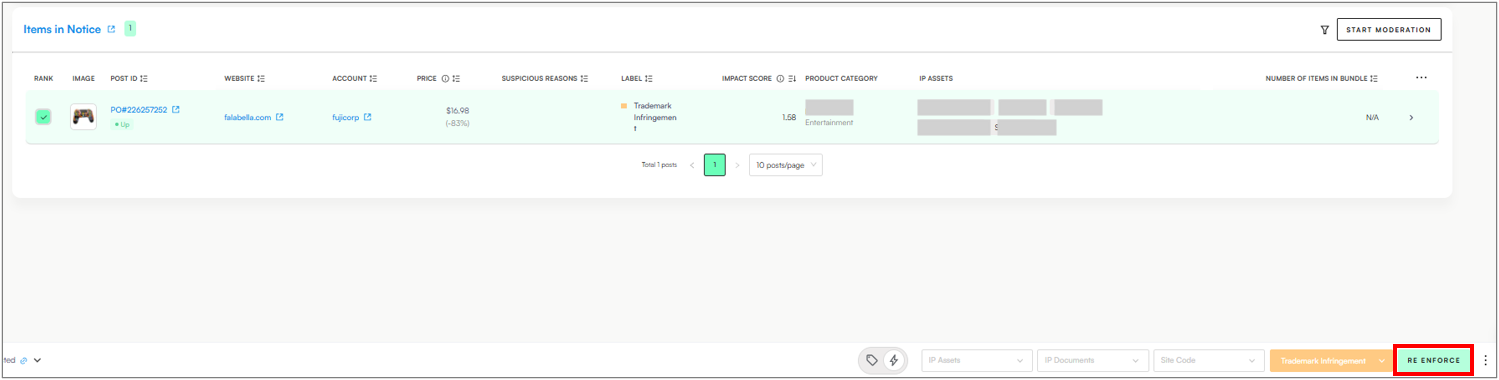
🌀 Re-Enforce Button and Workflow
We’ve made it easier to take repeat action on posts with active Notices.
What’s New:
The Re-Enforce button is now available when a Notice is In Progress or Processed, so you can act again without starting from scratch.
When you re-enforce, a new draft Notice is created automatically, and the previous one is moved to Processed.
The Status Bar now focuses only on the most recent updates (like Notice queued or Notice sent).
Older actions such as “Added to Notice by…” are no longer shown during re-enforcement to reduce clutter.
⏸️ New: On Hold & No Action Workflow
We’ve improved how users manage posts and notices that don’t require immediate enforcement — ensuring clearer reporting and smoother monthly processing.
What’s New:
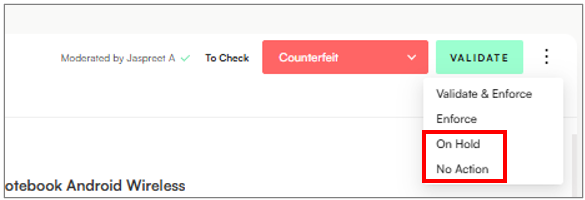
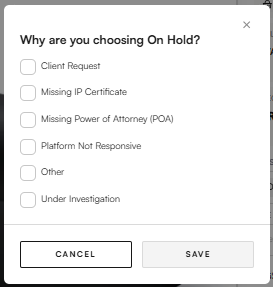
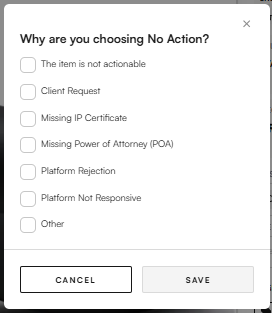
When marking a post as On Hold or No Action, users will now be prompted to select a reason, including an “Other” option with space to explain their choice.
These actions now appear in both the Status Bar and Logs.
The On Hold and No Action buttons are available after moderation for all items — except those already Enforced.
All standard moderation actions remain accessible while an item is On Hold or No Action.
How It Works in the Notice View:
Queue:
Users can select items from draft Notices and mark them as On Hold or No Action directly from the footer.
Once marked, those items are removed from the pending Notice.
Any remaining items that meet the criteria will automatically move to In Progress.
In Progress:
Users can still apply On Hold or No Action to items that haven’t been sent yet.
If some items are marked, the rest continue through the usual workflow.
If all items in a batch are marked On Hold or No Action, the batch automatically moves to Processed.
Note: Once an item has been sent or processed, On Hold and No Action can no longer be applied.
Using the On Hold Button to Move Notices from In Progress to Processed
To keep monthly reporting accurate, the On Hold function can move entire Notices from In Progress to Processed — even if some listings are still live.
How It Works:
When closing out Notices at month-end, mark all posts within that notice as:
Status: On Hold
Reason: Other → “End of the month”
• This automatically moves the Notice from In Progress to Processed.
• Once in Processed, users can still re-enforce any listings that remain online.
✅ Keeps reporting clean while allowing ongoing enforcement.
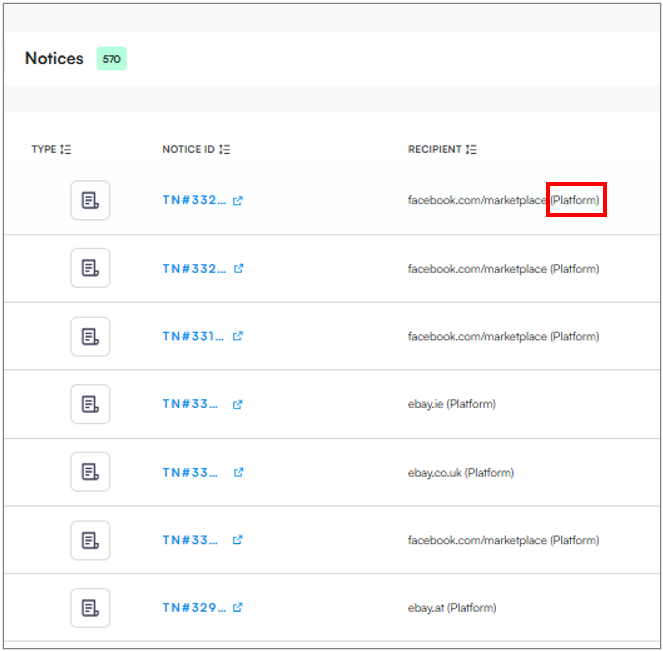
👁️ New: Recipient Details Added to Notices and Takedown Feeds
We’ve added recipient details for better visibility in the Notice View.
What’s New:
A new Recipient column appears in Takedown Feeds (after Website) and in Related Notices.
Each notice now includes:
Recipient Name: (e.g., eBay, AliExpress, Google)
Recipient Type: (e.g., Platform, Account, Registrant, Registrar, CDN, Host)
• If unavailable, the system shows N/A (Registrant).
• Recipient Names automatically match their Types — for example, Post View items are tagged as Platform.
Additional Updates:
Notice Details View: Recipient fields added (read-only).
Email View / Webform/API: Fields added for consistency.
🌐 New: Default Enforce Option for Website Takedowns
We’ve added a default Enforce option to simplify website takedown workflows.
What’s New:
The Enforce button automatically creates a Draft Notice to the default registrant.
Related posts are included automatically.
Existing permissions and checks remain the same.
Status Bar and Logs now display who triggered the enforcement, the entity type, and all related actions.
Notes:
• Default action = Enforce to default registrant.
• Future updates may change defaults based on label settings.
🎨 UX
⚙ New: Retain Post Moderation Settings
You can now move between posts without losing your settings.
What’s New:
Currency selection is retained between posts.
The system remembers whether you’re viewing the translated or original description.
Your active tab (Details or Review) stays selected.
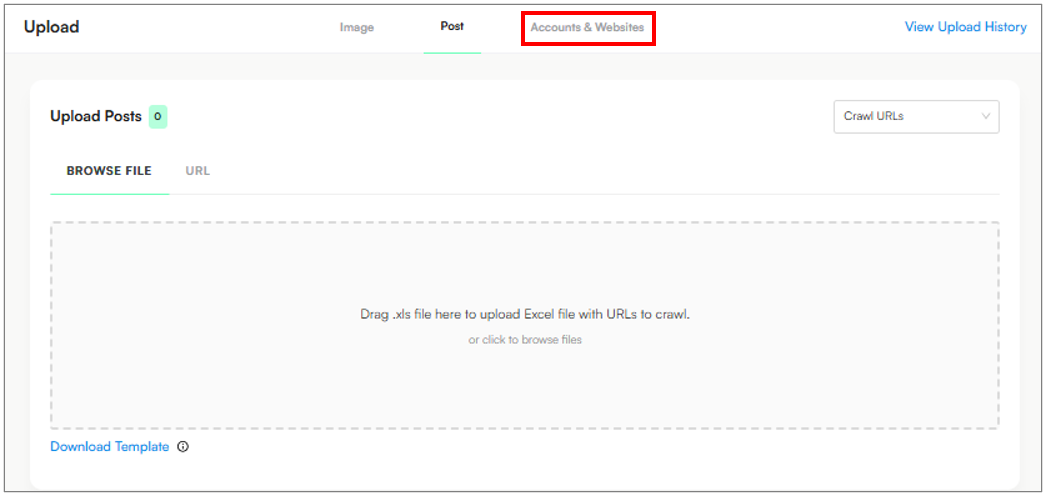
🗂️ Update: “Accounts” Renamed to “Accounts & Websites”
The Accounts section on the Uploads page has been renamed to Accounts & Websites to reflect both upload types.
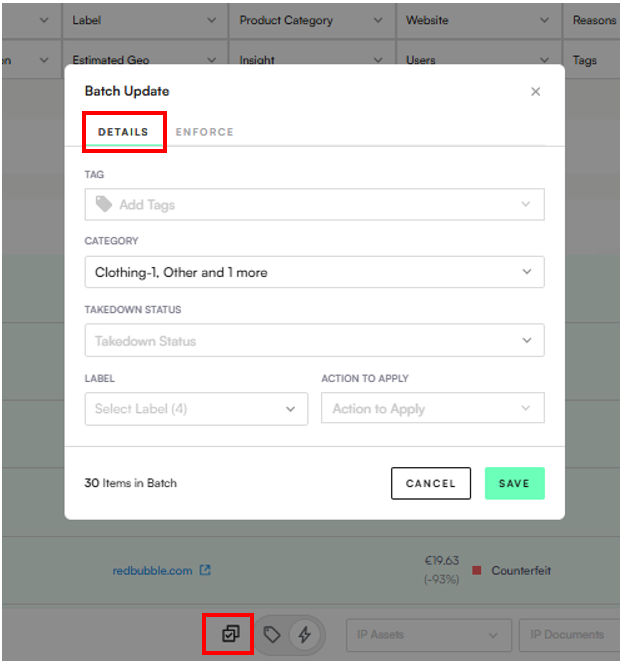
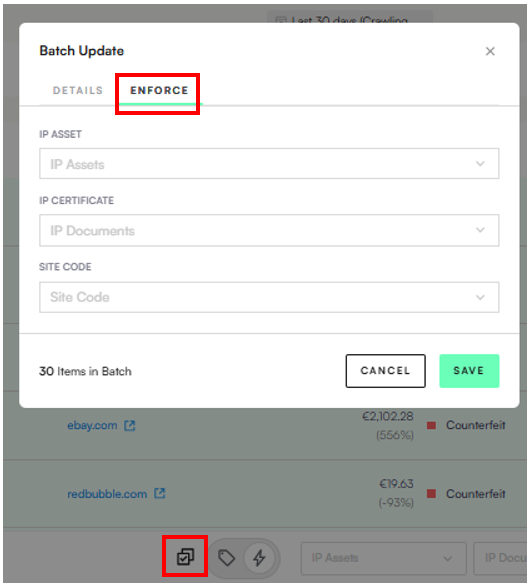
⚡ New: Batch Update Button
You can now edit and act on up to 500 items at once with the new Batch Update feature.
Available Fields:
Tag • Takedown Status • Category • IP Asset • IP Certificate • Site Code • Label • Brand • Actions (Check, Validate, Enforce, On Hold, No Action) → Divided into two separate tabs: Details & Enforce.
Workflow:
Open Batch Update from the footer
Select fields to update
Add a label if needed
Apply with Save and/or perform an Action
⚙️ Fix: Faster Takedown Status Updates
Takedown status now updates instantly — no more multiple clicks!
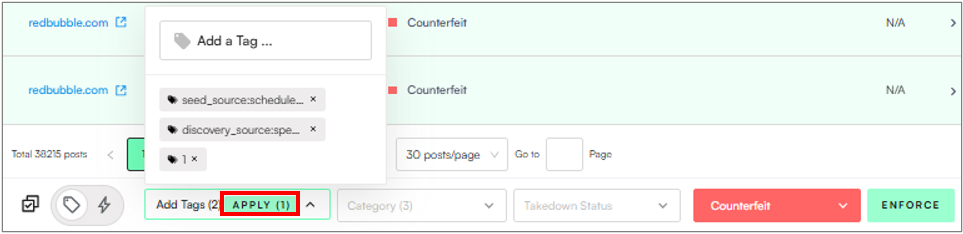
🏷️ Fix: Apply Button Now Works for Tag Deletions
The Apply button now appears when removing tags, so you can add or delete multiple tags before confirming in one go.
🔍 Improvement: Faster Website Filter Loading
The Website Filter now loads faster — especially for top platforms like Amazon. Common domains are selectable instantly.
📤 New: Export Function Added to Settings
You can now export configuration data directly from Settings.
What’s New:
Export Keywords & Hashtags, Users, and Domains as CSV files.
Download and share configuration data instantly.
⚙️ SETTINGS
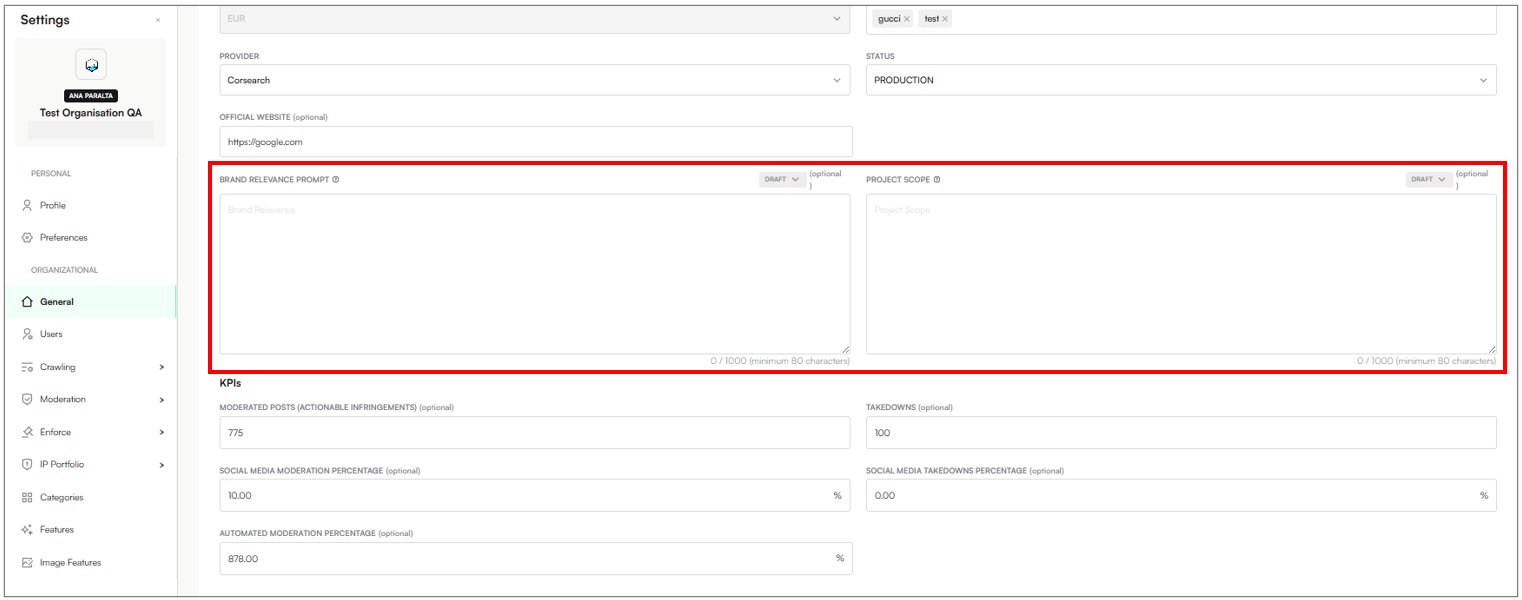
📝 New: Project Scope Field
Define and manage Brand Description & Project Scope directly in Zeal Settings for better clarity and control on the brand protection focus.
What’s New:
Set the Brand Description field with details identifying the brand.
Set the Project Scope field for brand monitoring focus areas.
Update Status from Draft → Submitted (default Draft).
Admins can move Submitted → Validated.
Input validation: 80–1,000 characters.
Hover tips explain field purpose and show who last updated it.
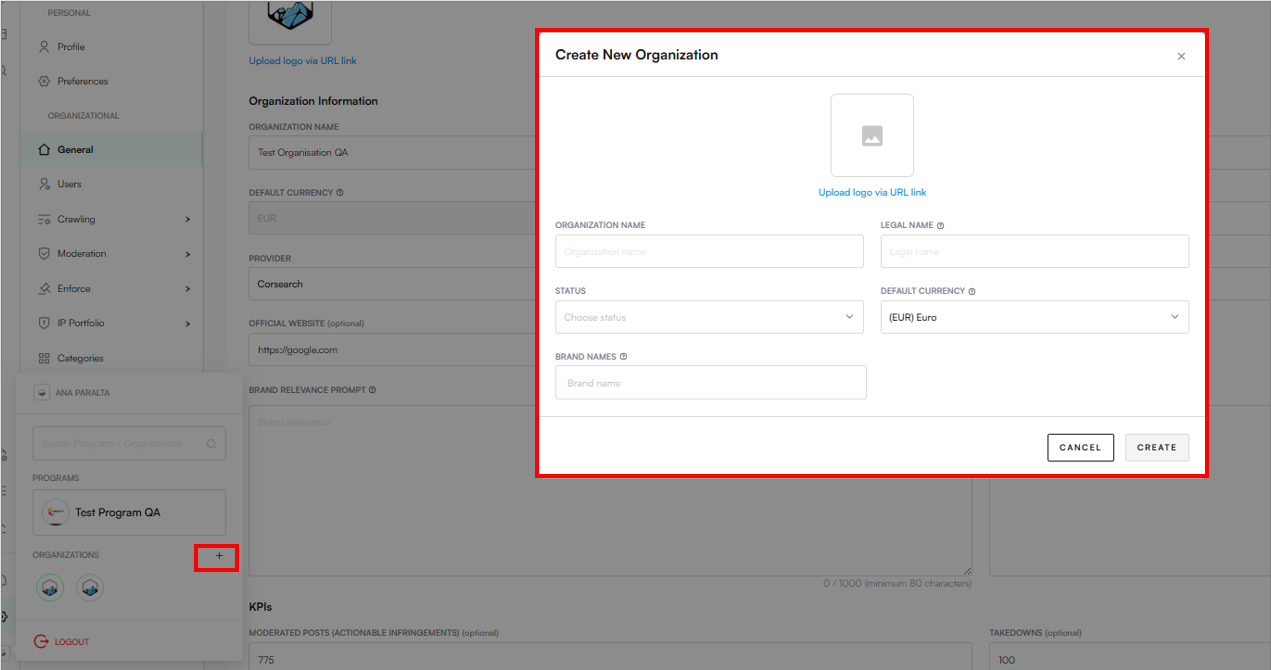
🏢 New: Create New Organization
Users can now create new organizations under a Program by clicking the + icon:
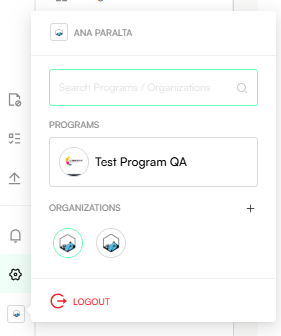
💡 Fix: Programs UI Improvements
• Adjusted login layout — no more top-edge overlap.
• Program tiles are now fully clickable.
• Selected Programs display only current organizations by default.
• Search to view all available organizations.
🌍 New: Website Field in Settings
A new Official Website field is now available under Settings → General.
Why this matters:
Many platforms require an official website in enforcement notices.
Enables automatic inclusion where needed.
📊 DATA
🗃️ New: Website Category Added to Export Files
Exports for Posts, Accounts, and Websites now include Website Category for clearer analysis.
🎁 New: Number of Items in Bundles Filter
You can now filter listings by how many items or products are included in a bundle, using the Product Information filter:
🖼️ New: Multi-Select and Bulk Labelling for Image Features (Task View)
• Select and label multiple images at once.
• Bulk actions managed via the Footer.
• The Side Panel switches to Preview Mode when multi-selecting.
• Visual indicators show selected items clearly.
🗑️ Update: Delete Features Button in Bulk View (Task View)
The Delete Features (trash bin) button now appears in bulk view under Features mode, making it consistent with single-view.
