You can manually create and label new image features in Zeal 2; however, custom features will not be automatically detected unless the AI model has been trained on those visuals.
Simply adding a label in the system does not trigger detection — training is required for the feature to appear automatically in results and be usable in auto-moderation rules.
Please reach out to your Account Manager to get this setup first.
Image Feature Detections allow you to tag and describe visual elements that appear in listings, posts, or product images. These detections can then be used in auto-moderation rules — for example, to automatically flag listings that show counterfeit packaging or unauthorized variants.
Navigate to Settings > Image Features
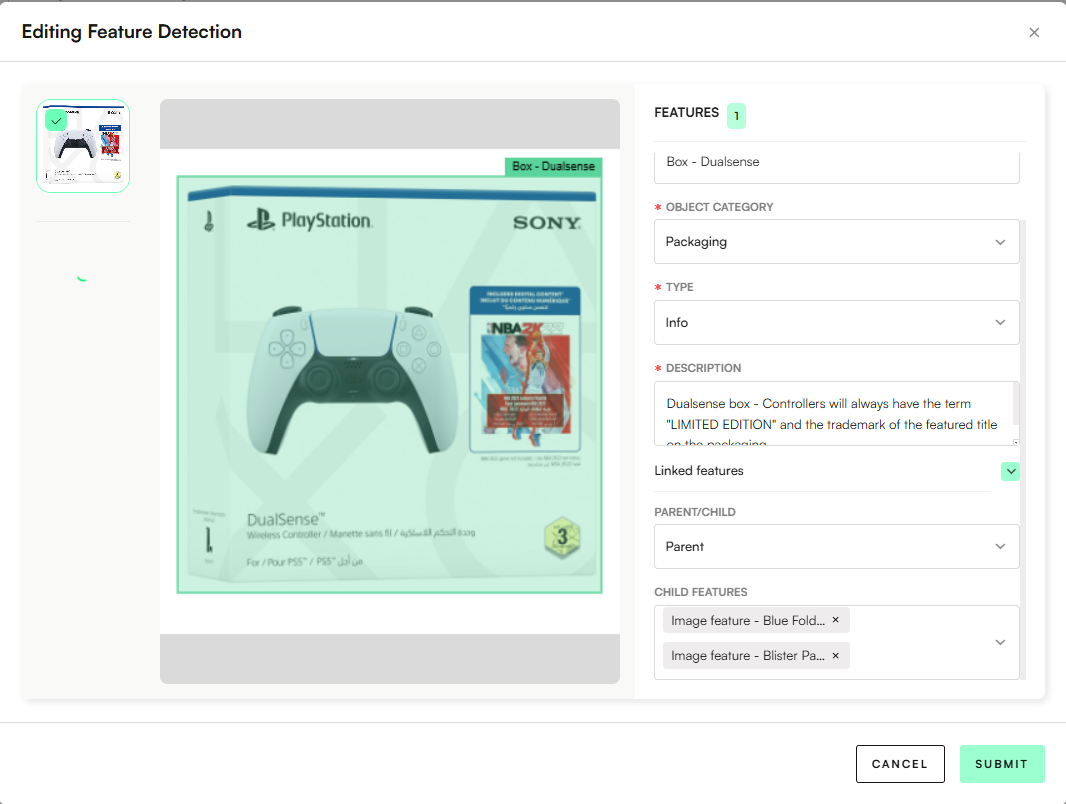
Using the DualSense controller box as an example:
Upload a reference image
Choose a clear image that represents the visual feature you want to detect (e.g., the official DualSense box).
This image helps the detection model learn what to look for.
Define the feature name
Example: Box - DualSense
Use a descriptive, consistent naming convention (e.g., Box - [Product Name], Logo - [Brand], Tag - [Type]).
Select the Object Category
Choose the correct visual category for what you’re defining.
Example: Packaging (since the box is part of the product’s packaging).
Select the Type
Choose how the feature should be treated:
The Type determines how the system interprets this visual cue in moderation.
Info → For neutral or reference visuals (e.g., official packaging, standard logos).
Logo → For any recognizable brand or trademark image.
Suspicious Feature → For elements that might indicate an issue (e.g., low-quality box print, missing label).
Highly Suspicious → For strong indicators of infringement or counterfeiting, but not definitive.
Obvious Counterfeit → For features that clearly identify a fake product (e.g., “PlayStation” misspelled, wrong color scheme).
Example: Info (this is an authentic packaging reference).
Add a Description
Briefly explain what the detection represents and any visual cues to recognize it.
Example:
“DualSense box — Controllers will always have the term ‘LIMITED EDITION’ and the trademark of the featured title on the packaging.”
Link Related Features (Parent/Child relationship)
Use this to group related detections.
Example:
Parent: Box - DualSense
Child: Image feature – Blister Packaging – Cheap
This structure lets auto-moderation rules compare expected features (authentic packaging) against known risky ones (e.g., cheap blister packaging).
Submit and Test
Click Submit to save the configuration.
Once saved, this feature can be selected in auto-moderation rules (for example, “If image shows Blister Packaging – Cheap and not Box – DualSense, flag as potential counterfeit”).
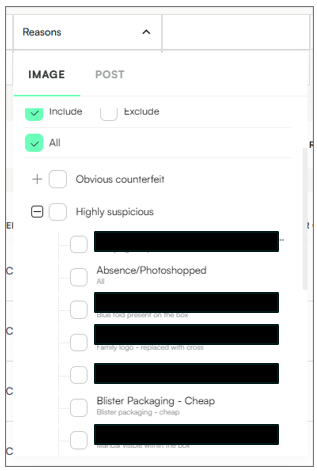
Once configured, users can filter for these image reasons in the Reasons filter across all views:
Keep feature names short and consistent.
Always include a clear visual reference.
Use parent-child links to reflect authenticity hierarchies (e.g., “Official box” → “Fake box variant”).
Add detailed descriptions — these help others understand what the system is detecting and why.
