Programs are the top-level container.
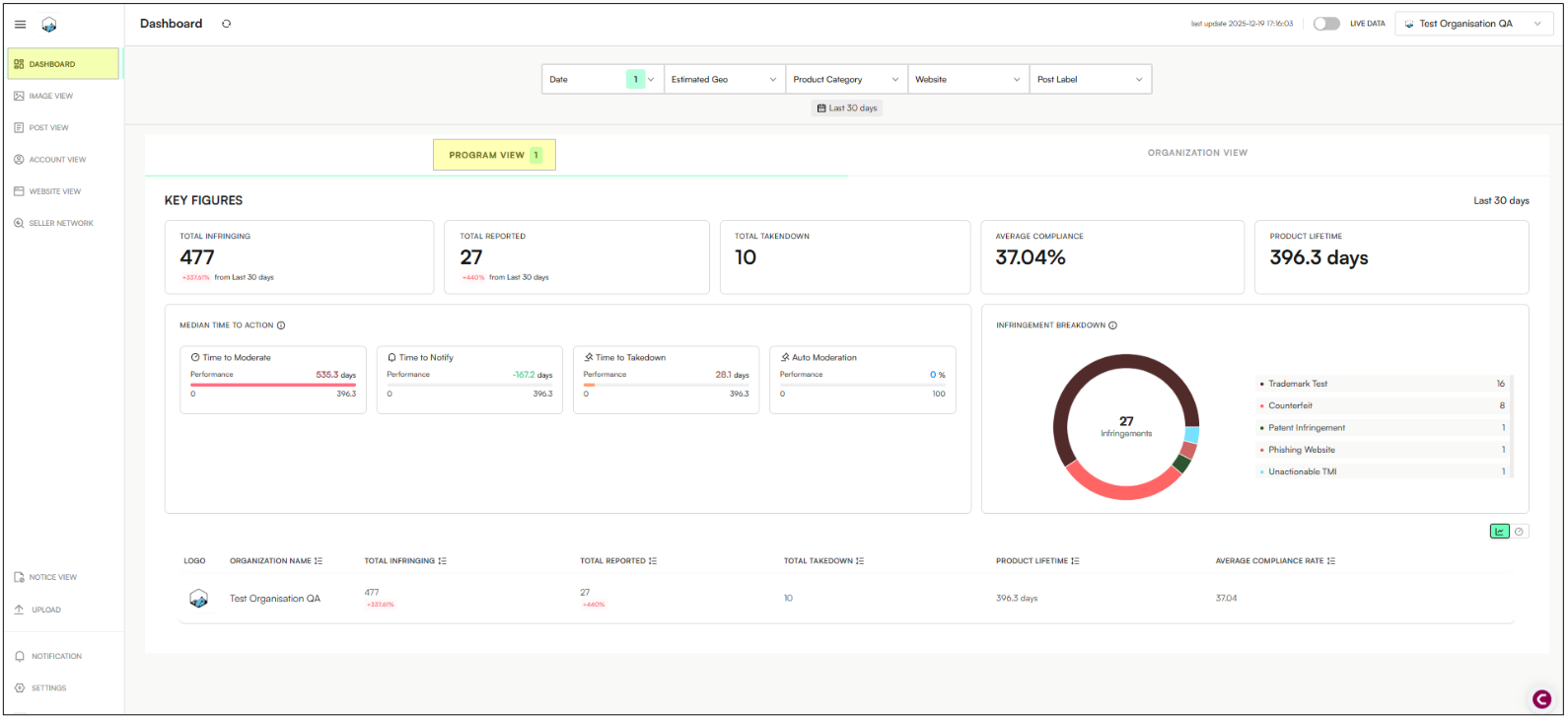
They group multiple organizations under a single umbrella to simplify management and reporting — especially for clients handling multiple brands.
A Program:
Acts as a portfolio or master workspace
Provides a program-level dashboard with a consolidated view across all included organizations
Makes it easy to switch between related brands and maintain high-level oversight
Users can:
View centralized dashboards that consolidate activity and insights across multiple organizations
Apply shared filters consistently across brands for faster, more uniform analysis
Generate cross-organization exports to support consolidated reporting and decision-making
Organizations are brand-specific workspaces.
Each organization typically represents a single brand or legal entity.
An Organization:
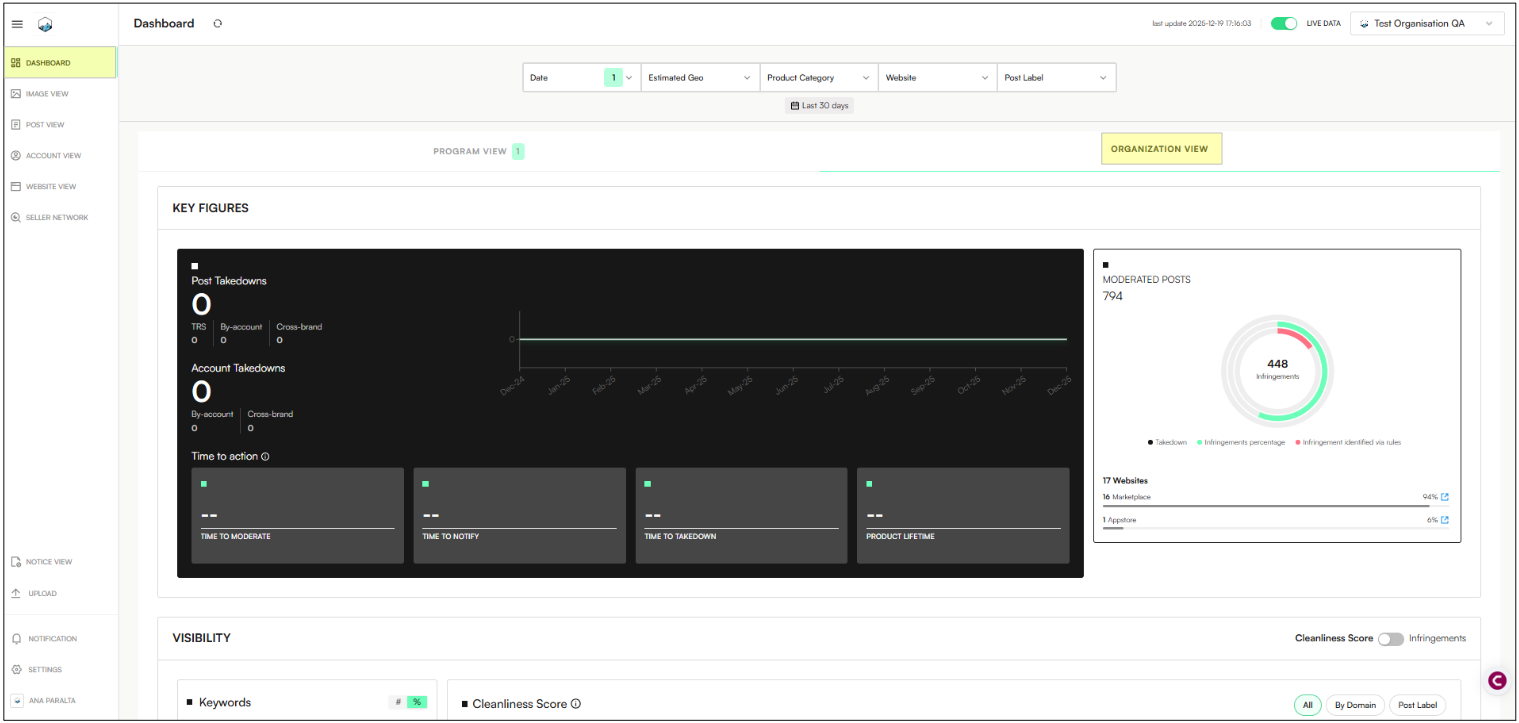
Has its own dedicated dashboard, similar in structure to a program dashboard
Is focused only on that one organization, showing brand-specific data and activity
Contains the organization’s assets, monitoring setup, results, and workflows
Allows users to work at a granular, brand-by-brand level
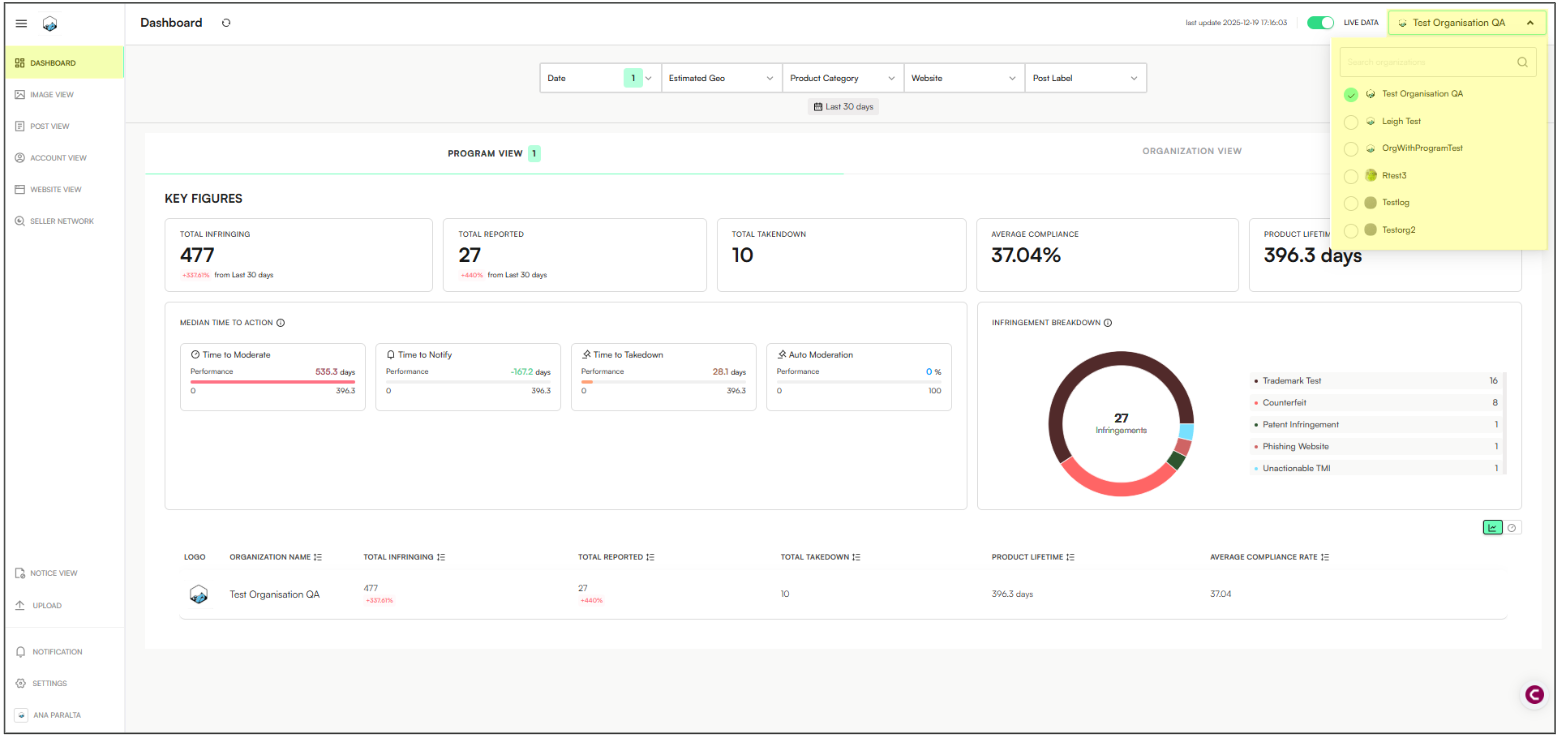
Go to Dashboards
Click the Organization dropdown menu
Select any organization under your program
You can also use the search bar to directly search for any organization across the program.
Note: If an organization you expect to see isn’t visible within a program, it usually means one of the following:
You don’t have access to that organization, or
The organization hasn’t been created or linked to any program yet.
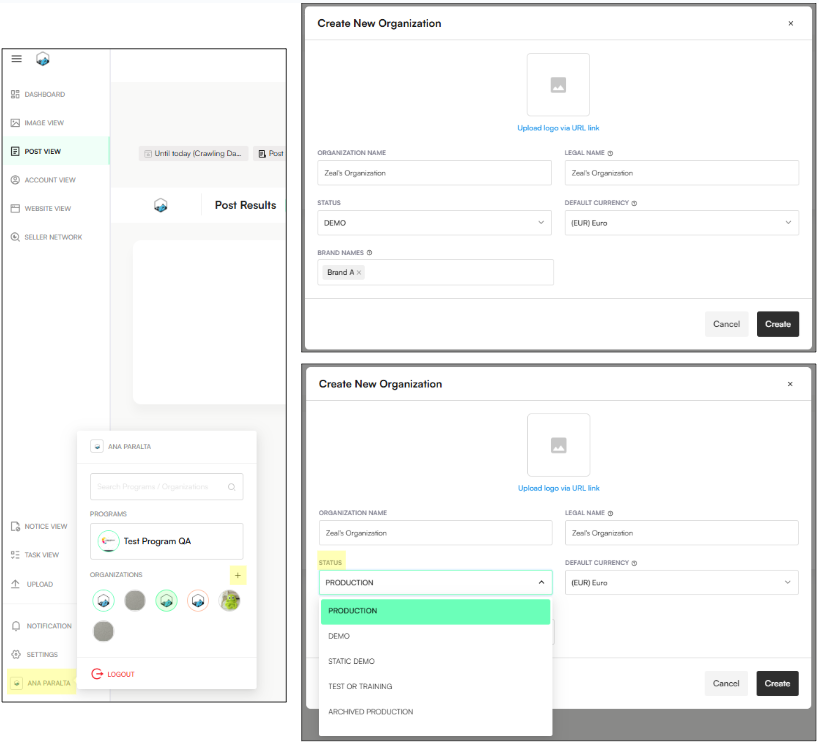
Click on your User Name
Click the + icon
Fill in all the fields from the Create New Organization window
Click Create
The Status dropdown controls the current state of the organization. To make the organization live, select Production.
Note: You can also choose other statuses—such as Demo, Training, or Onboarding—depending on how the organization is being used.
Users can create a filter once and reuse it across all organizations in the program.
Open Post View in any organization
Select the filters you want to save (such as labels, website or estimated geo)
Click Search
Click Saved Filters → Save new filter

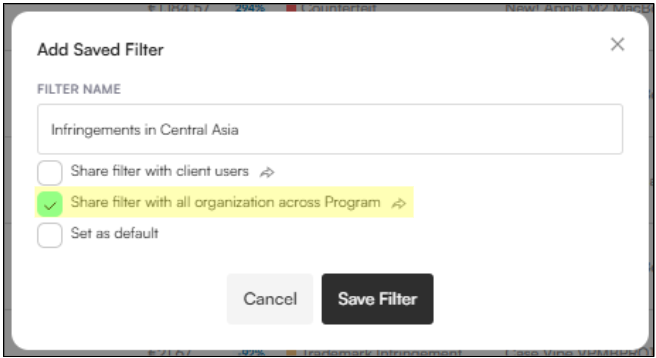
Name your filter (e.g: Infringements in Central Asia)
Select Share filters with all organizations across Program
Click Save Filter
Navigate to Post View
Apply your filters
Click Export Posts
Click the Include data from organizations dropdown menu
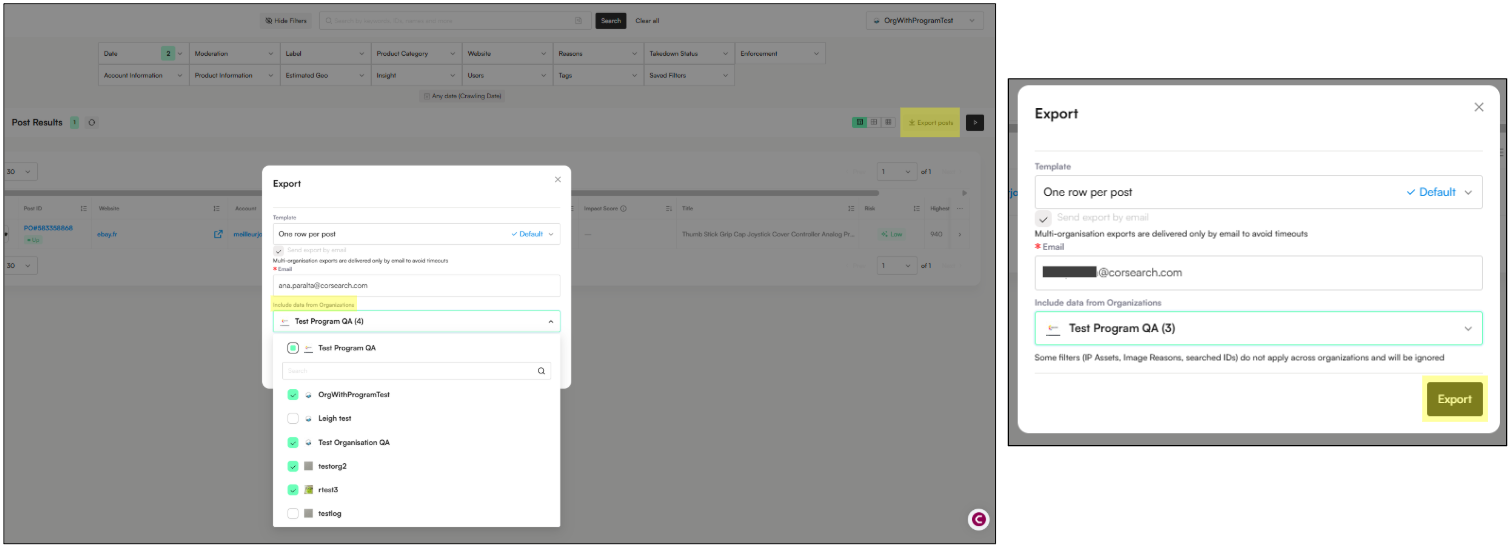
Select all the organizations you wish to export data from
Click Export
